Alt Text for Screenshots and Infographics in WordPress
Screenshots and infographics need alt text that describes the data shown. Here's how to write it, and where a short alt attribute isn't enough.
Most alt text advice is written for product photos and hero images, where "a red ceramic mug on a wooden table" genuinely describes what's there. Screenshots and infographics break that advice, because the thing worth describing isn't what the image looks like — it's what it says. "Screenshot of the WordPress dashboard" tells a screen reader user nothing they couldn't already guess from the surrounding paragraph, and it tells Google Images even less about why that specific image is useful to anyone searching.
Tutorial posts, documentation pages, and SaaS blogs are full of this problem, because they're full of screenshots and charts. A how-to post with eight numbered steps and eight accompanying screenshots usually has eight nearly identical alt attributes — "step 1 screenshot", "step 2 screenshot" — which pass a basic "does every image have alt text" audit while failing at the one thing alt text is supposed to do.
Why "screenshot of X" fails as alt text
Alt text exists to answer one question: what would a sighted reader get from looking at this image that a non-sighted reader, or a search crawler, wouldn't otherwise have? A label that just restates the image's type — screenshot, chart, graph, diagram — answers a different question (what kind of file is this) instead of the one that matters (what does it show).
This matters for two separate audiences at once:
- Screen reader users hear the alt text read aloud in place of the image. "Screenshot of settings page" gives them nothing to act on if the surrounding text says "click the highlighted toggle" — highlighted where, labelled what? The description is doing none of the work the image was doing visually.
- Search engines index alt text as one of the few signals they have about an image's actual content, since they can't read pixels the way a person can. A chart alt-texted as "chart" competes for Google Images traffic against every other image on the web also alt-texted as "chart". A chart alt-texted with the actual metric it shows has a chance of surfacing for someone searching that specific data point.
Both failures come from the same shortcut: describing the image as an object instead of describing its content.
What a screenshot's alt text actually needs to say
A useful screenshot alt text names the specific UI state or action the image captures, not the fact that it's a screenshot at all. "WordPress Media Library filtered to show images missing alt text" tells a screen reader user what's on screen and tells Google Images what the picture is actually of. "Screenshot of Media Library" tells neither.
The same logic applies to annotated screenshots with arrows, circles, or highlighted buttons. If the image's whole point is "click the button in the red box", the alt text needs to say what's in the red box — "Save Changes button highlighted at the bottom of the settings panel" — because a screen reader user can't see the red box, and neither can an image search crawler.
Infographics need a different fix, not just a longer version of the same fix
An infographic's problem is usually scale, not vagueness. A single alt attribute has practical limits — screen readers start struggling to usefully convey anything much past roughly 150 characters, and an infographic summarising five statistics and a trend line genuinely can't fit into one sentence without becoming meaningless ("statistics about WordPress usage"). Writing a longer and longer alt attribute to compensate doesn't fix this; it just produces a wall of text a screen reader reads in one unbroken block with no way to skip to the part the listener actually wants.
The fix most accessibility guidance converges on is splitting the job in two: a short alt attribute that identifies the infographic's topic (so it's not skipped or confusing in context), paired with the same information presented as real, readable text somewhere on the page — a caption underneath, a short summary paragraph before or after the image, or a <details> element a reader can expand. The text version carries the actual data; the alt attribute just flags what it's a chart of, so nobody loses the information entirely because it was trapped inside a PNG.
How to write usable alt text for screenshots and infographics
- Name the state, not the format. Before writing anything, finish the sentence "this image shows…" with the specific content, not the word "screenshot" or "infographic". If your first draft starts with either of those words, delete it and start again.
- Include the specific number, label, or button text that matters. "Conversion rate chart showing a rise from 2.1% to 3.4%" beats "conversion rate chart" because it survives even if the image never loads.
- For multi-step tutorials, make each alt attribute distinct. If step 3's alt text could be copy-pasted onto step 7 without anyone noticing, it isn't describing step 3's actual screen — it's describing "a screenshot in general".
- For data-heavy infographics, write the data as real text too. Put the key figures in a caption or a short paragraph near the image, not only inside the alt attribute. Treat the alt text as a label, and the surrounding text as the actual content.
- Check the rendered alt attribute, not just the Media Library field. Some page builders and gallery blocks strip or override the alt text you set when they render the final
<img>tag — right-click the live image and inspect it to confirm what a screen reader or crawler actually receives. - Re-check after editing the screenshot. Cropping, re-annotating, or swapping in an updated UI screenshot changes what's shown without changing the filename — the alt text needs the same update, or it starts describing a screen that no longer exists.
OpptiAI Alt Text drafts a description for every image on upload, screenshots and infographics included, which clears most of this work automatically. The one thing worth the extra ten seconds on a data-heavy image is checking that the suggested description captures the actual number or state shown, not just the general shape of the picture — a vision-based description can get "a bar chart with an upward trend" right while still missing the specific figure that makes it useful to someone who can't see the bars at all.
Frequently asked questions
Does a purely decorative screenshot need alt text at all?
If the screenshot carries no information a reader needs — a stylistic UI flourish repeated purely for visual rhythm, with nothing described or referenced elsewhere on the page — it can use an empty alt="" so screen readers skip it rather than announce something unhelpful. Most screenshots in tutorials and documentation aren't actually decorative in this sense, though: if the surrounding text references "the screen shown below", the image is informative and needs real alt text, not an empty attribute.
How long can alt text be for an infographic with a lot of data?
Keep the alt attribute itself short — identify the topic in a sentence, not the full dataset. Screen reader conventions generally treat anything much past 125–150 characters as a sign the content belongs somewhere else. For an infographic with real data to convey, put that data in visible text near the image (a caption or summary paragraph) rather than stretching the alt attribute to try to hold all of it.
Can I just use the image's filename or caption as its alt text?
A filename like chart-final-v3.png tells a screen reader nothing about the content, so no. A genuinely descriptive caption can sometimes double as reasonable alt text if it describes the image's content rather than just labelling it, but check it reads sensibly out of context — a caption written to sit visually underneath an image doesn't always make sense when read aloud on its own with no image visible at all.
Tutorial and documentation posts tend to be the heaviest users of screenshots and infographics on a WordPress site, and also the ones where generic alt text does the most damage, because the images are doing real explanatory work. OpptiAI Alt Text scans every image on upload and drafts a specific, editable description you approve before it saves, and the free image SEO audit will show you which images across your site are still missing one.
Related Posts
How to Add Alt Text to SVG Images in WordPress
SVG images don't pick up alt text the way JPEGs and PNGs do. Here's why WordPress treats them differently, and how to make SVGs accessible.
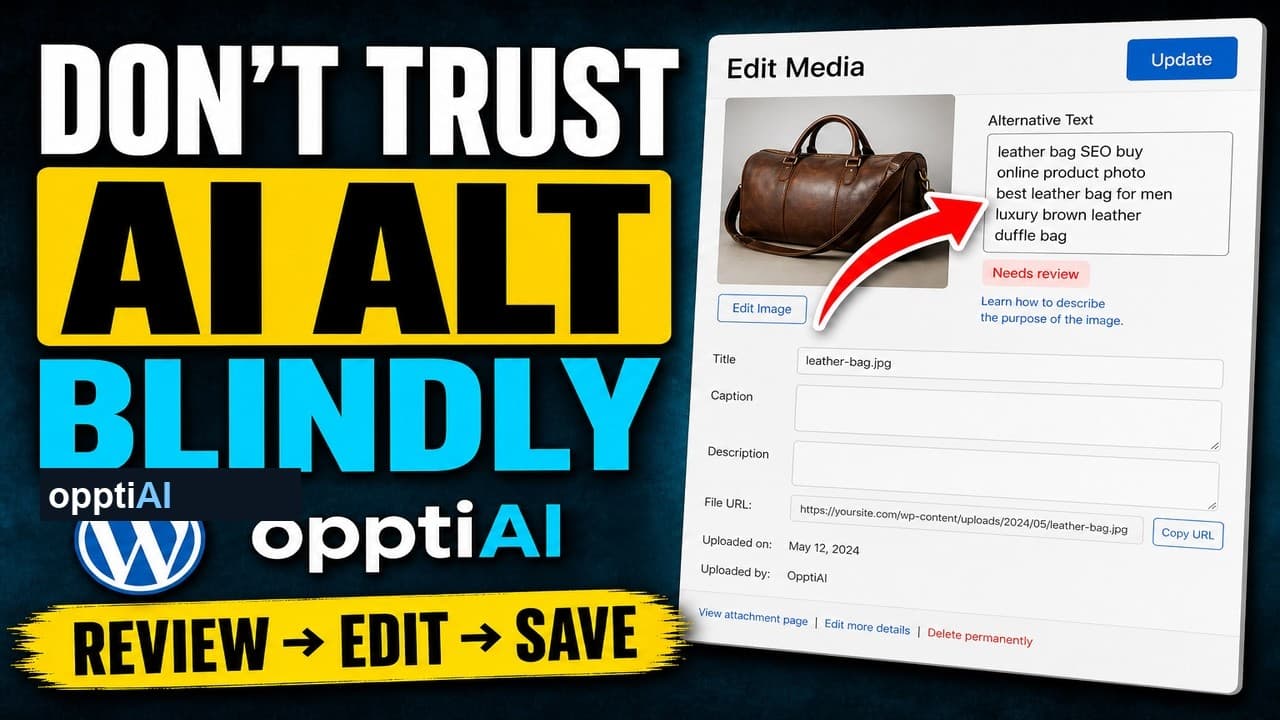
The Four-Point Checklist for Reviewing AI Alt Text
AI alt text fails in a small number of predictable ways. Run this four-point checklist before saving to catch weak, wrong, and keyword-stuffed suggestions.
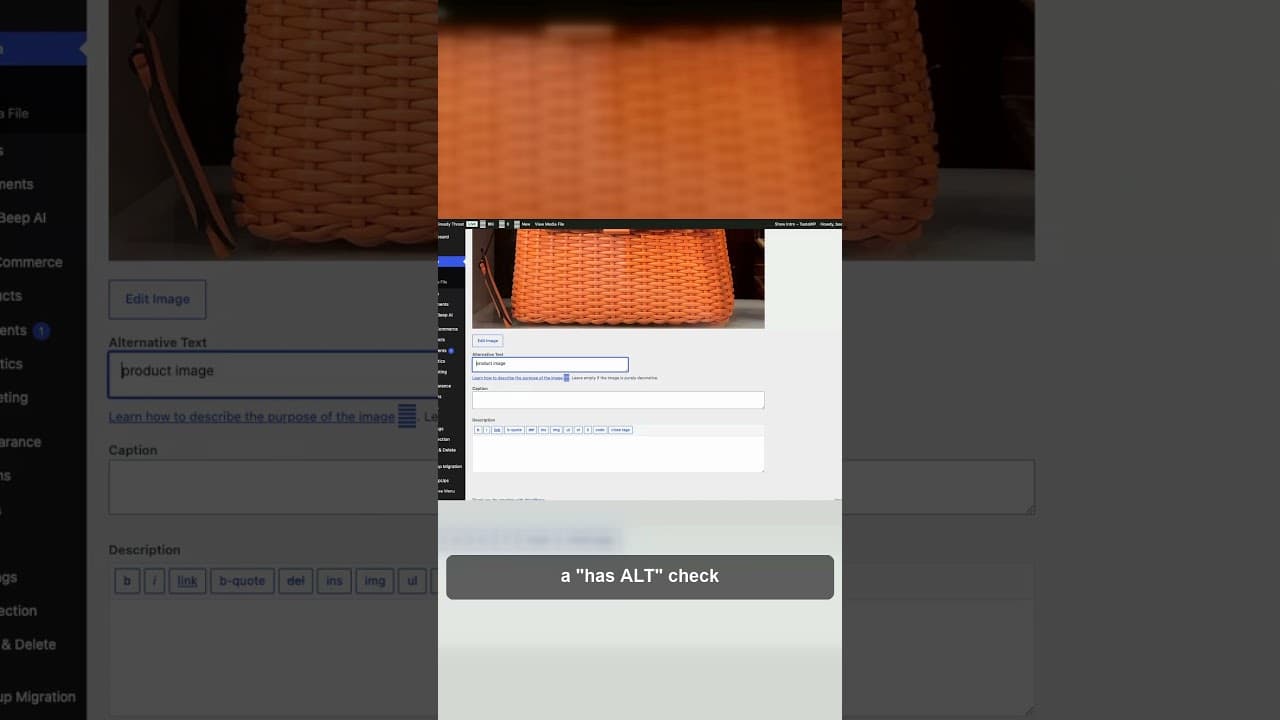
Why Keyword-Stuffed Alt Text Still Fails
A filled alt attribute isn't finished alt text. Keyword-stuffed alt text passes a 'has alt' check and still fails SEO and accessibility.