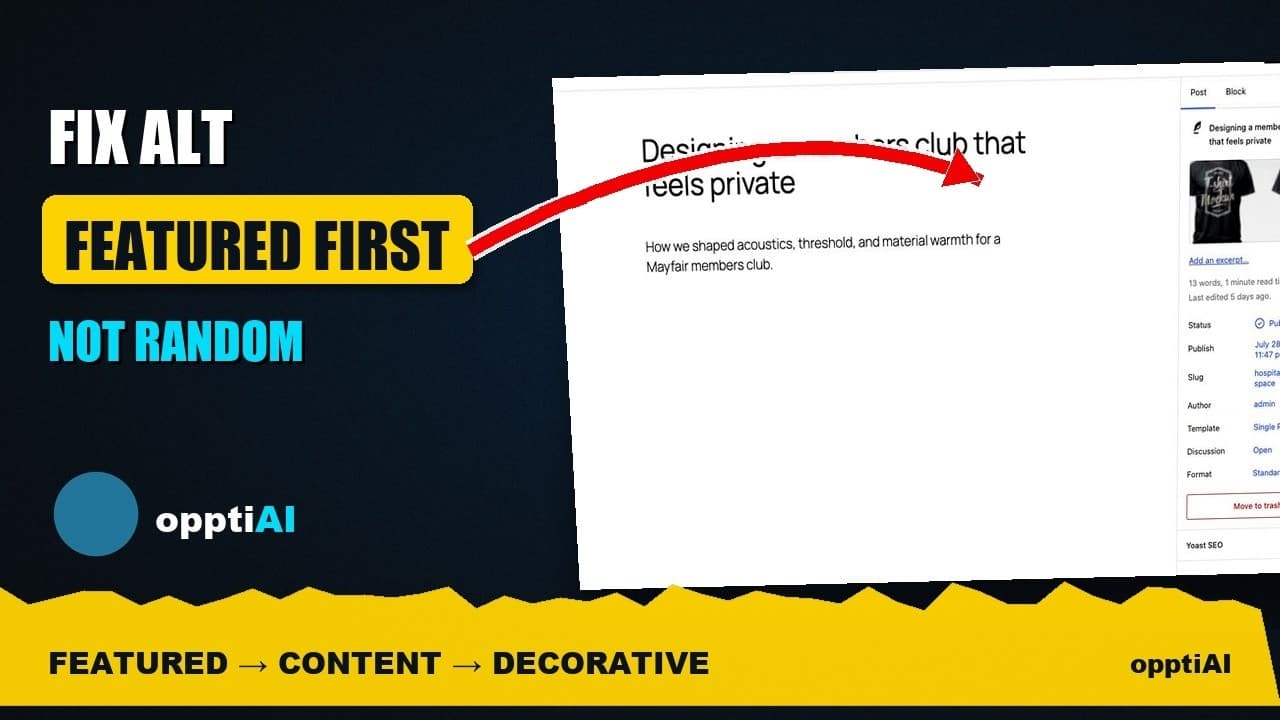
Fix Alt Text in Order: Featured, Products, Content
Not every missing alt text field deserves the same urgency. Here's the priority order that actually moves image SEO: featured, products, content.
A missing alt text scan on any site with real history comes back with a number that looks worse than the actual problem. Three hundred missing tags sounds like three hundred equally urgent fixes, but it isn't — and working through the Media Library top to bottom, in upload order, fixes the wrong images first. The images search engines and screen readers actually encounter most often sit in a predictable order, and that order should decide what you fix first, not the order WordPress happens to list them in.
Here's a short walkthrough of that priority order and why it holds up across most sites.
Why the Media Library's default order is the wrong order
The Media Library sorts by upload date, not by how often an image gets seen. That means a decorative background pattern uploaded three years ago can sit above a product photo that's on every single category page right now. Fixing in upload order spends the same effort on both, when only one of them has any real SEO or accessibility weight.
The images worth fixing first aren't the oldest ones or the newest ones — they're the ones that show up on the most pages, in the most prominent positions, and in the places both Google Image Search and screen reader users actually land.
The priority order: featured, products, content, decorative
1. Featured images. Every post and page's featured image is the one image most likely to appear in search results, social previews, and archive/category listings all at once. One missing alt tag here has outsized reach because the same image renders in multiple contexts across the site.
2. Product images — if you sell anything. Product photos carry direct commercial intent: someone searching Google Images for what you sell is looking at a buying decision, not just browsing. A missing alt tag on a product image is a missed conversion opportunity as much as an SEO gap.
3. Meaningful content images. Diagrams, screenshots, and photos embedded inside the body of a post or page that add information a reader or screen reader user actually needs. These matter, but they're seen by fewer people per image than featured or product images, so they come after.
4. Decorative images. Dividers, background textures, and purely visual flourishes that convey no information. These can wait, or in many cases should stay with an empty alt="" on purpose — screen readers skip an empty alt attribute cleanly, while a missing one can get announced as the filename, which is worse than nothing.
A practical walkthrough: triaging a real backlog
- Open the dashboard and sort by priority, not by date. In OpptiAI Alt Text, the dashboard surfaces featured images and product images ahead of general content images by default — that ordering already reflects the hierarchy above.
- Check the featured image field directly in the post/page editor first. It's a single field per post, so clearing it across your most-visited pages is usually a fast win before touching the Media Library at all.
- Move to product images next, if the site sells anything. Filter by product category if the catalogue is large, so you can finish a coherent batch rather than jumping around.
- Use the ALT Library's "Needs ALT" filter to pull the remaining content images, sorted by where they appear, and generate in a batch you can actually review — twenty to fifty at a time, not everything at once.
- Decide on decorative images deliberately, rather than leaving them simply unaddressed. Either confirm they're genuinely decorative and leave the alt attribute empty, or reclassify them if they actually carry information you missed.
- Spot-check the generated text before saving, especially on product and featured images — these are the ones most likely to be seen, so they're the ones most worth a second look.
Frequently asked questions
Should I fix every missing alt text tag, or is it fine to leave some empty?
It's fine, and often correct, to leave decorative images with an empty alt attribute on purpose. An empty alt="" tells screen readers to skip the image silently, which is the right behaviour for a background texture or a purely visual divider. The problem isn't empty alt text — it's alt text that's missing entirely, which some screen readers and browsers handle by announcing the filename instead, or by skipping inconsistently depending on the context.
Why do featured images matter more than other content images for alt text?
A featured image typically renders in several places at once — the post or page itself, category and archive listings, search result previews, and social share cards — so one missing tag has more surface area than a single image embedded once in a post body. Fixing featured images first clears the highest-reach gaps with the least effort, which is why most prioritisation workflows, including OpptiAI's dashboard, surface them ahead of general content images.
How do I find which images on my WordPress site are featured images versus content images?
The clearest way is through a tool that classifies images by role when it scans, rather than manually checking each post. OpptiAI Alt Text's dashboard separates featured images, product images, and content images into their own priority buckets automatically, and the ALT Library's filters let you view each category on its own rather than scrolling through every image on the site in one undifferentiated list.
Fix the images that actually matter first
Triaging by where an image actually appears — rather than when it was uploaded — turns an overwhelming missing-alt-text count into a short, high-impact first batch. Try OpptiAI Alt Text free to see your own images sorted into that priority order automatically, or run a free image SEO audit first to see where you currently stand.
Related Posts
Alert Yourself the Same Day an Upload Misses Alt Text
Autopilot and cleanups still miss uploads. Same-day alerts catch missing alt text on new WordPress uploads before it piles up unnoticed.
Catch New Uploads Before Alt Text Debt Comes Back
Autopilot and cleanups still miss images. Here's the routine check that catches new uploads slipping through before missing alt text piles up again.
Set Up Autopilot Alt Text for New WordPress Uploads
Manually writing alt text for every new upload doesn't survive contact with a busy site. Here's how to configure autopilot rules that generate it for you.