How to Add Alt Text to SVG Images in WordPress
SVG images don't pick up alt text the way JPEGs and PNGs do. Here's why WordPress treats them differently, and how to make SVGs accessible.
Upload a JPEG or PNG to the WordPress media library and you get an alt text field for free — type something in, save, done. Swap that image for an SVG and the same workflow quietly breaks: WordPress blocks SVG uploads by default, and even once you can upload one, whether it gets usable alt text depends entirely on how the file ends up on the page. SVG alt text in WordPress isn't one problem with one fix — it's three different situations that each need handling on their own terms.
Why SVGs don't behave like other images
A JPEG or PNG is always a single file reference: an <img> tag pointing at a URL, with an alt attribute WordPress pulls from the attachment's metadata. An SVG can show up on your page in at least three different forms, and only one of them works the same way.
It might be referenced as a normal <img src="logo.svg" alt="..."> — in which case the usual rules apply, assuming the plugin or theme actually renders the alt attribute you set. It might be inlined directly into the page's HTML as a <svg>...</svg> element, which is what most icon sets and many page-builder "icon" widgets do — and an inline <svg> has no alt attribute to set at all, because it isn't an image element, it's a block of markup. Or it might be applied as a CSS background-image, most often for decorative shapes, dividers, or pattern fills — and CSS background images can never carry accessible text, by design.
Before you fix anything, you need to know which of the three you're dealing with. Right-click the SVG on your live page and choose "Inspect" in your browser's dev tools. If you see <img ...svg>, treat it like any other image. If you see <svg> with paths and shapes written out directly in the page HTML, it's inline. If you see no SVG markup near the element at all but the shape still renders, check the CSS panel for background-image: url(...svg).
Fixing an SVG that's embedded as an <img> tag
This is the easiest case, and the one most WordPress sites should aim for when the SVG conveys real meaning — a logo, a diagram, a content icon rather than a decorative flourish.
- Install an SVG-upload plugin first. WordPress disables SVG uploads out of the box because a malicious SVG can carry embedded script. A plugin such as Safe SVG sanitises the file on upload and lets the media library accept it like any other image type.
- Upload the SVG through the media library as normal, the same way you'd upload a PNG.
- Open the attachment details and fill in the Alternative Text field. Describe what the image communicates, not that it's an SVG — "OpptiAI logo", not "logo.svg file".
- Check the front-end markup after saving. View page source or inspect the rendered
<img>tag. Some themes and page builders regenerate the image tag from a template rather than pulling attachment metadata, which silently drops the alt text you just set even though the media library shows it correctly. - Re-check after any theme or builder update. A template change that alters how featured images or logo blocks render is a common, quiet way for alt text to stop reaching the page even when nothing changed in the media library.
Making inline SVG accessible when there's no alt attribute
Icon libraries, many "animated SVG" plugins, and most page-builder icon widgets inject the raw <svg> markup straight into the page rather than linking to a file. There's no alt to fill in, so the fix has to happen inside the SVG itself.
For an SVG that conveys meaning — a standalone icon acting as a link or button with no visible text label next to it — add a <title> element as the first child inside the <svg> tag, and reference it with aria-labelledby, or set role="img" with an aria-label directly on the <svg> element. Either approach gives assistive technology something to announce. For a decorative SVG that's purely visual and adds nothing a screen reader user needs to know — a flourish next to a heading that already says the same thing in text — mark it aria-hidden="true" so screen readers skip it entirely instead of announcing an unhelpful "image" or reading out raw path data.
Most page builders that offer an icon widget expose an accessible label field somewhere in the widget settings, even when it isn't labelled "alt text" — look for "accessible label," "screen reader text," or "ARIA label" in the widget's advanced tab before assuming you have to edit markup by hand.
What to do about SVGs used as CSS backgrounds
A CSS background-image can't carry alt text under any circumstances — it isn't part of the accessibility tree at all. If the SVG is genuinely decorative, that's correct behaviour and needs no fix. If it's carrying information a user actually needs — a background SVG used as a makeshift icon next to unlabelled text, for instance — the real fix isn't finding a workaround for the background property, it's moving that content into an actual <img> or inline SVG with the handling described above, or adding visually hidden text elsewhere on the page that conveys the same information.
Where this leaves your alt text audit
Most alt-text scanning tools, OpptiAI Alt Text included, check media library attachments for missing or weak alt text on the <img> tags WordPress generates from them. That's genuinely useful for photos, product shots, and any SVG uploaded through the media library — but it won't catch inline SVG injected by a page-builder icon widget, because that markup never becomes a media library attachment in the first place. If a site leans heavily on inline icon widgets, a library-based audit and a manual pass through your builder's icon settings are both doing real, separate work — neither one replaces the other.
Frequently asked questions
Do SVG logos need alt text for SEO?
Yes, if the SVG is referenced as an <img> tag — Google treats it the same as any other image for indexing purposes, and a missing or generic alt attribute ("logo.svg") is a missed opportunity the same way it would be for a PNG. If the logo is inlined as raw <svg> markup instead, there's no alt attribute involved; the equivalent fix is an aria-label or <title> element inside the SVG, which search engines can also read.
How do I add alt text to an inline SVG in WordPress?
You can't add a traditional alt attribute, because inline SVG isn't an <img> element. Add a <title> element as the SVG's first child and connect it with aria-labelledby on the <svg> tag, or add role="img" and aria-label="description" directly on the <svg> element. Most page-builder icon widgets offer a labelled field for this in their settings panel, so you rarely need to hand-edit the markup yourself.
Why doesn't my alt-text plugin detect SVG icons from my page builder?
Because those icons are usually inline SVG markup injected by the builder's widget code, not attachments in your media library. Alt-text scanning tools that work from the media library — which is how most of them work, including attachment-based audits — only see images that exist as uploaded files with metadata. An icon drawn directly into the page template by a builder never passes through that pipeline, so it needs checking separately, inside the widget's own accessibility settings.
If your site mixes photos, SVG logos, and page-builder icons, it's worth treating the audit as two passes rather than one: a media-library scan for anything uploaded as a file, with OpptiAI Alt Text or a free image SEO audit to catch what's missing, and a manual check of your builder's icon widgets for anything inlined directly into the templates.
Related Posts
The Four-Point Checklist for Reviewing AI Alt Text
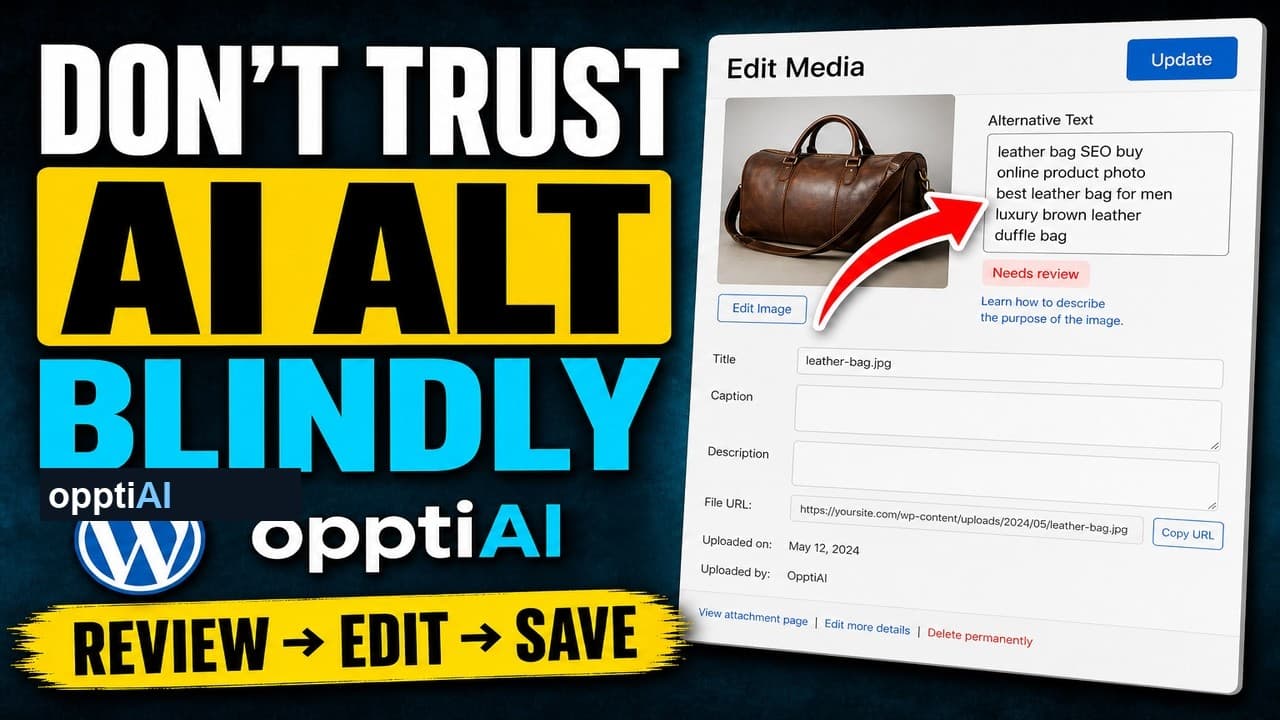
AI alt text fails in a small number of predictable ways. Run this four-point checklist before saving to catch weak, wrong, and keyword-stuffed suggestions.
Why Keyword-Stuffed Alt Text Still Fails
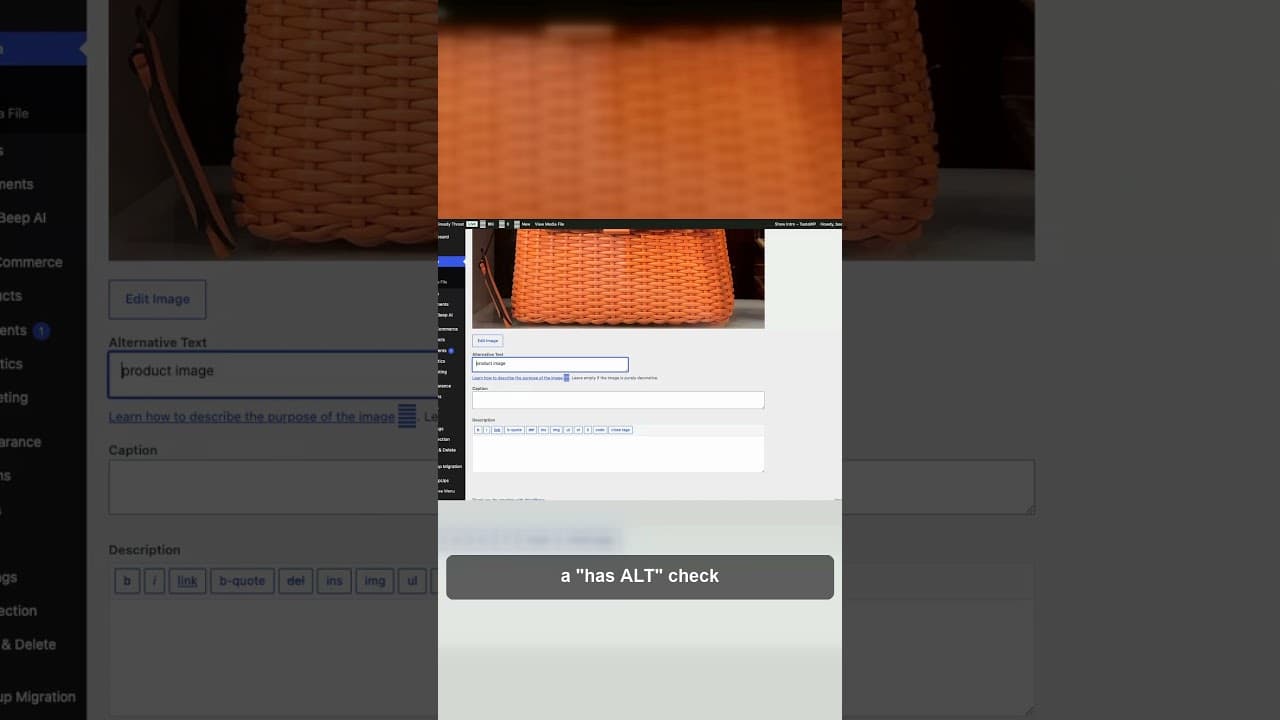
A filled alt attribute isn't finished alt text. Keyword-stuffed alt text passes a 'has alt' check and still fails SEO and accessibility.
The 5-Second Test for Every Alt Text Decision
One question decides whether a WordPress image needs alt text or should stay empty: would removing it lose information? Here's how to apply it fast.