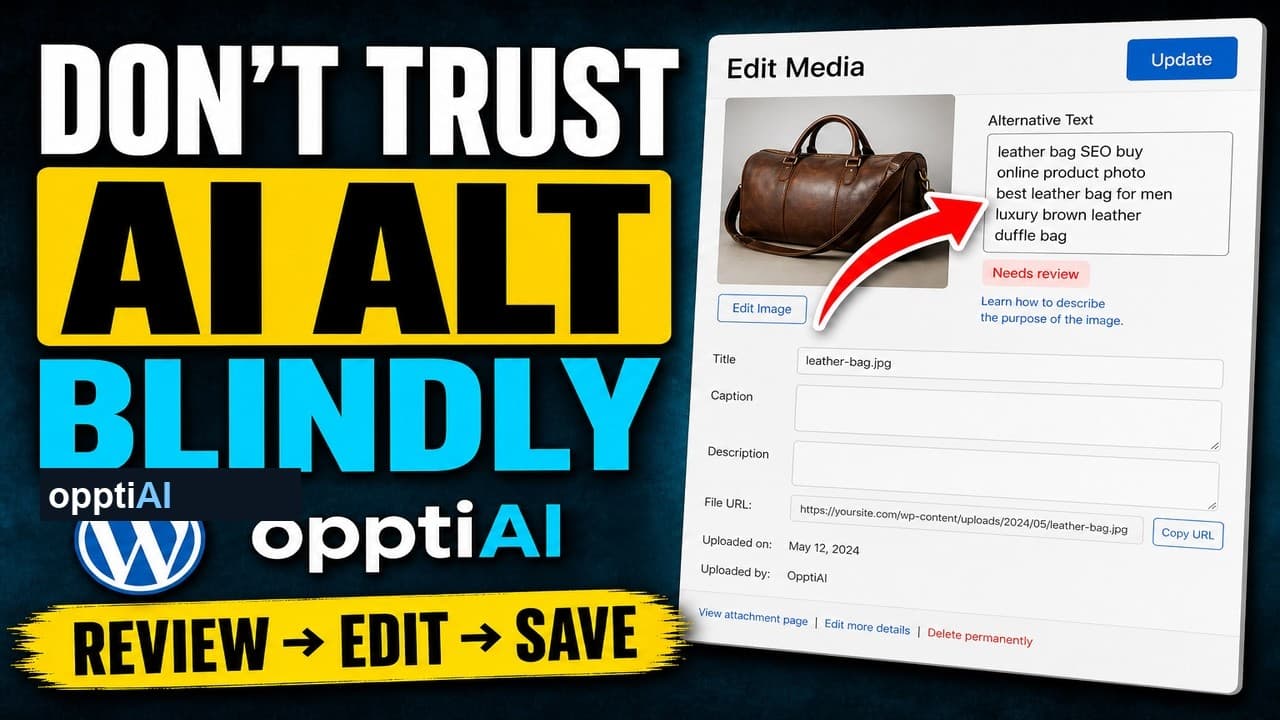
The Four-Point Checklist for Reviewing AI Alt Text
AI alt text fails in a small number of predictable ways. Run this four-point checklist before saving to catch weak, wrong, and keyword-stuffed suggestions.
AI just wrote alt text for your image, and it might be wrong — not obviously wrong, just wrong enough that hitting save turns a missing field into a confident mistake. The fix isn't reading every suggestion end to end and hoping you spot the problem. It's checking for a small number of specific failure modes that cover most of what actually goes wrong.
Here's a short video walking through the checklist and fixing bad suggestions live in WordPress.
Filled is not the same as finished
A field with text in it looks done. That's the trap: an alt attribute containing any string passes an automated "has alt text" check, whether that string is a genuinely useful description or three keywords jammed together with no verb. AI makes this worse, not better, because a fluent-sounding sentence clears the bar of "looks like alt text" even when it's describing the wrong object entirely.
The checklist below exists because reading a suggestion and generally agreeing with it isn't the same as checking it against these specific ways it fails.
The three failure modes to watch for
Almost every bad AI alt text suggestion falls into one of three patterns:
Weak. Technically accurate, uselessly vague — "a person in a room," "a product on a white background." It passes a glance and tells a screen reader user almost nothing about what's actually in the image.
Wrong. The model names the wrong object, the wrong colour, or the wrong count. This is the one that's easiest to miss on a fast read, because wrong text is often just as fluent as correct text.
Keyword-stuffed. A string of nouns instead of a description — "shoes sneakers footwear trainers running shoes" — written to look SEO-friendly rather than to describe the image. It reads as spam to both a screen reader and a search engine, and it fails accessibility and SEO at the same time.
The four-point review checklist
Run these four checks on every AI suggestion before you save it:
- Is it specific, not generic? Catches weak alt text. If the description would still be accurate for a dozen other images in your library, it's too vague — it should name the specific thing, not the category.
- Does it match what's actually in the image? Catches wrong alt text. Look at the photo first, then read the suggestion, and check the object, colour, and count against what you see — not what you'd expect.
- Is it a sentence, or a list of keywords? Catches keyword stuffing. Alt text should read the way you'd describe the image out loud to someone who can't see it, not the way you'd write a product tag list.
- If the image is decorative, is the field empty? Catches the fourth failure mode: over-describing images that need silence instead. A purely decorative divider or background flourish should get an empty alt attribute so a screen reader skips it, not a manufactured description of a shape nobody needs read aloud.
Fixing what the checklist catches
Don't discard a flagged suggestion and start over — edit the part that's wrong. A weak suggestion usually needs one added detail, not a full rewrite. A wrong suggestion needs the incorrect noun or colour swapped for the correct one. A stuffed suggestion needs converting into an actual sentence, which is often faster than it sounds because the right words are already there, just not in the right order. And a decorative image wrongly given a description just needs the field cleared.
This keeps review fast. You're rarely writing from a blank field — you're making a small, specific correction to something that's mostly there.
Building the checklist into a batch habit
Checking one suggestion carefully is easy. The checklist earns its keep on a batch of thirty or forty, where the temptation is to skim the ones that look fine on a fast read. A few habits keep the checks real instead of theoretical:
Go in the same order every time — specific, correct, not stuffed, decorative-empty — so it becomes automatic rather than something you have to consciously reconstruct for each image. Slow down on images that feel "obviously fine," since those are exactly the ones most likely to get waved through without a real check. And if you're reviewing more than about 30 in a row, take a short break; checklist accuracy drops on a long unbroken run the same way any careful task does.
Frequently asked questions
What's the most common AI alt text mistake this checklist catches?
Weak, generic descriptions are the most frequent issue — text that's technically accurate but too vague to be useful, like "a product on a table" for an image that needs the specific product named. It's also the easiest to miss on a quick read, because a vague sentence is still a grammatically correct sentence.
Should decorative images have any alt text at all?
No — a purely decorative image (a background flourish, a spacer graphic, a repeated divider) should have an empty alt attribute (alt=""), not a description. An empty alt tells a screen reader to skip the image entirely, which is correct when the image carries no information. Writing a description for a decorative image adds noise a screen reader user has to sit through for nothing.
How long should reviewing one AI alt text suggestion actually take?
A few seconds once the checklist is a habit — look at the image, read the suggestion, run the four checks, edit if needed, save. It's slower than blindly accepting, but far faster than writing a description from a blank field, which is the actual time comparison that matters.
Try OpptiAI Alt Text to draft and review alt text across your WordPress media library, or run a free image SEO audit to see where your current alt text needs a second look.
Related Posts
How to Add Alt Text to SVG Images in WordPress
SVG images don't pick up alt text the way JPEGs and PNGs do. Here's why WordPress treats them differently, and how to make SVGs accessible.
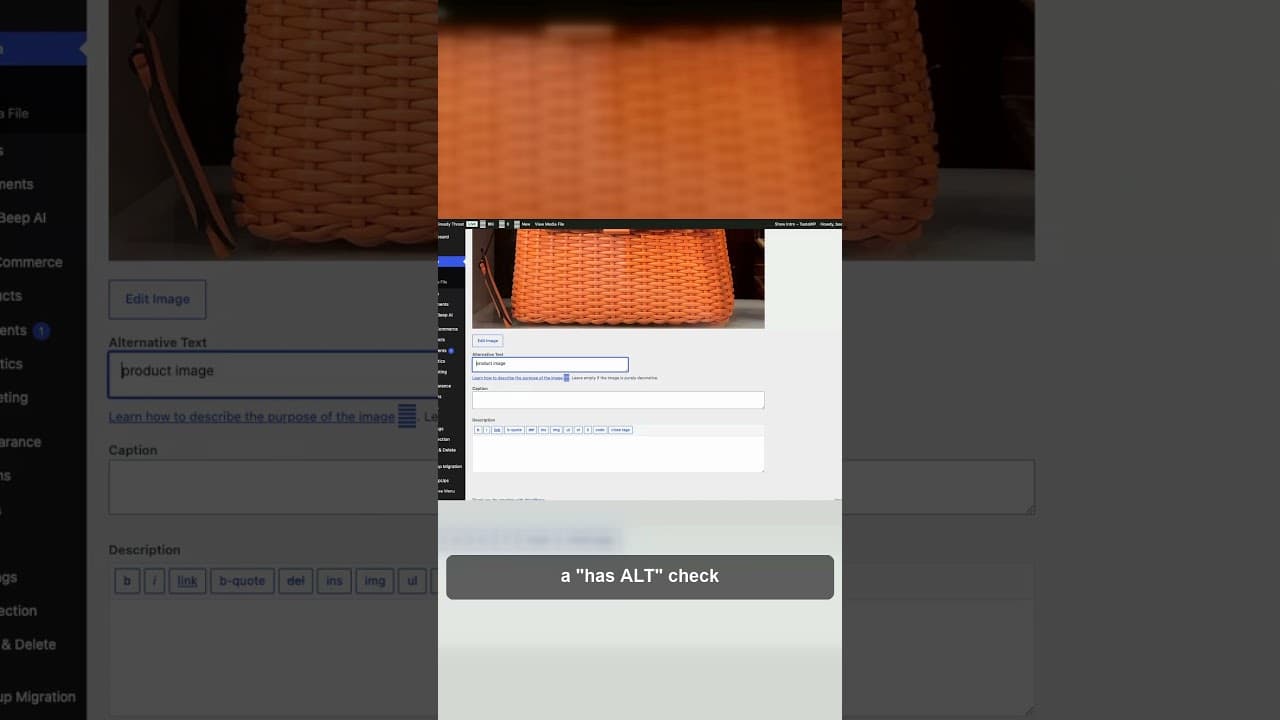
Why Keyword-Stuffed Alt Text Still Fails
A filled alt attribute isn't finished alt text. Keyword-stuffed alt text passes a 'has alt' check and still fails SEO and accessibility.
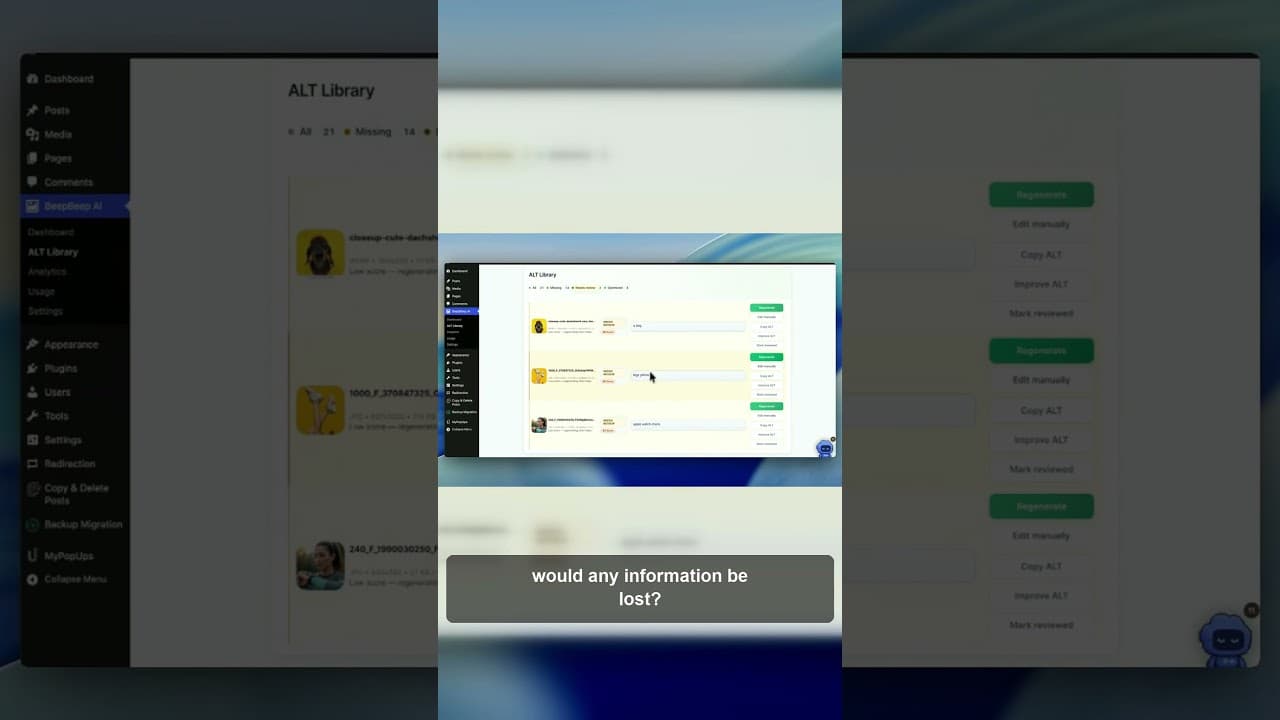
The 5-Second Test for Every Alt Text Decision
One question decides whether a WordPress image needs alt text or should stay empty: would removing it lose information? Here's how to apply it fast.