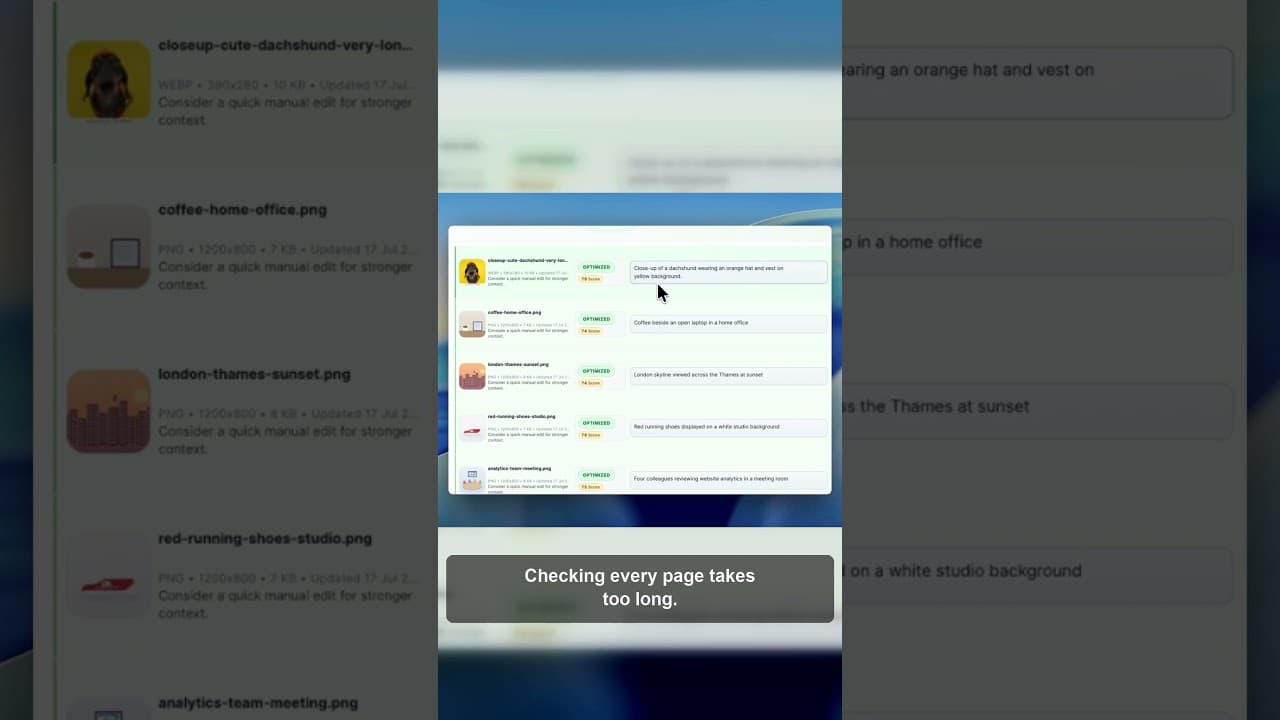
See Every Missing Alt Tag on Your WordPress Site at Once
Checking alt text page by page in WordPress doesn't scale. Here's how to get a single, site-wide view of every missing alt tag and filter it down to what matters.
Ask most WordPress site owners how many images on their site are missing alt text, and you'll get a shrug. Not because they don't care, but because there's no single screen anywhere in WordPress that answers the question. You'd have to open every post, every product, every page, and check one image at a time.
Here's a short look at what it takes to get a single, site-wide view instead of checking image by image.
The problem with checking alt text page by page
WordPress splits your content into posts, pages, and — if you run WooCommerce — products, each with their own images. Alt text lives inside each individual image's attachment details, not in any list view. So even if you're diligent, "checking your alt text" in practice means opening the editor for every single piece of content, scrolling to each image, clicking it, and reading the Alternative Text field.
That's a fine process for reviewing a page before you publish it. It's not a process for finding every missing alt tag across a site that might have hundreds of posts and thousands of product images. Nobody actually does this exhaustively, which is why alt text coverage tends to be inconsistent even on sites that are otherwise well maintained.
What a single, site-wide view should show you
A useful overview doesn't just say "you have images with missing alt text." It should let you see the shape of the problem at a glance:
- A total count, so you know if you're dealing with twenty images or two thousand.
- A breakdown by content type — posts, pages, WooCommerce products — so you know where the gaps are concentrated.
- A distinction between missing and weak. An image with no alt text and an image with alt text that's just the filename are both problems, but they're not identical, and lumping them together hides useful detail.
- A way to filter down to what needs action, rather than scrolling through everything including the images that are already fine.
Without that kind of overview, "fixing alt text" tends to mean fixing whatever you happen to notice while doing something else, which leaves the bulk of the problem untouched.
Getting from a page-by-page habit to a site-wide one
- Start with a scan, not a manual check. The OpptiAI Alt Text plugin reads your entire media library — including WooCommerce images — in one pass and gives you a single view of what's missing or weak, instead of requiring you to open items individually.
- Filter to the images that actually need work. Once you can see everything in one place, cut the list down to what's missing or generic and ignore what's already fine.
- Work through it as a queue, not a hunt. Instead of stumbling across a bad alt tag while editing an unrelated post, you're working through a defined list, which is far more likely to actually get finished.
- Recheck periodically. A site-wide view is only useful if you look at it again after a few weeks of new content, not just once.
If you'd rather see the scope of the problem on your public pages before installing anything, a free image SEO audit will scan your live site and send back a report.
Frequently asked questions
Is there a built-in way to see all missing alt text in WordPress?
No. WordPress's core Media Library doesn't include a filter or column for alt text status, so there's no native way to see it site-wide without opening each image. You need a plugin or a database export to get a consolidated view.
Does a site-wide alt text view include WooCommerce products?
It should, if you're running a store — but check before relying on any tool. Some alt text checkers only look at images placed inside post and page content and skip product and variation images entirely, which for a WooCommerce site is where most of the missing alt text actually is.
How long does it take to get a full picture of missing alt text on a typical site?
With a scanning tool, minutes — the scan runs against your whole media library and returns a report you can filter immediately. Doing the same thing manually, checking each image individually, can take hours or days depending on how many images your site has, which is the main reason most people never do it.
Related Posts
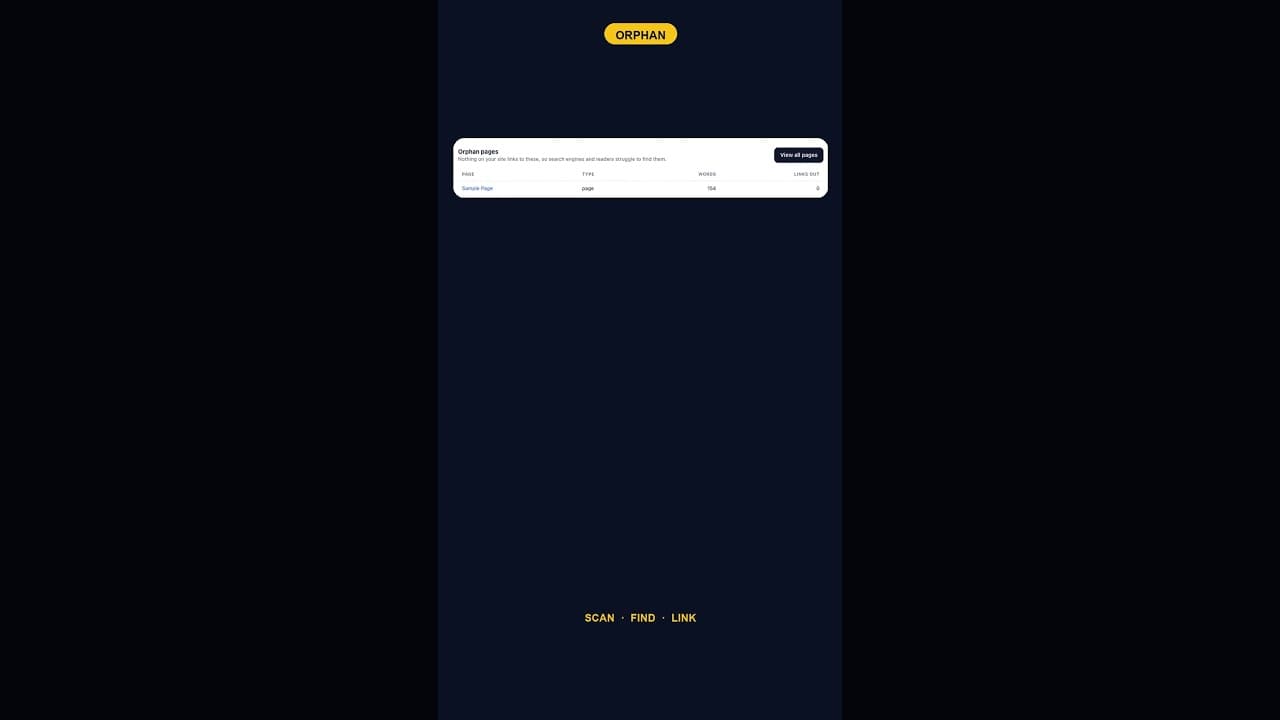
What To Do With WordPress's Default Sample Page Once It's Orphaned
An internal links audit almost always flags WordPress's default Sample Page as an orphan. Here's which of three fixes actually applies.
Block Editor Alt Text vs Media Library: Why They Differ
WordPress stores alt text in more than one place. Here's why block editor and media library alt text can disagree, and where the real value lives.
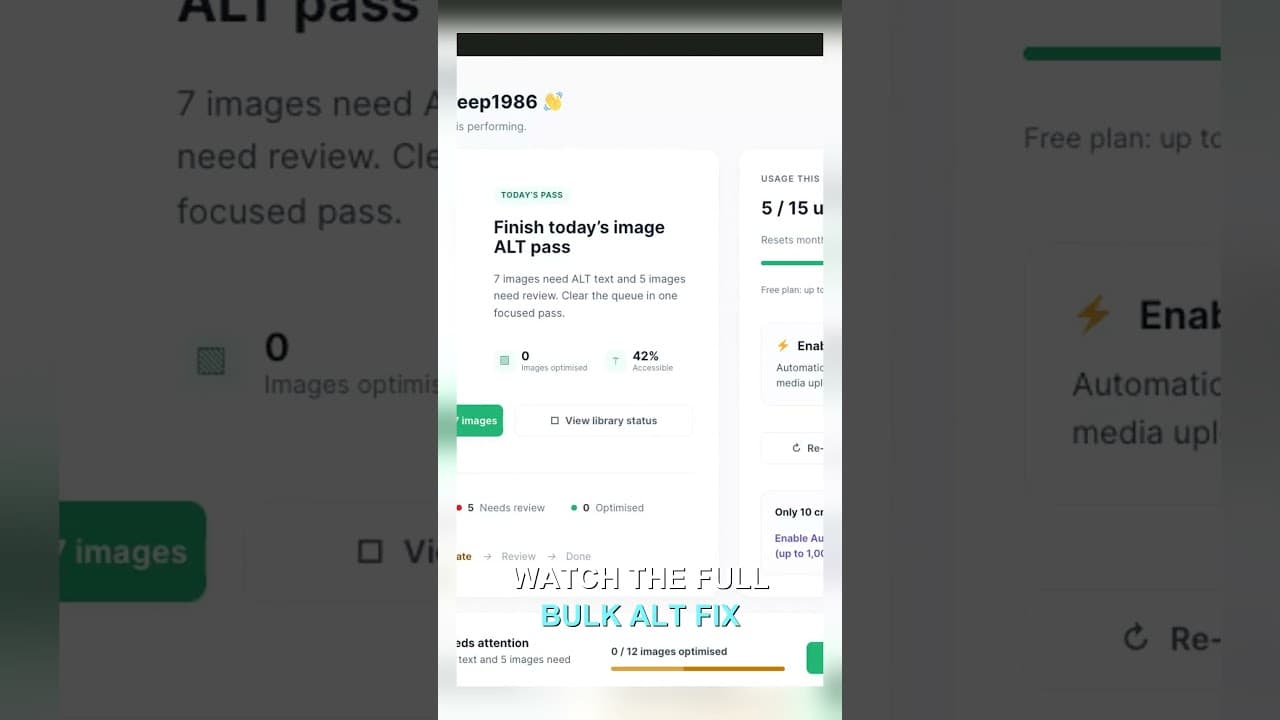
Filter Your Media Library to Missing Alt Text First
Scrolling the whole media library to find missing alt text wastes most of your session. Filter to what's actually missing, then work that list.