Block Editor Alt Text vs Media Library: Why They Differ
WordPress stores alt text in more than one place. Here's why block editor and media library alt text can disagree, and where the real value lives.
You set alt text on an image in the block editor, publish the page, and later find the media library entry for that same file shows different text — or none at all. Nothing broke. WordPress just stores alt text in more places than most people realise, and they don't always agree with each other.
This trips up site owners who assume "alt text" is one field per image. It isn't. Depending on how the image got onto the page, you can end up with two, sometimes three, separate values competing for the same job.
Where WordPress actually stores alt text
An image in WordPress can carry alt text in two distinct locations, and they're backed by different data.
The first is the media library's own alt text field, stored as post meta (_wp_attachment_image_alt) attached to the attachment record itself. This is the "global" value — it's what you see when you click an image in Media > Library and edit its details.
The second is a block-level attribute. When you place an Image block in the block editor, Gutenberg gives that specific instance of the image its own alt attribute, saved directly into the block's markup in post_content. It starts out pre-filled from the media library value when you first insert the image, but from that point on it's independent. Edit it in the block sidebar and you're changing the block's copy, not the attachment's.
That's the split: one value lives on the attachment, one lives on the block instance, and WordPress only auto-syncs them at the moment of insertion.
Why this causes real mismatches
Once you understand the split, the common failure modes make sense.
You edit alt text in the media library after the image is already on a page. The block's alt attribute doesn't retroactively update — it was frozen at insertion time. The media library now shows your new text; the published page still renders the old text, because the page reads from the block markup, not from the attachment meta, when rendering front-end HTML for an Image block.
You reuse the same image across multiple posts. Each Image block instance got its own copy of the alt text at insertion. If you only ever edited the media library value, older instances keep whatever text existed when they were inserted, while newer instances pick up whatever the media library said at that later date. Ten uses of one photo can genuinely carry ten different alt text strings.
You add an image through something other than the Image block. A featured image, a Cover block background, a gallery block, an image dropped into a Classic block, or a theme template part that pulls an image via wp_get_attachment_image() — each of these reads alt text differently. Some read the attachment meta directly at render time (so a media library edit shows up immediately); others, like the standard Image block, don't.
None of this is a bug. It's a consequence of Gutenberg treating blocks as portable, self-contained content — a block should render the same way if you copy it to another post, which means it needs its own copy of the data rather than a live reference back to the attachment.
Which value actually reaches Google and screen readers
For SEO and accessibility, what matters is the alt text in the rendered HTML — the alt="" attribute a browser, crawler, or screen reader actually sees on the page. For most images placed through the block editor's Image block, that's the block's own attribute, not the media library's.
This is the detail that catches people out during an audit. You check the media library, see clean, descriptive alt text on every attachment, and conclude coverage is good. Then you view-source a published page and find several <img> tags with empty or stale alt="" attributes, because those blocks were inserted before the media library text was cleaned up — or the image reached the page through a path that never read the attachment value in the first place.
Auditing which value is live
- Pick a handful of representative pages — a product page, a blog post with an inline image, and a page using a Cover or Gallery block, if you have them.
- View source (or use your browser's inspector) on each page and read the actual
alt=""attribute in the rendered HTML, not what the block editor sidebar shows. This is the value that counts for SEO and screen readers. - Compare it to the media library's stored value for the same attachment. A mismatch tells you the block copy is stale.
- If they differ, edit the alt text inside the block editor itself, on that specific instance, rather than only updating the media library. For a Cover block or featured image, check the block/theme settings for its own alt field.
- For images reused across many posts, treat each placement as a separate thing to check rather than assuming a media library fix propagates everywhere. It won't, for standard Image blocks.
- Re-scan periodically. New uploads and new block instances will keep diverging from the media library the same way, so this isn't a one-off cleanup — it's a habit, same as any other content QA pass.
Doing this manually across a large site is exactly the kind of task that doesn't scale by hand — checking rendered HTML page by page against attachment records is slow, and it's easy to miss instances buried in older posts.
What this means for your alt text workflow
If your process is "set alt text once in the media library and move on," you're covering the attachment record but not necessarily every block instance that image ends up in. The more reliable habit is to check — and if needed, set — alt text at the point an image actually lands on a page, whether that's during upload-and-insert or during a later audit pass, rather than treating the media library as the single source of truth for what visitors and crawlers see.
Frequently asked questions
Why did my alt text disappear after I edited it in the media library?
It didn't disappear — it was never connected to the page in the way you'd expect. Standard Image blocks copy the alt text attribute at the moment you insert the image, then store their own copy independently. Editing the media library afterwards changes the attachment record but not any block that already exists on a published page. You'll see your new text in Media > Library, but the live page keeps showing whatever was there when the block was created, until you edit that block directly.
Does this affect featured images the same way?
Not usually. Featured images are typically rendered through a theme template calling a function like the_post_thumbnail(), which reads the attachment's alt text meta directly at render time rather than storing a frozen copy. That means editing a featured image's alt text in the media library generally does update what's shown on the front end immediately. The block-copy problem is specific to Image blocks (and some other blocks) placed inside post content, not to featured images.
Is there a way to make block editor alt text always match the media library?
Not automatically, by design — Gutenberg blocks are meant to be portable and self-contained, so they don't maintain a live link back to the attachment after insertion. The practical fix is process, not a setting: audit rendered pages rather than trusting the media library alone, and when you do bulk alt text work, review and save it against the actual page instances, not just the attachment records, so the fix lands where crawlers and screen readers actually read it.
If you want to check where your site's alt text actually diverges without going page by page manually, OpptiAI Alt Text scans your WordPress content for missing or empty alt text. You can review and edit the results at any time. A one-off free image SEO audit is also a fast way to see current coverage before you decide how deep the cleanup needs to go.
Related Posts
Auditing Alt Text Across a WordPress Multisite Network
WordPress multisite networks hide alt text gaps behind the network admin screen. Here's how to audit every subsite without logging into each one.
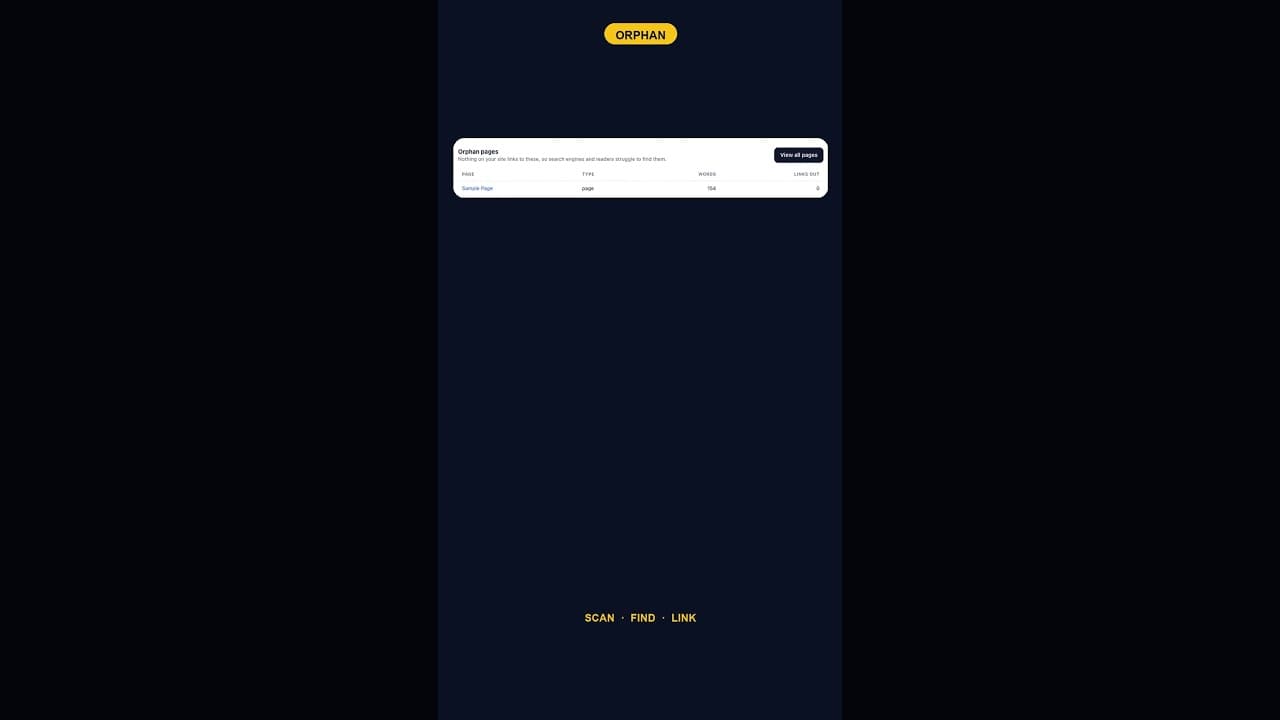
What To Do With WordPress's Default Sample Page Once It's Orphaned
An internal links audit almost always flags WordPress's default Sample Page as an orphan. Here's which of three fixes actually applies.
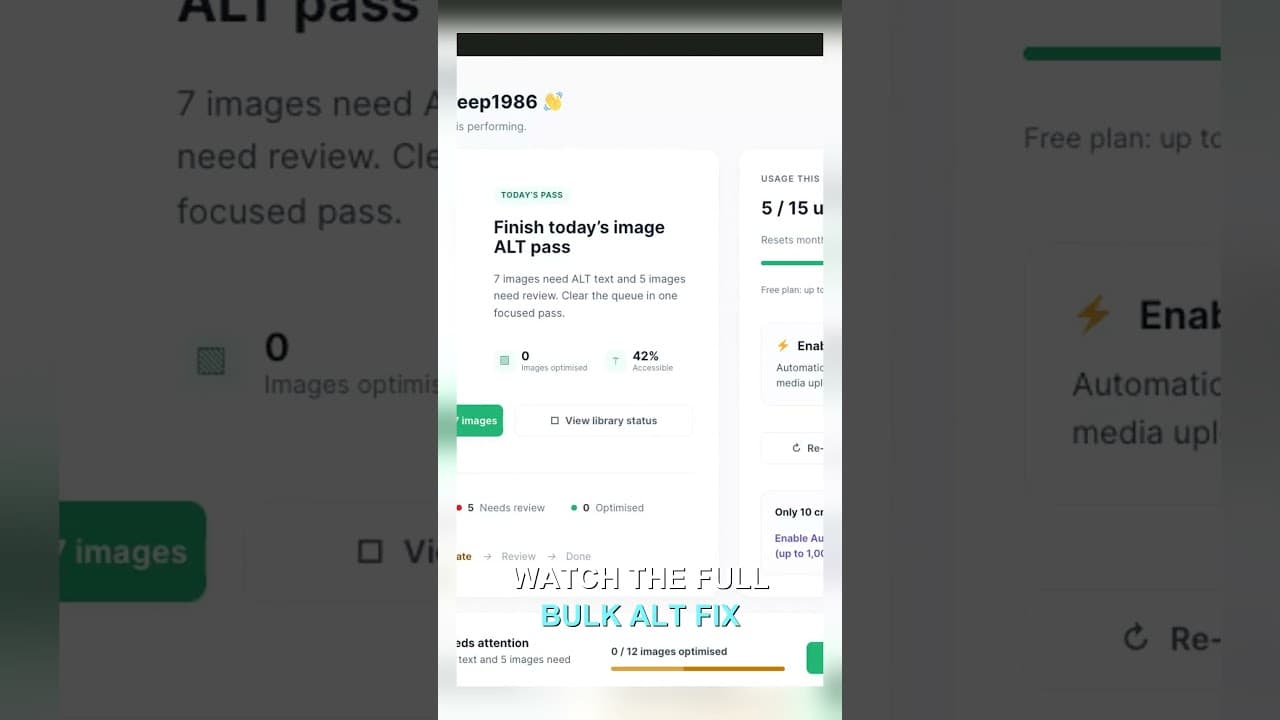
Filter Your Media Library to Missing Alt Text First
Scrolling the whole media library to find missing alt text wastes most of your session. Filter to what's actually missing, then work that list.