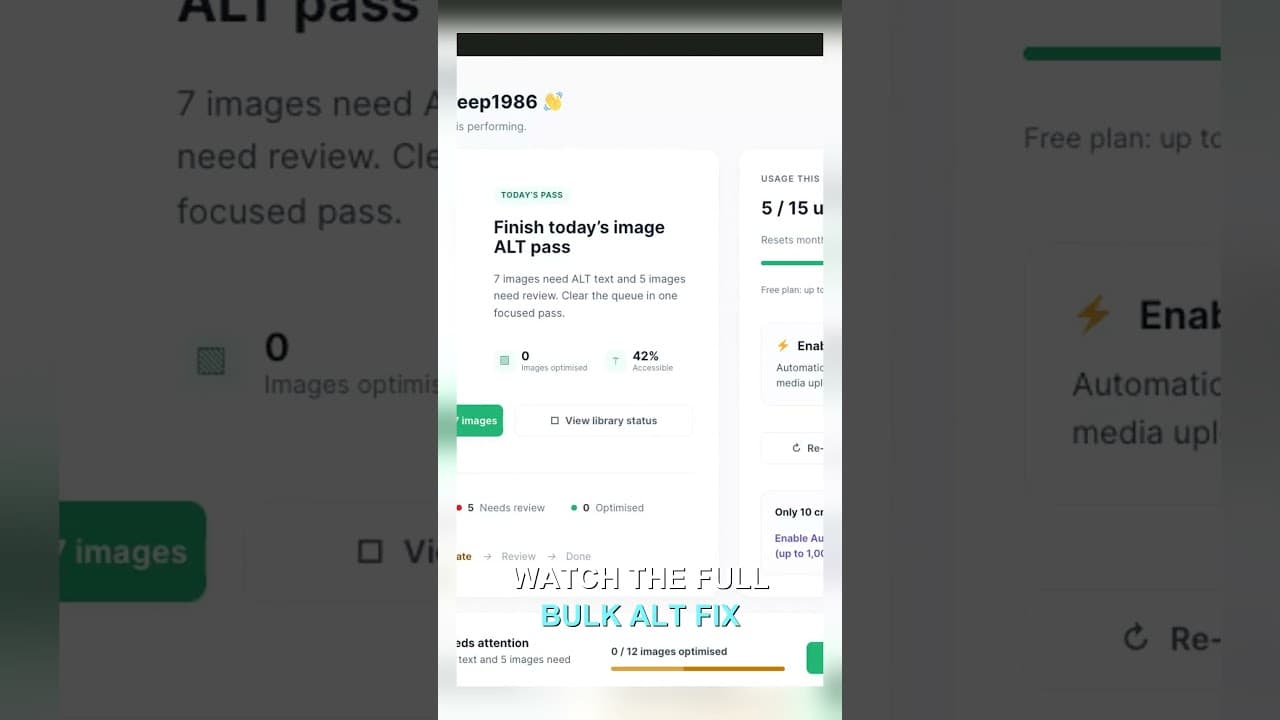
Filter Your Media Library to Missing Alt Text First
Scrolling the whole media library to find missing alt text wastes most of your session. Filter to what's actually missing, then work that list.
Most WordPress media libraries mix everything together — images with good alt text, images with none, images that don't need any at all. Scrolling through all of it to find the gaps means you spend most of your session looking at images that are already fine. Filter to what's actually missing first, and the whole task shrinks to the list that matters.
Here's a short video on why filtering first changes how the work feels.
Why scrolling the whole library wastes the session
The default WordPress media grid shows everything in upload order, with no distinction between an image that has solid alt text and one that's been blank since 2022. If you're hunting for gaps by eye, you're opening images at random, checking the alt field, closing it, and moving to the next — and on a site with a few thousand images, the ones that need attention are a small fraction of what you're looking at.
That ratio is the actual problem. Say 200 of 3,000 images are missing alt text. Scrolling in upload order means roughly 93% of what you see is already fine. You're not doing alt text work for most of that time — you're doing search work, and search work with no filter is slow by design.
What filtering first changes
Filtering flips the task from "look at everything and judge each one" to "start with a list that's already all relevant." Instead of opening images to check their status, the list itself only contains images with missing or empty alt text — every row on the screen is something that needs fixing, so there's no wasted attention.
This matters more as a site grows. A filtered list of 200 stays a fixed, finishable task regardless of how large the surrounding library gets. An unfiltered scroll through the whole library gets slower every time more images get uploaded, because the haystack grows even though the needles don't.
Building the filtered list
- Pull a full count first. Before filtering anything, get a total: how many images across the site have missing or empty alt text. This gives you a number to work against instead of an open-ended scroll.
- Filter to missing only. Exclude anything with existing alt text, however short or generic — the goal at this stage is finding true gaps, not judging quality yet.
- Sort by where it matters most. If you can, put images used on published pages and products above ones sitting unused in the library. A blank alt field on your homepage hero matters more than one on an unused draft attachment.
- Work the list top to bottom. Because every entry is relevant, you can move through it without re-checking status — write or generate the description, save, next.
- Re-run the filter after a batch. Once you've cleared a chunk, filter again to confirm the count actually dropped. This catches anything that was accidentally skipped.
Filtering also catches what a full scroll misses
A raw scroll biases toward recently uploaded images, because that's what's visible first in most grid views without extra clicking. Older images — ones from a redesign three years ago, or a bulk import that never got proper alt text — sink to the bottom and stay there indefinitely, because nobody scrolls that far during a normal session.
A filter doesn't care about upload date. It surfaces every image missing alt text regardless of when it landed in the library, which is usually where the oldest and most overlooked gaps are hiding.
Keeping the filtered list at zero
Filtering once clears a backlog. Keeping it clear means checking the filter regularly rather than only when the problem feels big again:
Run the missing-alt-text filter on a schedule — weekly is reasonable for a site that publishes often — and treat a non-zero count as the trigger to work the list, not a stat to note and ignore. New uploads without alt text will always appear; the filter is what stops them from quietly accumulating into another few-hundred-image backlog.
Frequently asked questions
Does WordPress have a built-in way to filter for missing alt text?
Not out of the box. The default media library lets you filter by file type, upload date, and a few other attributes, but "alt text is empty" isn't one of the native filter options. Getting that view typically requires a plugin that scans the media library and surfaces missing or empty alt text as a filterable list.
Should I filter by missing alt text or by image quality of existing alt text?
Start with missing — it's a clear yes/no and clears the biggest gap fastest. Once that list is at zero, a second pass filtering for existing-but-weak alt text (too short, generic, or keyword-stuffed) catches the next tier of problems. Doing both at once tends to slow down the first, more urgent pass.
How do I know if a filtered list is actually complete, or missing some images?
Cross-check the count against a separate total, if your plugin or database gives you one — for example, total images on the site versus images with any alt text at all, versus images the filter flags as missing. If the maths doesn't add up, some images (often ones embedded via a page builder rather than the standard media library) may not be getting scanned.
Try OpptiAI Alt Text to filter your WordPress media library down to what's actually missing alt text, or run a free image SEO audit to get a starting count for your site.
Related Posts
Block Editor Alt Text vs Media Library: Why They Differ
WordPress stores alt text in more than one place. Here's why block editor and media library alt text can disagree, and where the real value lives.
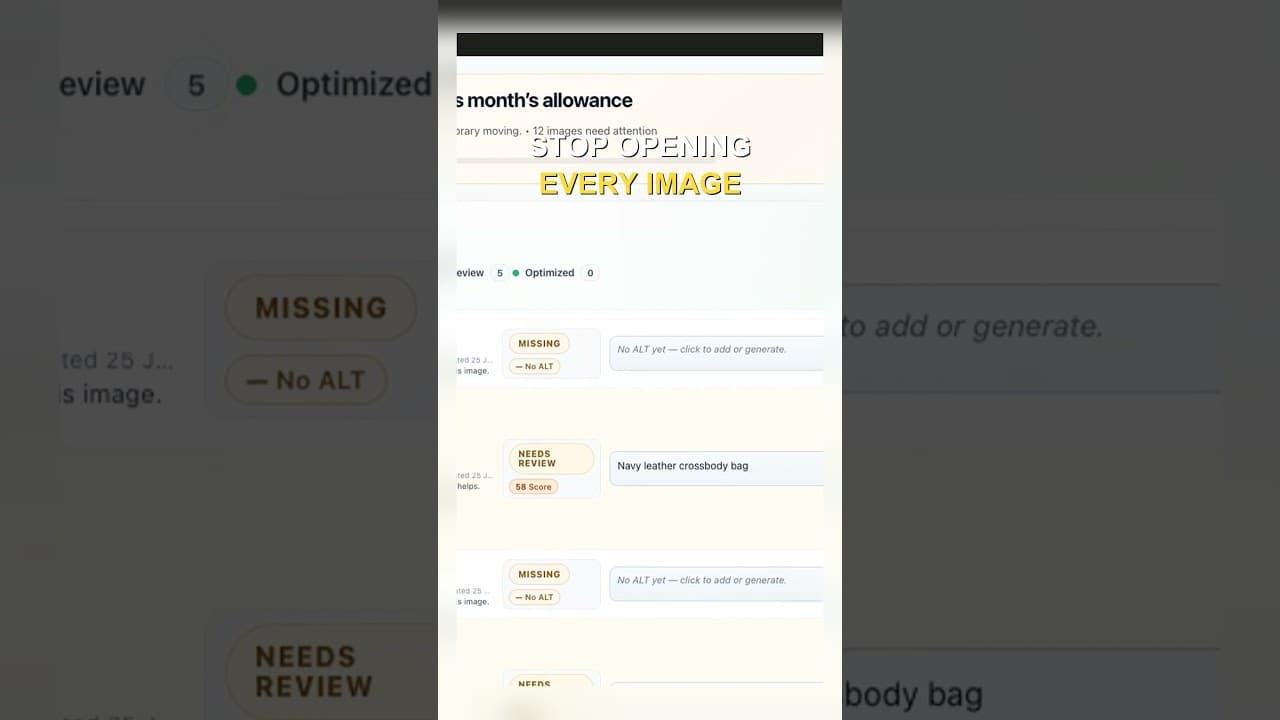
Edit Alt Text Without Opening Every Image
Opening the attachment modal for every image before you can edit alt text is the slowest part of the job. Here's how to edit from the list instead.
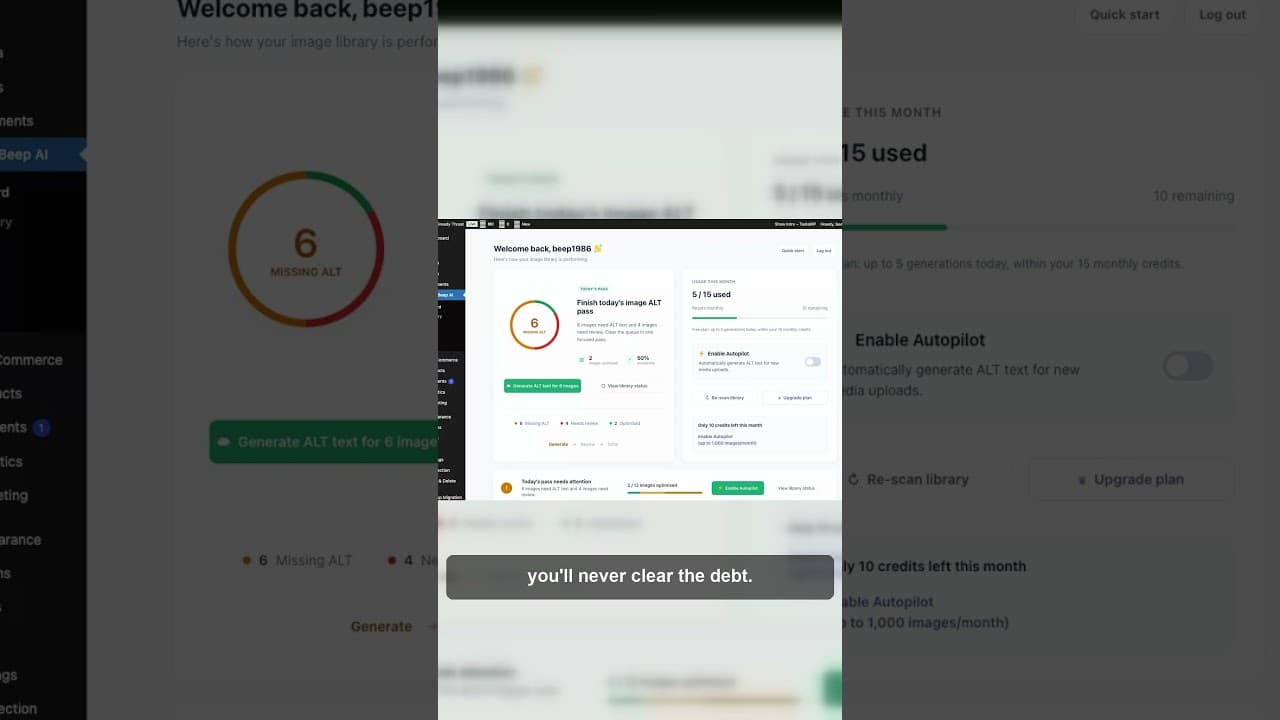
Stop Fixing Alt Text One Image at a Time
Opening every image to write alt text one by one never clears the backlog. Here's why a batch workflow finishes what one-by-one fixing doesn't.