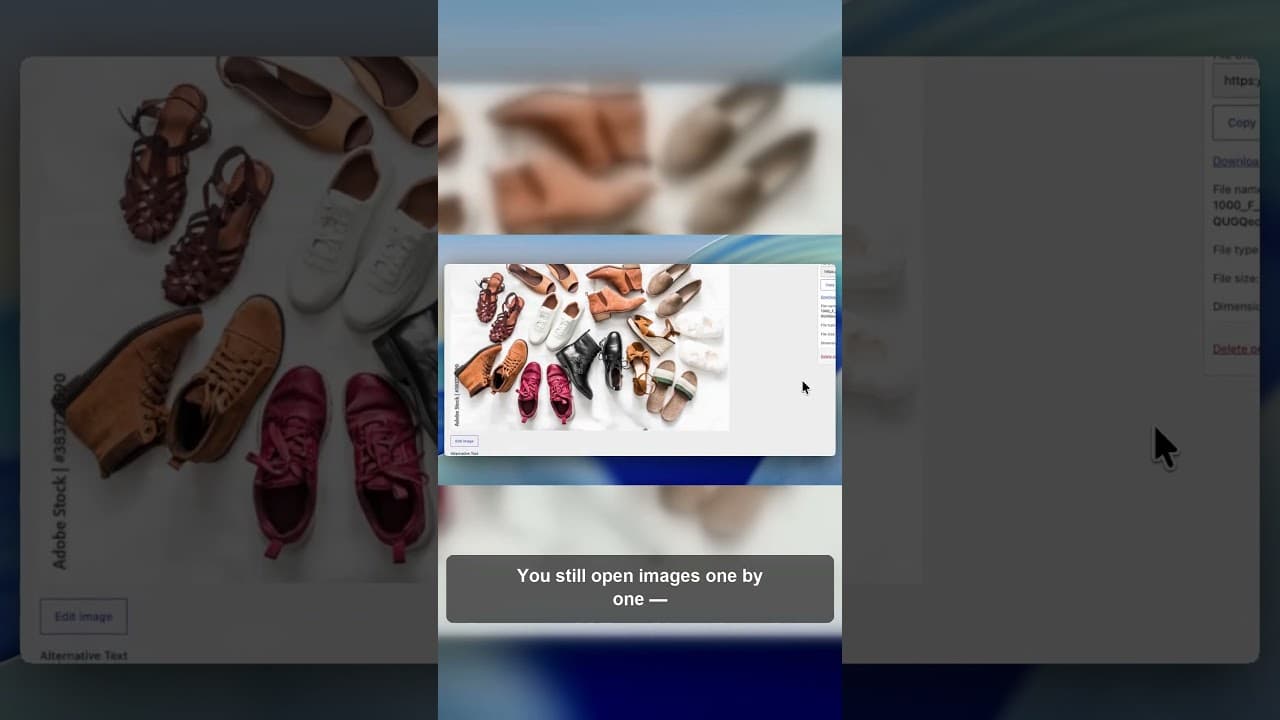
The Real Time Cost of Checking WordPress Alt Text by Hand
Checking WordPress alt text manually feels doable until you count the images. Here's what a full manual check actually costs, and a faster way to get the same result.
"I'll just go through and check the images" is a sentence that sounds reasonable right up until you count how many images your site actually has. WordPress will show you alt text one image at a time, in the attachment details panel, and that's genuinely fine for a handful of photos. It stops being fine well before you reach a hundred.
I recorded a short video on what a full manual alt text check actually costs in time, and why that cost is the real reason this problem persists on so many sites.
What "checking manually" actually involves
To check one image's alt text in WordPress, you open the Media Library, click the image, wait for the attachment details panel to load, read the Alternative Text field, decide if it's adequate, close the panel, and move to the next image. That's roughly ten to fifteen seconds per image if you're moving quickly and not stopping to actually write anything.
For a site with 200 images, that's around half an hour to forty-five minutes just to identify the problem — before you've fixed a single one. For a WooCommerce store with 3,000 product and variation images, the identification step alone is somewhere north of twelve hours of clicking. Nobody blocks out twelve hours for this. So it doesn't happen, and the gap just sits there.
Why the Media Library can't shortcut this for you
WordPress's Media Library shows one alt text field at a time, inside each item's own detail view. There's no column in the grid or list view that shows alt text status, no filter for "show only images with empty alt text," and no bulk view that lets you scan fifty images' descriptions on one screen. Every check requires opening that item individually.
This isn't a bug — WordPress's core Media Library was never built as an SEO or accessibility auditing tool, it's a file manager. The gap has to be filled by something else, and most sites simply never fill it, which is why missing alt text is one of the most common image SEO problems on WordPress despite being simple to understand.
What a scan-based approach actually saves
Instead of opening images one at a time, a scanning tool reads your entire media library — including WooCommerce products — in one pass and returns a report. The time cost drops from hours of clicking to the time it takes the scan to run, typically minutes, plus whatever time you choose to spend reviewing and applying the results.
The saved time isn't just about the initial audit, either. Once you know exactly which images need attention, fixing them is also faster: you're working through a defined, filtered list instead of hunting for problems while doing something else.
- Run a full scan instead of spot-checking. The OpptiAI Alt Text plugin reads your whole media library in one pass, including WooCommerce galleries and variation images, and reports what's missing or weak.
- Filter down to what needs work. You don't need to review images that already have good alt text — filter the results and only look at what's actually flagged.
- Generate descriptions for the flagged batch and review them. This replaces writing every description individually with reviewing candidate text, which is a fraction of the time.
- Apply in bulk rather than one image at a time.
- Automate new uploads so future images get described as they're added, and you're not repeating the full manual check again in six months.
If you'd rather see the size of the problem on your public pages first, a free image SEO audit will crawl your site and send back a report without needing you to install anything.
Frequently asked questions
How long does it really take to manually check alt text on a WordPress site?
Roughly ten to fifteen seconds per image just to open it and read the field — before fixing anything. For a site with a few hundred images that's close to an hour of identification work alone; for a large WooCommerce catalogue with thousands of product images, it can run into many hours, which is why it rarely gets done thoroughly by hand.
Is there a faster manual method, like exporting to a spreadsheet?
You can export your media library to a CSV via a database query or export plugin and review alt text in a spreadsheet, which is faster than clicking through the UI but still requires manually deciding what's wrong with each entry and writing replacement text. It removes the clicking overhead but not the writing overhead.
Does automating alt text checks replace the need for any manual review?
No, and it shouldn't. A scanning tool finds and drafts alt text far faster than doing it by hand. Results save straight away, and you can edit them any time. You're checking for accuracy, not writing from scratch.
Related Posts
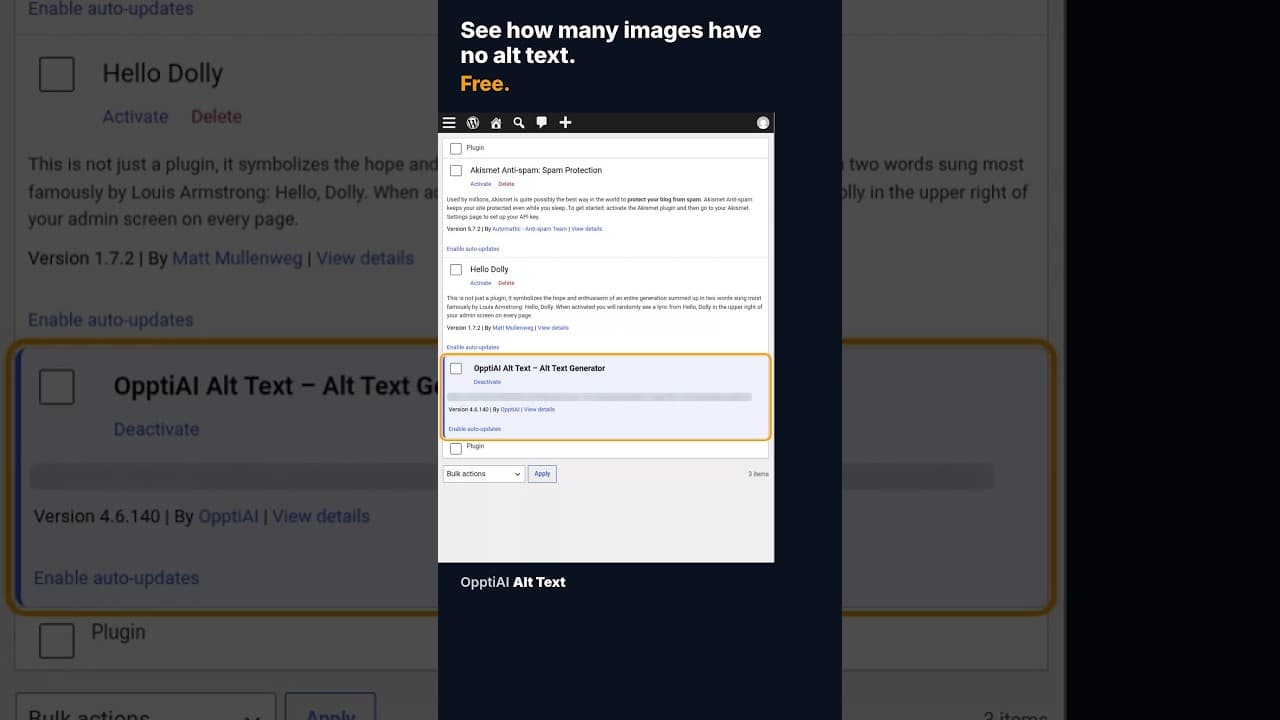
How to Check How Many WordPress Images Are Missing Alt Text
A free alt text audit counts exactly how many WordPress images are missing alt text, no account needed. Here's what the count actually means.
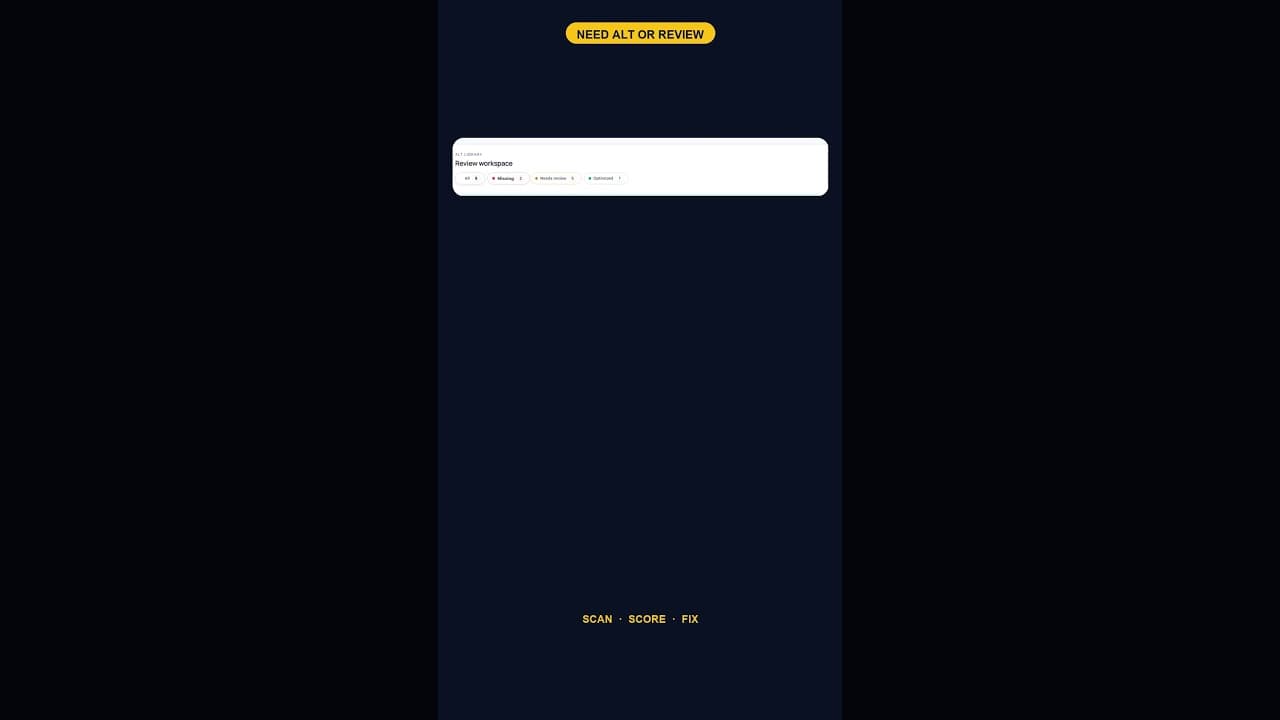
What a 128-Image Alt Text Backlog Looks Like (and How to Clear It)
A 128-image alt text backlog sounds like a project. Split by what's actually wrong with each image, most of it is a much smaller job than the headline number.
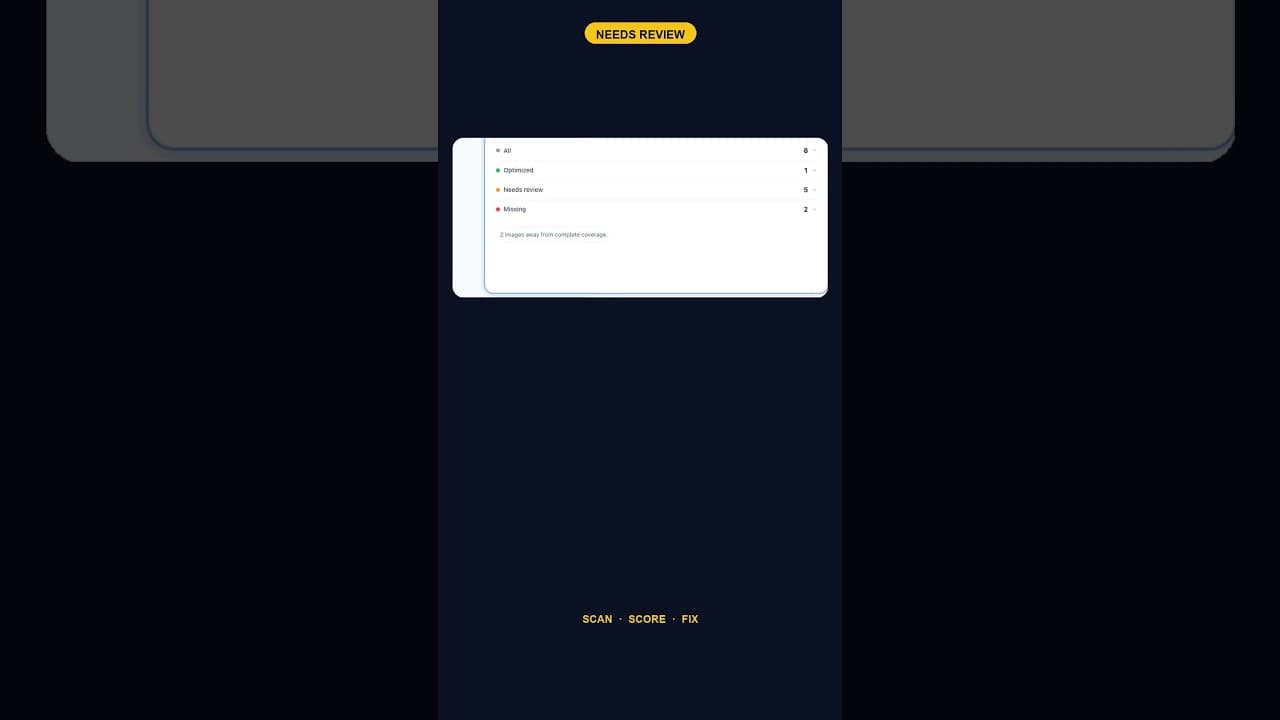
When Alt Text 'Needs Review' Outnumbers 'Missing' Entirely
A scan that finds five images flagged for alt text review and none outright missing is telling you something different than a scan full of blanks.