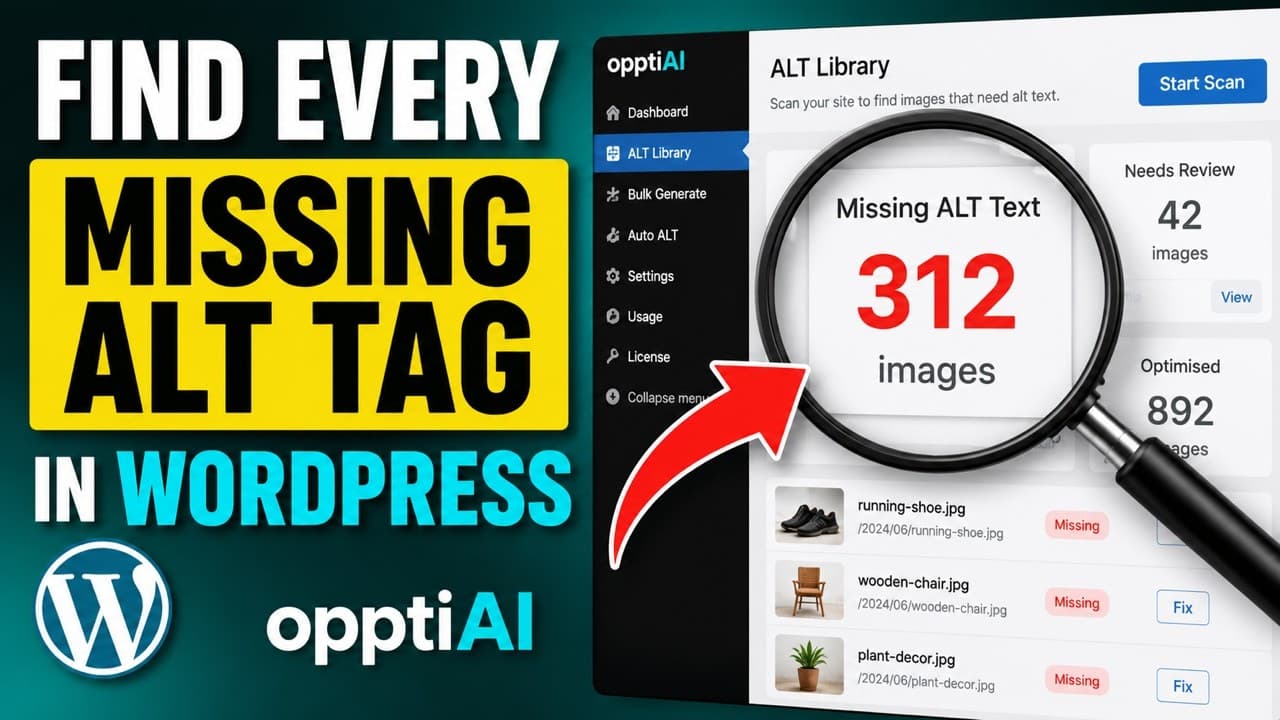
How to Find Every Missing Alt Tag in WordPress
Stop opening images one by one. Here's how to scan your whole WordPress media library, find every missing alt tag, and prioritise the fixes that matter.
WordPress's Media Library lets you check alt text one image at a time. Click an image, look at the Alternative Text field, see if it's blank. That works for five images. It falls apart completely once you're past a few hundred, which is where most sites that have been live for more than a year or two actually sit.
I recorded a full walkthrough of how to find every missing alt tag across a WordPress site in one pass, instead of clicking through the library image by image.
Why the default Media Library view doesn't scale
Open Media > Library in WordPress and you get a grid or a list, sortable by date, file type, and a couple of other fields — but not by whether alt text exists. There's no built-in filter for "show me images with an empty Alternative Text field." You'd have to click into every single item, check the field, close it, and move to the next one.
For a small brochure site with fifty images, that's tedious but doable in an afternoon. For a WooCommerce store with thousands of product photos, variation images, and category thumbnails, or a blog with a decade of posts, it's not realistic. Nobody does it, which is exactly why missing alt text is one of the most common — and most ignored — image SEO problems on WordPress.
What "finding every missing alt tag" actually means
A proper scan needs to do three things the default library doesn't:
- Cover the whole library, not just recent uploads. Old images from years ago are usually the worst offenders, because alt text discipline improves over time as people get more SEO-aware.
- Distinguish empty from bad. A blank alt attribute and an alt attribute that just contains the filename (
DSC_04521.jpg) are both effectively useless, but only one of them is technically "filled in." A real scan should catch both. - Include WooCommerce, not just post content. Product images, gallery images, and variation images live in the same media library but are easy to overlook if you're only checking content you've written yourself.
Step-by-step: scanning your library and prioritising fixes
- Install a scanner that reads the whole library. The OpptiAI Alt Text plugin scans every image in your WordPress media library, including WooCommerce product and variation images, and flags anything with missing, generic, or filename-style alt text.
- Filter to what actually needs attention. Once the scan runs, filter the results down to images with no alt text or clearly weak alt text, so you're not wading through the images that are already fine.
- Sort by where the image is used. Prioritise images on pages that already get traffic — your best articles, top-selling products, key landing pages — over images buried on pages nobody visits.
- Generate descriptions in bulk, then review. Rather than typing out a description for each image individually, generate candidate alt text for the flagged batch. You can review and edit the results at any time. You're checking quality, not writing from scratch.
- Apply and re-scan periodically. Alt text coverage isn't a one-time project. Re-run the scan every month or two so new uploads that slipped through get caught.
- Set new uploads to get described automatically. Once the backlog is cleared, the real win is not letting it build up again — new images should get alt text as they're added, not six months later during another audit.
What to do if you don't want to install anything yet
If you'd rather see the scale of the problem before installing a plugin, a free image SEO audit will crawl your public pages and email you a report of which images are missing alt text or have weak, filename-style descriptions. It's a good way to size the problem before deciding how to fix it.
Frequently asked questions
Can I find missing alt text in WordPress without a plugin?
Technically yes, by exporting your media library via the database or a CSV export tool and checking the _wp_attachment_image_alt field for each row, but that requires database access or developer time most site owners don't want to spend. A plugin that scans and reports for you is faster and doesn't require touching the database directly.
Does this include images added through WooCommerce products?
It should. Product photos, gallery images, and variation images are stored in the same media library as any other upload, but a lot of alt text tools only look at images inserted into post and page content, missing product images entirely. Check that whatever tool you use explicitly covers WooCommerce before relying on it for a store.
How often should I re-scan my WordPress site for missing alt text?
Monthly is reasonable for an actively updated site, quarterly for one that changes slowly. The point isn't to catch every single new image immediately — it's to stop small gaps from becoming a backlog of hundreds of undescribed images again, which is how most sites end up needing a full audit in the first place.
Related Posts
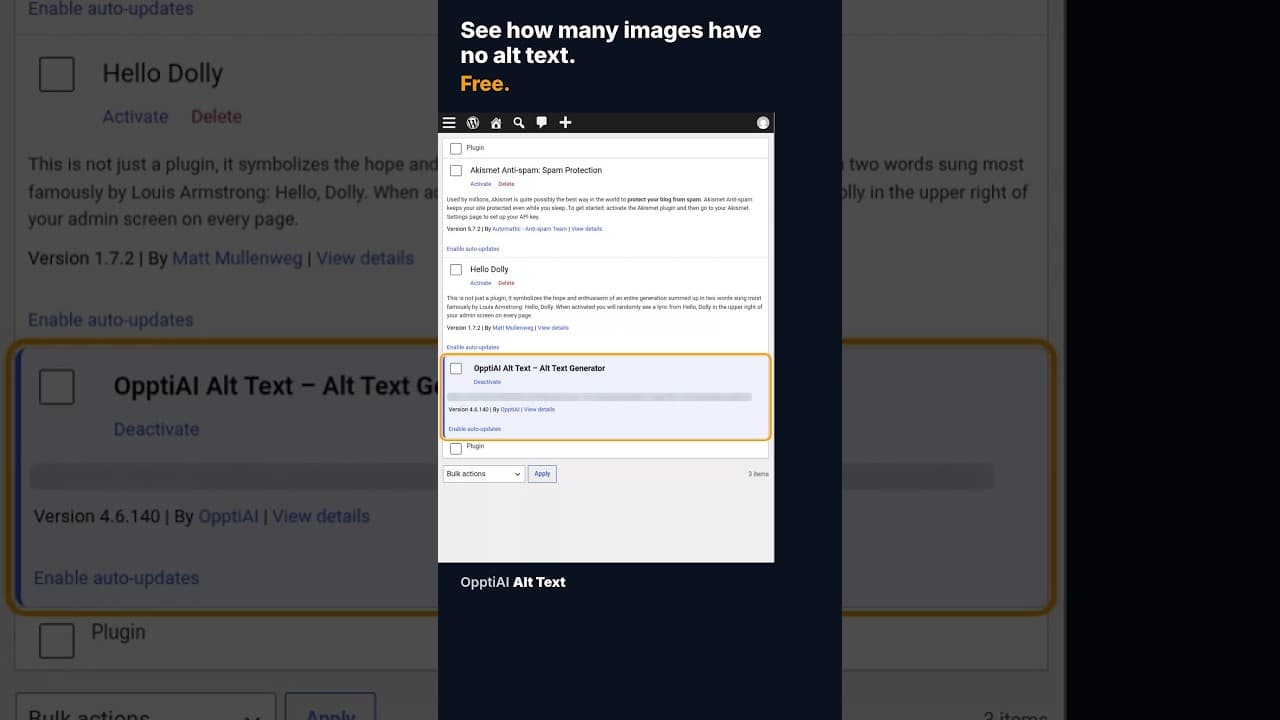
How to Check How Many WordPress Images Are Missing Alt Text
A free alt text audit counts exactly how many WordPress images are missing alt text, no account needed. Here's what the count actually means.
What a 128-Image Alt Text Backlog Looks Like (and How to Clear It)
A 128-image alt text backlog sounds like a project. Split by what's actually wrong with each image, most of it is a much smaller job than the headline number.
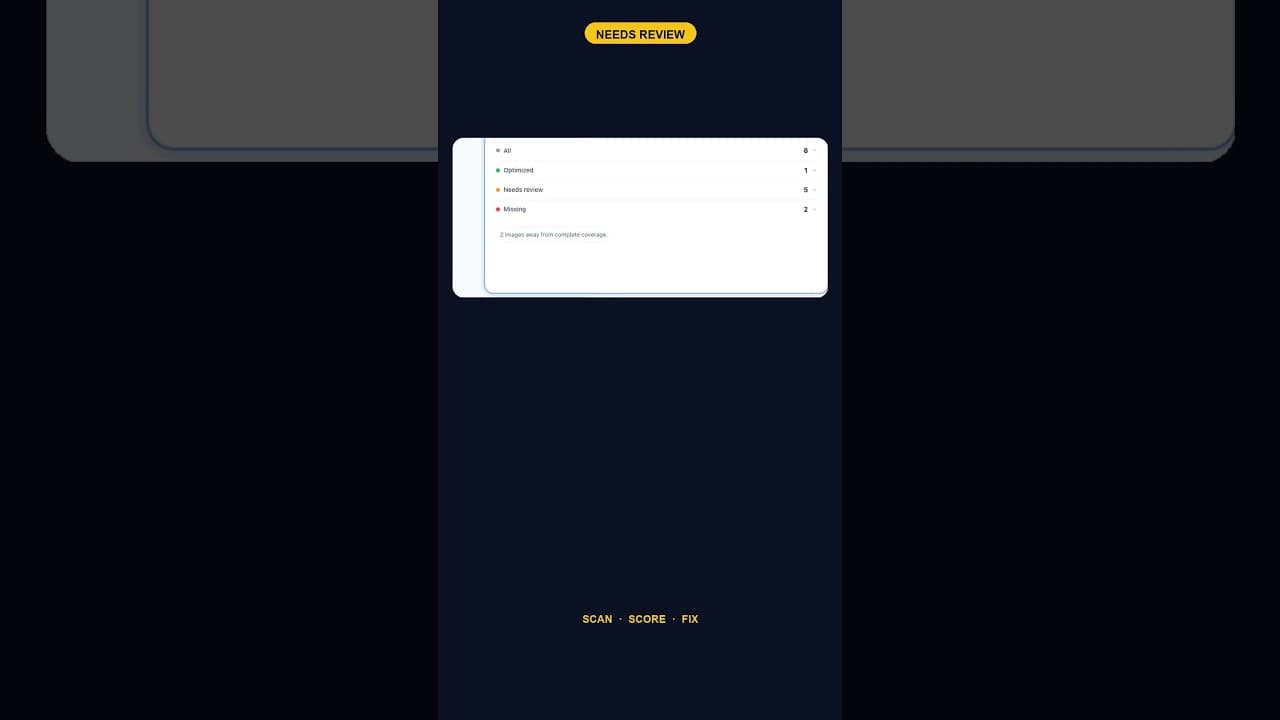
When Alt Text 'Needs Review' Outnumbers 'Missing' Entirely
A scan that finds five images flagged for alt text review and none outright missing is telling you something different than a scan full of blanks.