Is This Image Decorative or Content? How to Tell Before Writing Alt Text
Before you can prioritise alt text fixes, you need to classify images correctly. Here's a practical test for telling decorative images apart from content images.
Every alt text priority guide tells you to fix content images before decorative ones. Almost none of them tell you how to actually decide which bucket a given image belongs to — and that classification step, done wrong, undoes the whole point of prioritising in the first place.
The test that actually works
The official accessibility definition is simple to state and harder to apply: a decorative image adds nothing to the page's meaning, so a screen reader user loses nothing by having it skipped entirely (an empty alt="", not a missing attribute — those are different things). A content image carries information the page is actually trying to communicate, and skipping it would leave a gap in understanding.
The test that cuts through most edge cases: remove the image and read the page. If nothing about the page's meaning, function, or content changes, it was decorative. If a reader would now be missing something — a product's appearance, a chart's data, a diagram explaining a process, a screenshot showing a UI state referenced in the text — it was content.
This test fails you on exactly the images people get stuck on, which is why a second check helps: ask whether the image is doing any work beyond visual texture. A background pattern, a border flourish, a stock photo of people smiling near a paragraph about customer service — none of these are referenced by the surrounding text or carry information you couldn't get from the text alone. That's the decorative tell.
Where people get it wrong in both directions
Over-classifying as decorative. Hero images are the classic trap. A large banner photo at the top of a page often gets treated as decorative because it's "just a background," but if it's the only place showing what a product actually looks like, or it's doing visual work a sighted user relies on to understand the page (a before/after comparison, a size reference), it's content wearing a decorative-looking role.
Over-classifying as content. Icons are the mirror-image mistake. A small icon next to a text label that already says "Download" doesn't need its own alt text describing a downward arrow — the icon is redundant decoration next to text that already carries the meaning. Writing alt text for every icon on a page, even ones paired with a visible label, adds noise to a screen reader's output rather than removing a gap.
Why getting this right changes your whole fix order
Priority schemes for alt text cleanup generally say: fix content images first, decorative images can wait (or, more precisely, decorative images just need an empty alt="" rather than a description, which is a different and much faster fix). That ordering only works if the classification underneath it is accurate. Misclassify a genuinely informative hero image as decorative, and it sits at the bottom of your list indefinitely, flagged as "low priority, handle later" when it's actually one of the more important images on the page.
The practical fix: when you're not sure, default to treating it as content and writing real alt text. Over-describing an actually-decorative image costs a few wasted seconds of a screen reader user's time. Under-describing an actually-informative one costs them the information entirely.
A quick walkthrough
- Remove the image mentally and re-read the surrounding page. Does meaning change?
- Check for redundancy — is the same information already given by a visible text label right next to it?
- Check for function — does the image do something (link, button, data visualisation) rather than just sit there?
- When genuinely unsure, classify as content. The cost of being wrong is lower in that direction.
- Tag your classification somewhere (a spreadsheet, a plugin's category field) so the next person working through the list doesn't have to re-decide the same image.
Frequently asked questions
What alt text should a decorative image have — none, or an empty attribute?
An empty alt="" attribute, not a missing one. Leaving the attribute off entirely can cause some screen readers to read the filename or surrounding context as a fallback, which is worse than silence. An explicitly empty alt attribute tells assistive technology "this image is decorative, skip it cleanly" — that's the correct, deliberate way to handle a genuinely decorative image, not simply omitting alt text altogether.
Can the same image be decorative on one page and content on another?
Yes, and this trips people up when they're bulk-editing alt text across a site using the same image in multiple places. A product photo used as a content image on its own product page needs a real description. The same file used as a small thumbnail in a "related products" carousel, where the product name is already shown as a text label right beside it, can reasonably be treated as decorative in that specific placement. Classification depends on context and placement, not just the file itself.
How many of my site's images are likely to be decorative versus content?
It varies a lot by site type, but content-heavy sites (blogs, documentation, product catalogues) typically skew toward content images — most images are there to show or explain something specific. Marketing and landing pages tend to have a higher share of genuinely decorative images: background textures, mood photography, pattern fills. There's no universal ratio worth benchmarking against; what matters is getting the classification right per image, not hitting some expected split.
Classifying images without going through them one by one
OpptiAI Alt Text flags each image's likely role as part of its scan, helping you spot which ones genuinely need a description written and which can be marked decorative and moved on from. See how it works.
Related Posts
Alt Text for Screenshots and Infographics in WordPress
Screenshots and infographics need alt text that describes the data shown. Here's how to write it, and where a short alt attribute isn't enough.
How to Add Alt Text to SVG Images in WordPress
SVG images don't pick up alt text the way JPEGs and PNGs do. Here's why WordPress treats them differently, and how to make SVGs accessible.
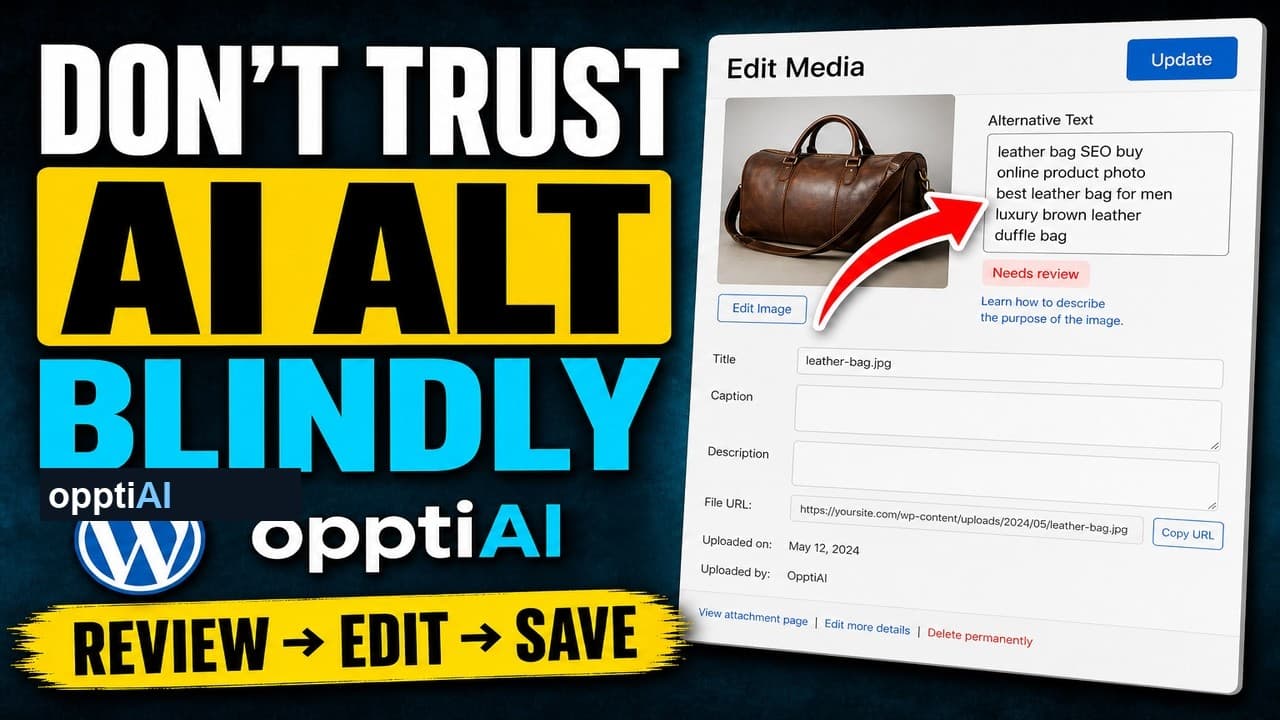
The Four-Point Checklist for Reviewing AI Alt Text
AI alt text fails in a small number of predictable ways. Run this four-point checklist before saving to catch weak, wrong, and keyword-stuffed suggestions.