Why Your WordPress Featured Images Have No Alt Text
WordPress featured images often render with no alt attribute at all — not a blank one, none. Here's why, and how to fix it across your whole site.
Your WordPress featured images almost certainly have no alt attribute at all — not a blank one, none, because most themes never write it into the markup in the first place. That's different from every other image on your site, where a missing alt text field in the media library at least produces an empty alt="". Featured images can skip the attribute entirely, and that gap sits on the single most visible image on every post and page: the one search engines and social platforms treat as the page's representative photo.
Why featured images behave differently
A normal content image goes through the block editor or classic editor, gets inserted with wp_get_attachment_image() or similar, and WordPress core pulls the alt text from the attachment's metadata automatically. If that metadata is empty, you get alt="" — not ideal, but at least a valid, present attribute.
Featured images work differently because they're not inserted into content at all. They're pulled by the theme, usually via the_post_thumbnail(), and rendered wherever the theme template decides — a card on the blog index, a hero banner on the single post, an Open Graph image tag in the head. Whether that markup includes an alt attribute depends entirely on how the theme author wrote the template. Plenty of themes call the_post_thumbnail() with no alt argument passed through, and WordPress doesn't force one. The result: an <img> tag with no alt attribute whatsoever, on every archive card, every hero image, every place that theme reuses the thumbnail.
This is easy to miss because the Featured Image panel in the post editor doesn't nag you the way the block editor does for inline images. There's no warning icon, no accessibility check flagging it in the same way. You set a featured image, publish, and move on — the missing attribute never surfaces unless you go looking with dev tools or a crawler.
Where it actually hurts
Three places compound quickly:
Archive and blog index pages. If your theme's card template omits alt text, every post preview on your homepage, category pages, and search results carries an unlabelled image. That's not one missing alt text — it's one per post, repeated across every listing page that shows thumbnails.
Social sharing and Open Graph. Some themes reuse the featured image as the og:image for link previews, and a few social platforms and accessibility-focused browser extensions read alt text from the source image when generating preview descriptions. An image with no alt attribute gives them nothing to work with.
Screen reader navigation. A screen reader encountering an <img> with no alt attribute at all (as opposed to alt="") will often announce the filename — photo-2847.jpg — because browsers fall back to something when the attribute is absent, whereas alt="" is correctly treated as decorative and skipped. That's a worse experience than a decorative image done properly.
How WordPress image seo for featured images should actually work
The fix isn't a plugin setting you flip once — it's making sure the attribute is written to markup and populated with real metadata every time. There are two layers to close:
- The underlying image needs actual alt text in its attachment metadata, same as any other image in your library.
- The theme template needs to actually pass that alt text through to the
<img>tag it renders.
You can audit both without touching a line of PHP.
A five-step audit and fix
- Pick five posts spanning different templates — a blog post, a landing page, a product or service page, anything using a different featured-image treatment. Different templates in the same theme often handle this differently.
- View source on each, not the rendered page. Search for
the_post_thumbnaildoesn't help from the frontend — instead, search the rendered HTML for the image filename you set as the featured image and check whether analtattribute exists next to it at all. - If the attribute is missing entirely, that's a theme template issue, not a metadata issue — even attachments with alt text set will render without it. Note which template files render that page (usually visible in the theme's template hierarchy, or check
page.php,single.php,archive.php,content.php). - If the attribute exists but is empty, check the attachment's alt text field in the media library. This is the fixable-in-minutes case: open Media Library, find the file, add a real description.
- For the template issue, either raise it with your theme developer/support (most themes fix this fast once flagged, since it's a one-line change to pass
array('alt' => get_the_title())or similar), or use a child theme override if you're comfortable editingfunctions.php. As a stopgap, some themes accept analtargument directly in a shortcode or block settings panel — check the block's sidebar in the editor before assuming it's unsupported.
Once the template writes the attribute properly, fixing the metadata for existing images is the same job as any bulk alt-text cleanup: go through the media library, prioritise images used as featured images on high-traffic posts first, and write descriptions specific enough that someone who can't see the image still knows what it shows.
What good featured image alt text looks like
Avoid restating the post title — that's what a screen reader already announced from the page heading, so a duplicate alt text adds nothing. Describe the image itself: what's actually depicted, not the topic of the article. "A checklist on a laptop screen showing four completed accessibility audit items" tells a screen reader user something the title doesn't. "Blog post about accessibility audits" tells them nothing new and wastes the one description they get for that image.
If the featured image is a stock photo or generic decorative graphic with no informational content — a plain gradient background, for instance — the honest fix is to mark it decorative (alt="") once your theme supports passing that through, rather than inventing a description for an image that isn't actually informative.
Frequently asked questions
Does my WordPress theme support featured image alt text at all?
Most modern themes do, but "support" varies by whether they pass the attachment's alt metadata into the rendered tag, and whether they allow overriding it per-instance. Check by viewing source on a live page and searching for the image filename — if there's no alt="" or alt="..." on that tag, your theme isn't passing it through, regardless of what you've set in the media library. Block themes (those built on the WordPress site editor) generally handle this correctly out of the box since the Post Featured Image block reads attachment metadata directly; classic PHP themes are the more common offenders.
Should featured image alt text be different from the post title?
Yes. The post title is already read by search engines and screen readers as the page heading — repeating it as alt text is redundant and wastes the opportunity to describe what the image actually shows. Write alt text that describes the visual content: composition, subject, and any text or data visible in the image, not a restatement of what the article is about.
Can I fix this without editing my theme's code?
Sometimes. If your theme is missing the attribute entirely in its templates, a plugin that hooks into the_post_thumbnail or filters image attributes site-wide can patch it without a child theme, since WordPress fires filterable hooks (wp_get_attachment_image_attributes) that plugins can use to inject alt text even when the theme template doesn't ask for it directly. That's a reasonable stopgap while you wait on a theme fix, though it's worth confirming your theme fires that filter at all — a few tightly coded themes bypass core's image functions entirely and render <img> tags by hand.
If you want a second pair of eyes on where your alt text gaps actually sit — featured images included — run a free scan with OpptiAI's image SEO audit. For fixing the underlying media library metadata at scale once you've found the gaps, OpptiAI Alt Text writes descriptions from the images themselves rather than generic templates.
Related Posts
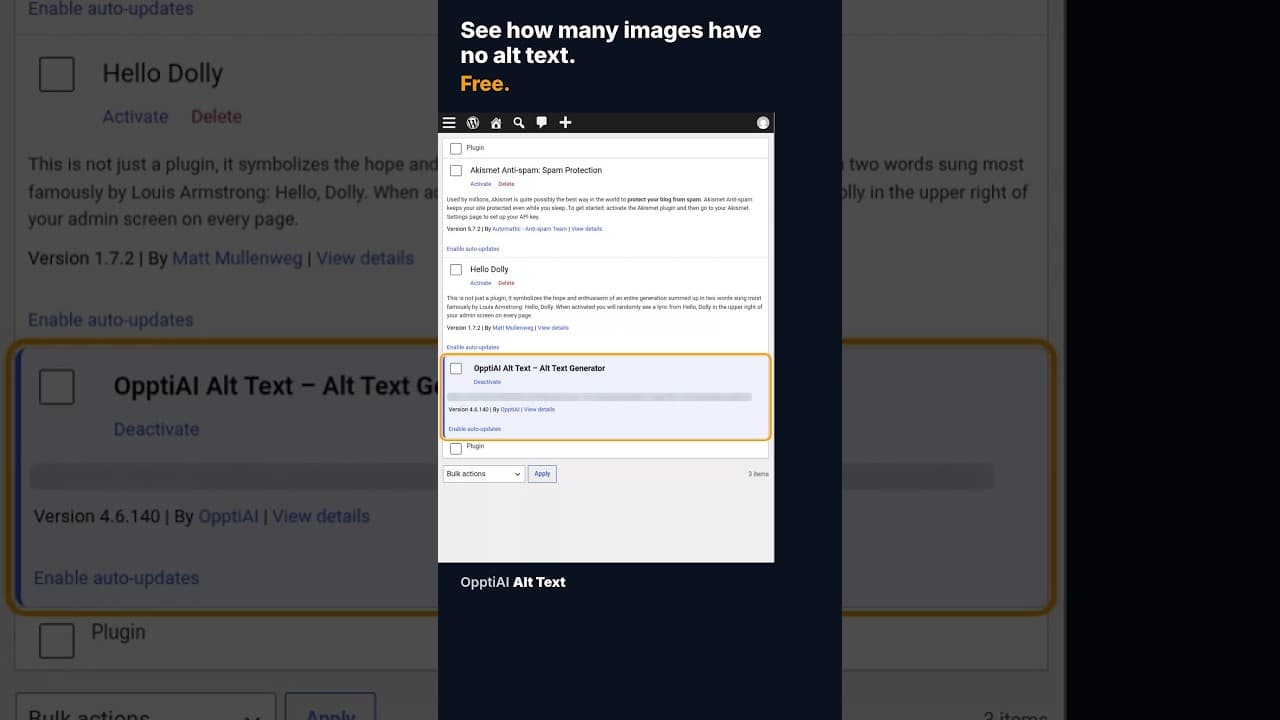
How to Check How Many WordPress Images Are Missing Alt Text
A free alt text audit counts exactly how many WordPress images are missing alt text, no account needed. Here's what the count actually means.
What a 128-Image Alt Text Backlog Looks Like (and How to Clear It)
A 128-image alt text backlog sounds like a project. Split by what's actually wrong with each image, most of it is a much smaller job than the headline number.
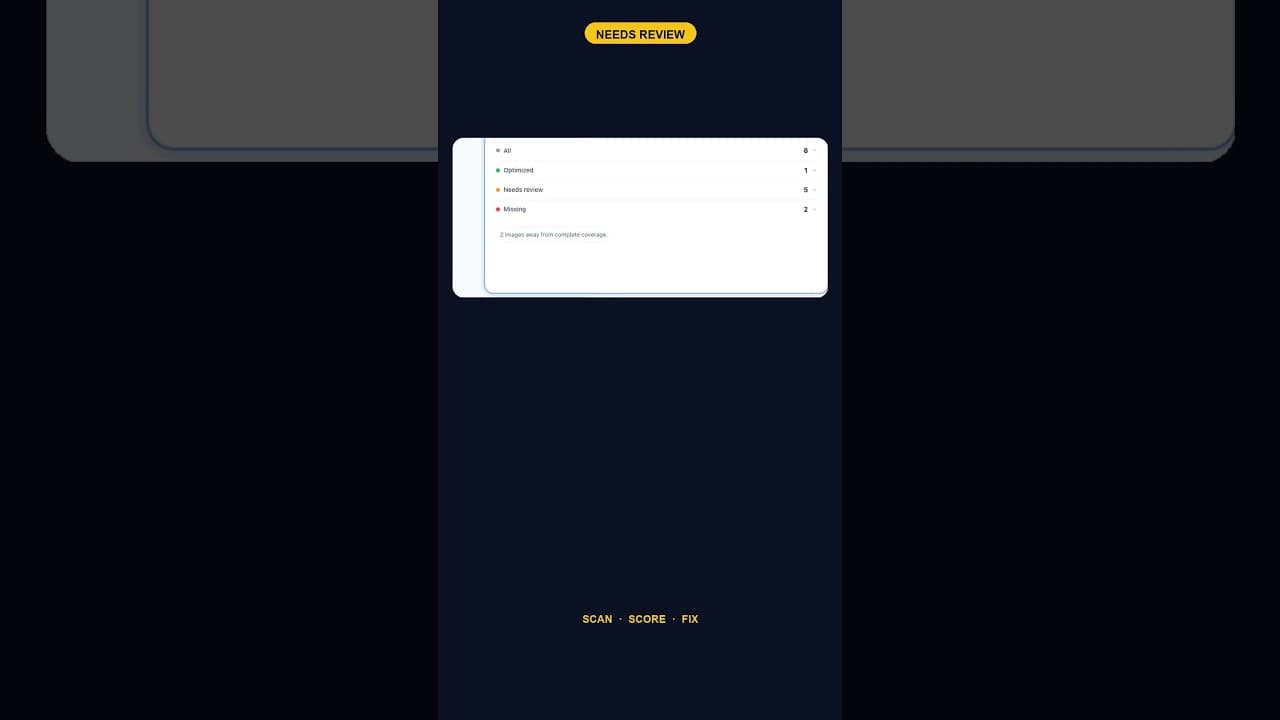
When Alt Text 'Needs Review' Outnumbers 'Missing' Entirely
A scan that finds five images flagged for alt text review and none outright missing is telling you something different than a scan full of blanks.