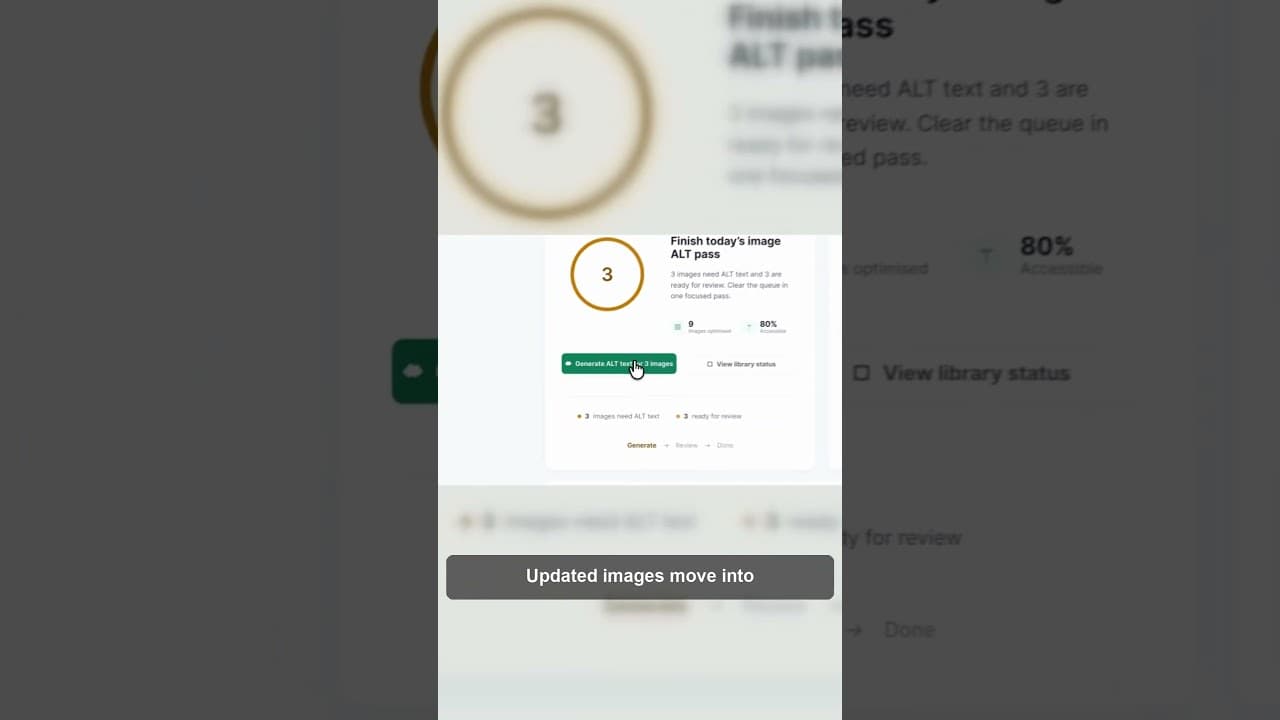
How to Verify Your WordPress Alt Text Fixes Actually Worked
Fixing WordPress alt text isn't the last step. Here's how to re-audit afterwards and confirm your missing count actually went down.
Fixing missing alt text feels finished the moment you save the last image. It isn't. Without a second pass, you have no actual confirmation that the fix stuck, that it covered what you thought it covered, or that nothing regenerated the gap while you weren't looking.
Here's a short video on why the before-and-after comparison matters as much as the fix itself.
Why "I fixed it" and "it's fixed" aren't the same thing
When you run a bulk edit — whether by hand, through a plugin, or via an import script — you're trusting that the process did what it said it would. That trust is usually fine, but it's not verification. A few things commonly go wrong silently: an edit applies to the alt text field on the attachment but not the specific instance used on a page, a bulk tool skips images above a certain file size, or a save fails partway through a large batch without an obvious error message.
None of those failures announce themselves. The only way to know your fix actually landed is to run the same check you ran before, and compare the numbers.
This is also where a lot of people stop too early. They fix the ten images they noticed were obviously wrong, feel like the job is done, and never go back to see what the remaining count looks like. A before-and-after audit turns "I think I got most of them" into an actual figure you can act on.
What a before-and-after comparison should actually track
Three numbers matter more than any single audit snapshot:
The missing count. How many images have no alt text at all. This should drop after a fix — if it doesn't, something in your process isn't reaching the images you think it is.
The weak count. Images with alt text present but low quality — filenames, single generic words, or placeholder text. A fix that only targets "missing" and ignores "weak" will show a clean missing-count while leaving genuinely unhelpful descriptions in place.
New uploads since the last check. If your site adds images regularly — new blog posts, new products — the missing count can creep back up between audits even without anyone doing anything wrong. Tracking this separately tells you whether your ongoing process (not just your one-time cleanup) is holding.
Running the comparison
- Record your starting numbers before you touch anything. Missing count, weak count, and total image count. Write them down somewhere outside the tool itself, so you have a fixed reference point.
- Make your fixes in one batch where possible. This makes the before-and-after comparison cleaner than fixing a handful, checking, fixing a few more, checking again.
- Re-run the exact same scan. Same scope — same media library, same live-page audit if you used one — so the comparison is apples to apples.
- Check for images that moved backward, not just forward. Occasionally a bulk process overwrites a genuinely good manual description with a generic one. Spot-check a sample of your best-performing pages to catch this.
- Set a re-check cadence. A single before-and-after isn't a permanent state. New uploads, theme changes, and plugin updates can all reopen the gap, so schedule the same audit again — monthly or quarterly depending on how often your site's content changes.
Making the second pass worth running
The reason most sites skip the re-audit is that running the same manual check twice feels like duplicate effort for no new information. That's a fair complaint if the check itself is tedious. The OpptiAI Alt Text plugin keeps a live quality score and missing/weak/optimised breakdown for your whole WordPress media library, so the "after" numbers are already sitting there whenever you want to look, rather than requiring you to redo a manual pass from scratch. You can also run a free image SEO audit against your public pages as an independent second check that isn't reading from the same source as your fix.
Frequently asked questions
How soon after fixing WordPress alt text should I re-check it?
Immediately, or within a day. Checking right after your fix confirms the edit actually saved and applied where you expected — catching a failed bulk save early is much easier than discovering it months later when you assumed the job was done.
What does it mean if my missing alt text count didn't drop after a fix?
It usually means the fix didn't reach every image you thought it did. Common causes: the edit targeted the media library attachment but the page displays a different image size or instance, the bulk tool has a file-size or file-type limit that silently skipped some images, or the save process was interrupted partway through a large batch. Re-running the fix on a smaller, isolated batch usually reveals which case applies.
Should I track alt text quality over time, or just fix it once?
Track it over time if your site adds images regularly. A one-time fix clears the existing backlog, but new uploads — new blog posts, new products, a theme change — reopen the gap continuously. A periodic re-check (monthly or quarterly) catches that drift before it accumulates into another large backlog.
Related Posts
How Long Google Takes to Update Changed Title Tags
You changed a title tag and Google still shows the old one. Here's the real timeline for a change to show up, and how to speed it up.
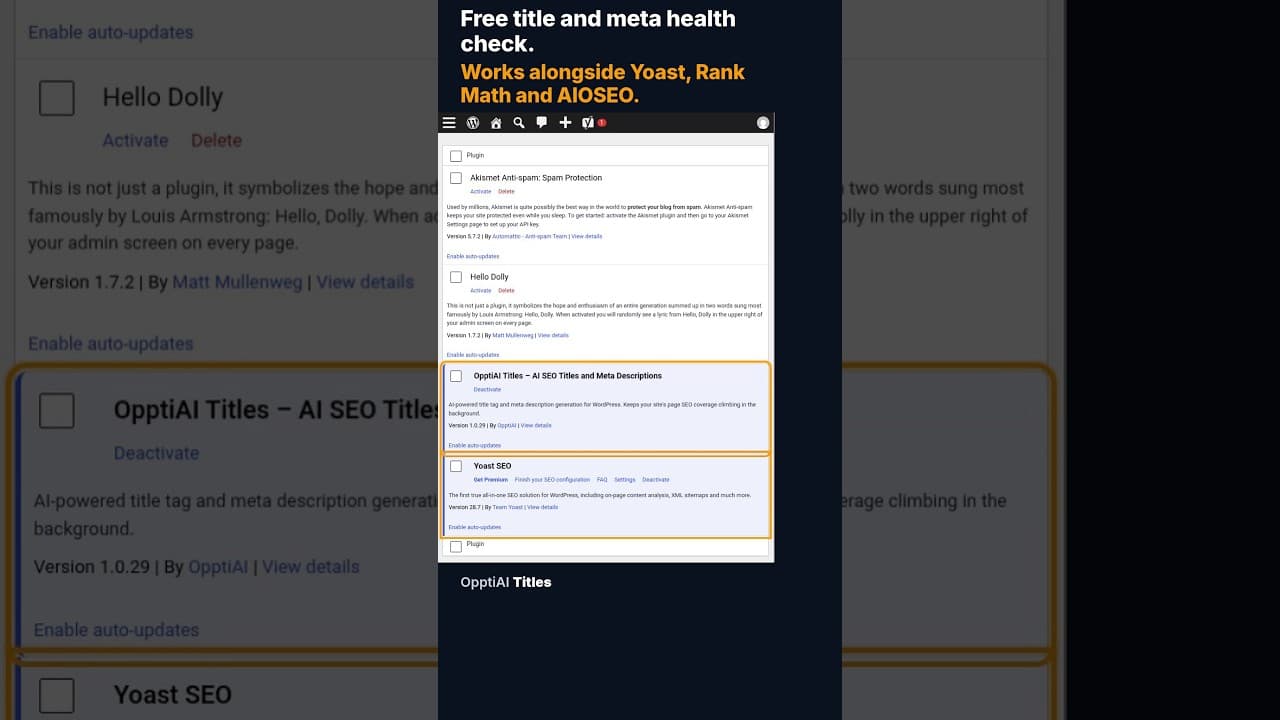
A Free WordPress Title and Meta Description Health Check
A free health check scans every WordPress page for missing or weak titles and meta descriptions and gives you a score. No account needed to see the result.
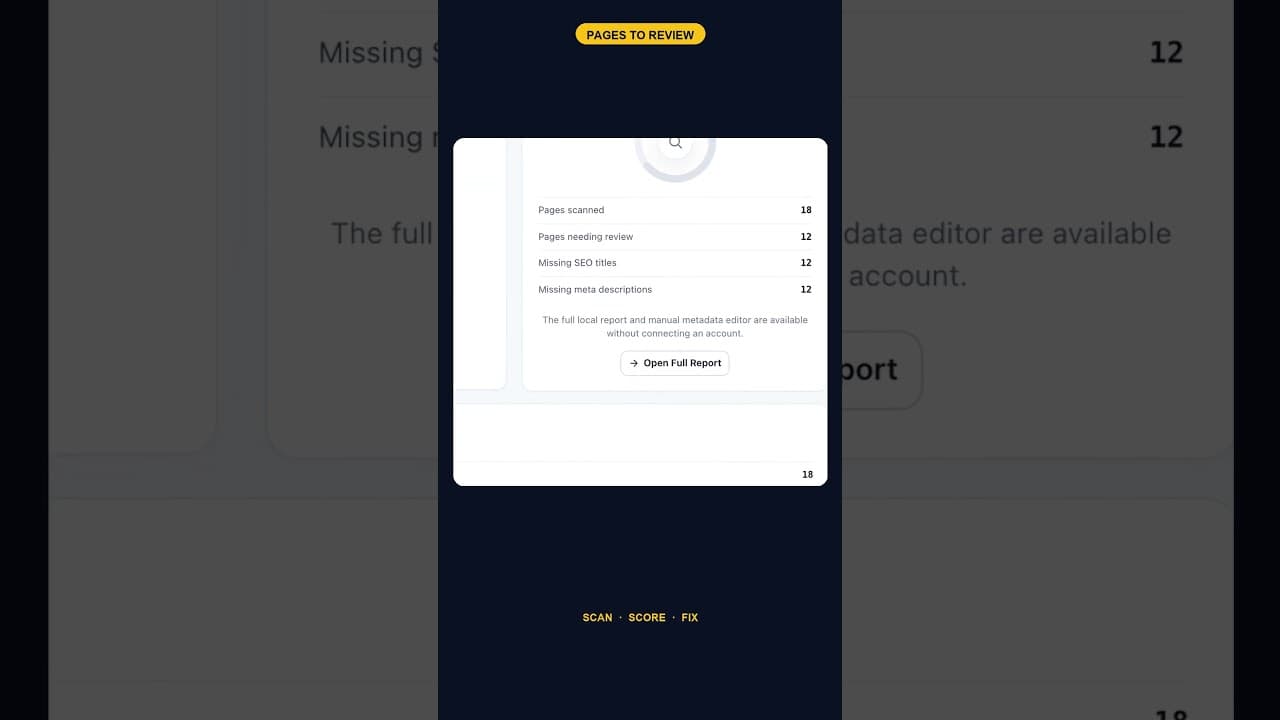
When 12 of 18 WordPress Pages Are Missing Titles and Meta Descriptions
An SEO scan finding 12 of 18 pages missing both a title tag and a meta description is one structural gap, not twelve separate oversights. Here's how to read it.