A Review-Edit-Save Workflow for AI Alt Text
AI can draft alt text in seconds, but a good result still needs a process. Here's a review-edit-save workflow that catches mistakes before they publish.
AI can generate an alt text draft in the time it takes to click a button. That speed is the whole appeal, and it's also exactly why a loose process turns into a bad habit fast — when drafting is instant, saving without reviewing is instant too. A simple three-step workflow, review, edit, save, keeps the speed while putting a real check between the AI's output and your live site.
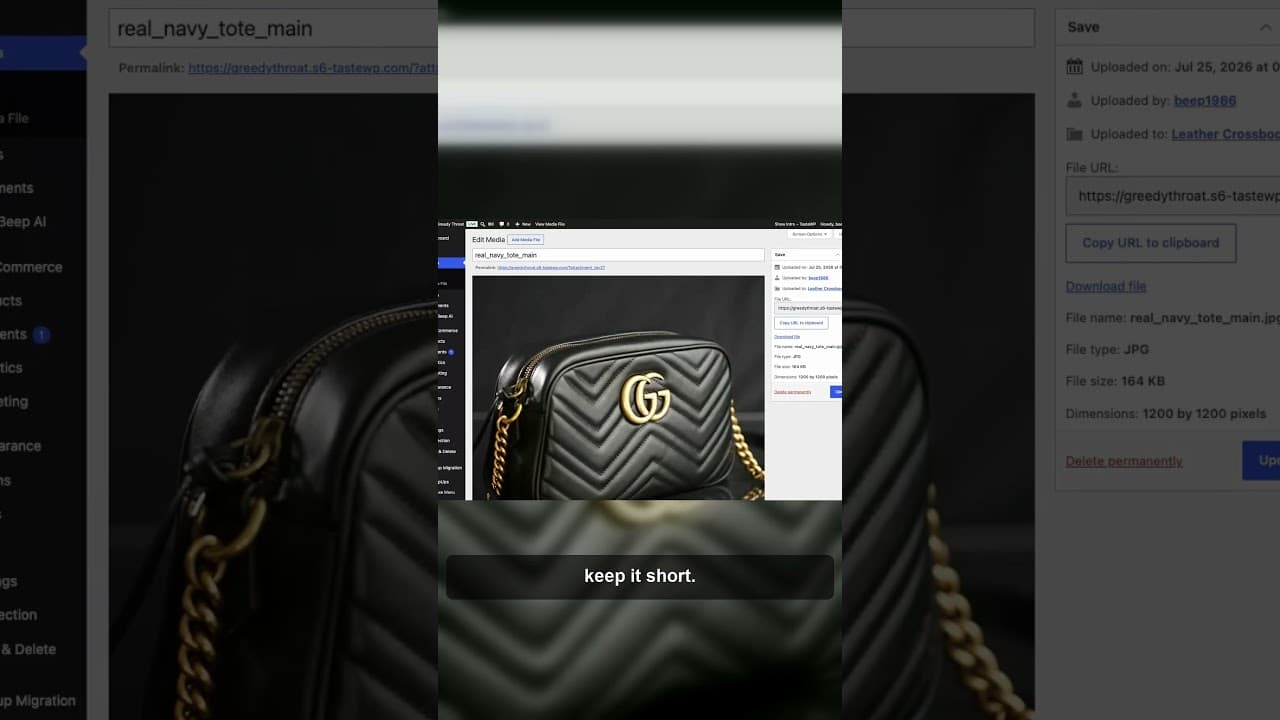
Here's a short video on what that workflow looks like in practice.
Step one: review, in two specific checks
"Review" is too vague to be a real step on its own — it needs to mean something specific, or it turns into a quick glance that catches nothing. Two checks make the review step concrete:
Meaningful or decorative? Before judging whether a description is accurate, decide whether the image needs a description at all. A product photo, a chart, a screenshot showing something specific — those are meaningful and need real alt text. A background texture, a spacer graphic, a purely visual divider — those are decorative and should get an empty alt="" rather than a forced description. AI tools sometimes draft text for decorative images anyway, describing a texture or pattern nobody needs read aloud. Catching this in review is a one-second judgement call: does this image carry information, or is it just visual polish?
Does it match the frame? For meaningful images, check the draft against what's actually in the photo — not a general sense of "does this sound plausible" but a direct comparison. Right colour, right count, right object. This is where AI drafts most often go subtly wrong: fluent, confident, and slightly off from what's actually pictured.
Step two: edit, don't discard
If the review step flags a problem, the instinct is often to delete the AI's draft and start over. That's usually the wrong move — most AI drafts are mostly right, with one specific thing wrong: a colour, a count, a missing product name. Editing that one detail is faster than rewriting, and it keeps the workflow quick enough that you'll actually stick with it across a large batch of images.
Editing also covers length. AI-drafted alt text tends to run either too short — a generic phrase that technically describes the image but tells a screen reader user nothing useful — or too long, narrating details that don't matter. The edit step is where you trim a rambling draft down to what's actually needed: specific enough to be useful, short enough that a screen reader doesn't spend ten seconds reading a caption for one photo.
A rough length target helps here — most good alt text lands under about 125 characters. If an edited draft is running well past that, look for what's not pulling weight, usually adjectives or scene-setting detail that doesn't change what the reader understands about the image.
Step three: save, with the count in view
The save step sounds trivial, but it's where a batch workflow either holds together or falls apart. Saving one image at a time after each review breaks the rhythm of reviewing a batch. Saving a full reviewed batch at once keeps the process moving — but only if every image in that batch actually went through steps one and two first.
The failure mode to watch for is saving out of habit once you've reviewed several images in a row and they've all been fine. That streak is exactly when the next AI draft is statistically more likely to have a real error, because you've stopped applying the same attention you did to the first few.
Putting the three steps together on a real batch
Here's what review-edit-save looks like across a batch of ten AI-drafted descriptions:
- Generate drafts for all ten images at once.
- Go through each one, deciding meaningful or decorative first, then checking the meaningful ones against their photo.
- Flag the ones needing an edit — say, three out of ten have a wrong detail or run too long.
- Edit those three, leaving the other seven as drafted.
- Save the batch of ten together.
The three flagged images are where the actual work happens. The other seven pass through review quickly precisely because the check is specific enough to confirm "this is right" fast, rather than requiring a full rewrite-from-scratch comparison every time.
Why skipping straight to save undoes the whole benefit
The appeal of AI-drafted alt text is speed without sacrificing quality. Skip the review and edit steps, and you keep the speed but lose the quality control — which means every error the AI makes ships straight to your live site and stays there until someone happens to notice. The review-edit-save workflow isn't extra work bolted onto AI drafting; it's the part that makes AI drafting safe to use at scale in the first place.
Frequently asked questions
How long should reviewing one AI-drafted alt text take?
For a meaningful image with an accurate draft, a couple of seconds — glance at the photo, glance at the text, confirm it matches. Images that need an edit take longer, but only because you're fixing a specific issue, not re-evaluating from scratch. Across a batch, most images should be quick "yes, that's right" checks, with a minority needing real attention.
How do I decide if an image is decorative or meaningful?
Ask whether removing the image would remove information a reader needs, or only remove visual decoration. A photo of a product, a screenshot with text in it, a chart — removing these loses information, so they're meaningful and need real alt text. A background pattern, a divider line, a purely aesthetic border image — removing these changes nothing about what the page communicates, so they're decorative and should get alt="".
Should I ever skip the review step for AI-drafted alt text?
No — but the review step doesn't have to be slow. The goal is a fast, specific check (meaningful or decorative, does it match the frame) rather than a lengthy audit. Skipping it entirely removes the only point in the workflow where an AI's confident but wrong description gets caught before it reaches your live site.
Try OpptiAI Alt Text to draft, review, and save alt text across your WordPress media library in one workflow, or run a free image SEO audit to see where your current alt text needs attention.
Related Posts
Don't Save AI Alt Text Without This Quick Check
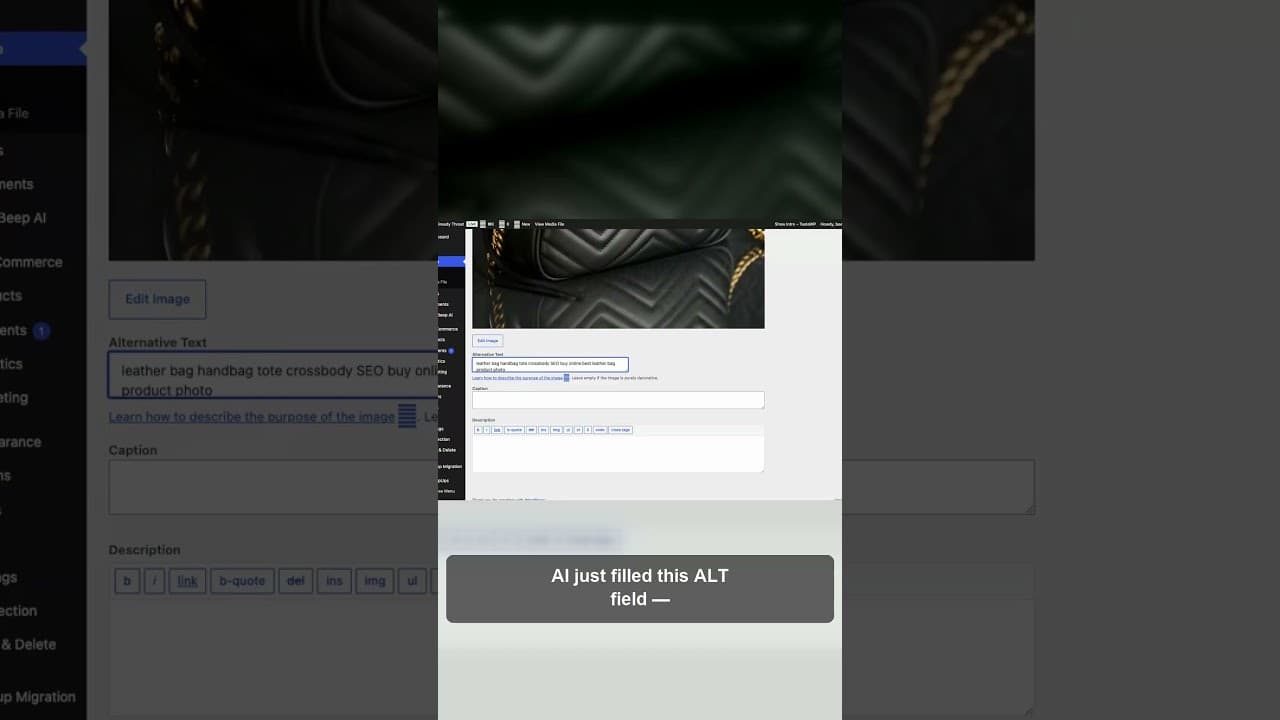
AI can fill an alt text field in seconds, but it can also fill it wrong. Here's the quick check to run before you hit save on any AI-drafted alt text.
What a WordPress Alt Text Quality Score Actually Measures
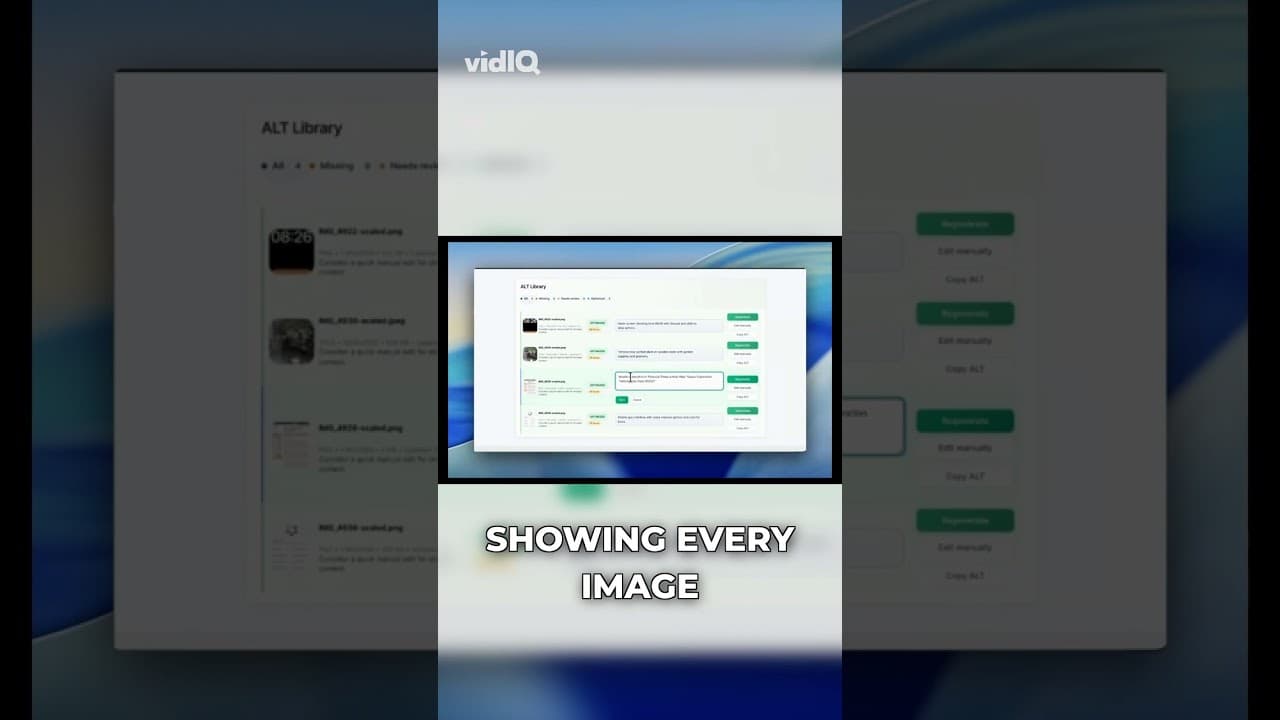
A WordPress alt text quality score isn't just present or missing. Here's what factors actually go into scoring alt text, and what a low score really means.
Why You Should Review AI Alt Text Before Publishing It
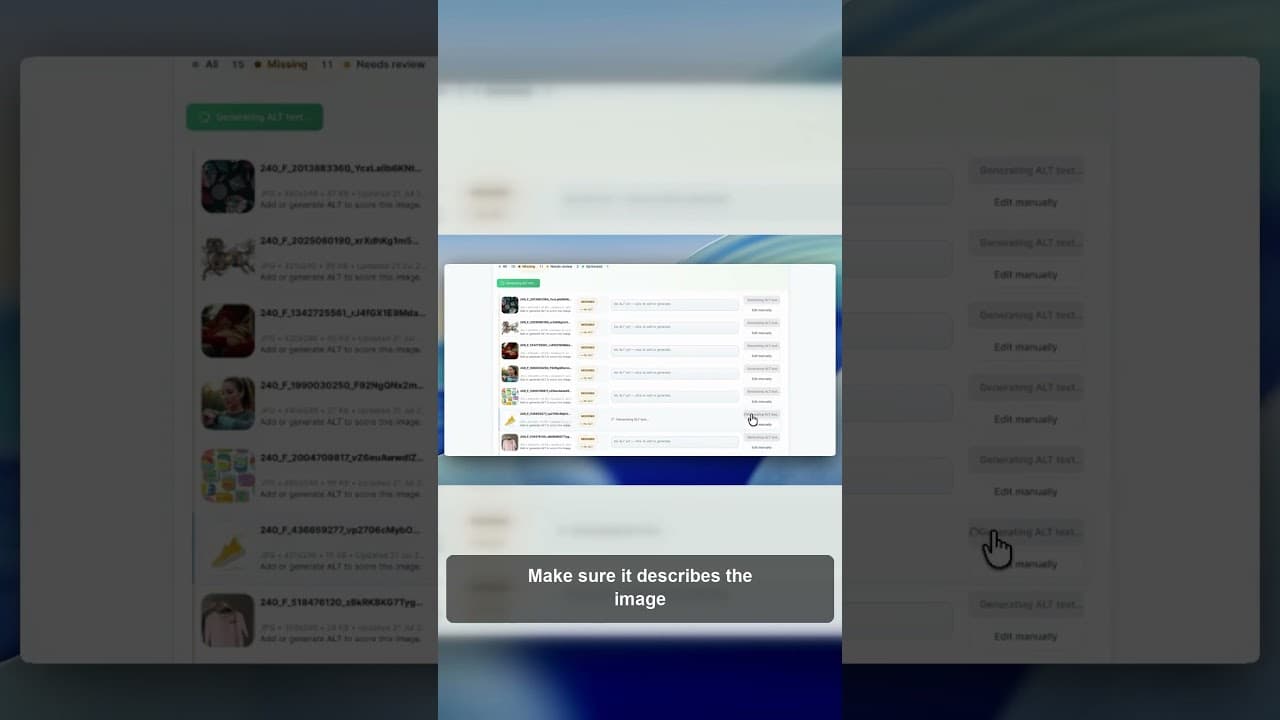
AI can draft WordPress alt text fast, but saving it unread is a mistake. Here's what to check before AI-generated alt text goes live on your site.