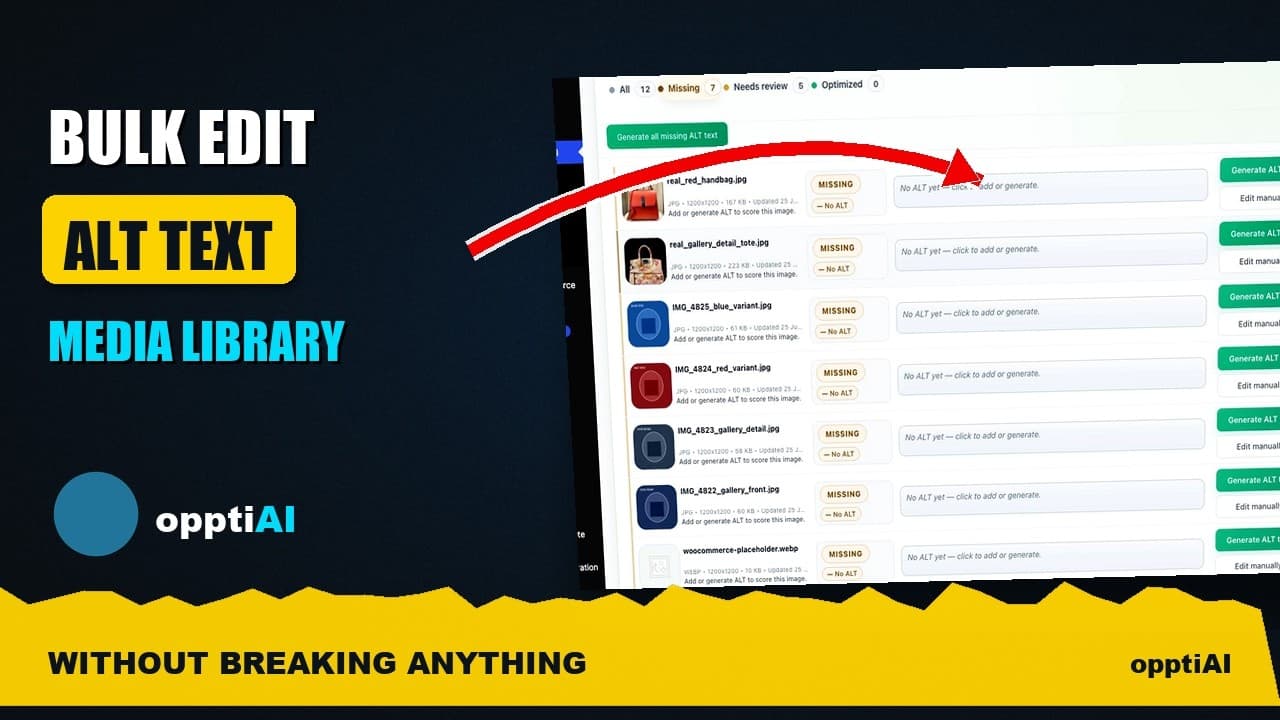
Bulk-Edit Alt Text From a Filtered List, Not the Media Library
Opening one attachment at a time to fix alt text doesn't scale. Here's how to bulk-edit from a filtered list instead, without breaking anything.
The WordPress Media Library is built around one attachment at a time: open an image, scroll to the alt text field, type, save, close, open the next one. That's fine for one image. It's the slowest possible way to fix alt text across a few hundred, and it's the reason most alt text cleanups start strong and quietly stop after the first afternoon.
The one-attachment tax
Every click inside the default Media Library modal costs you the same fixed overhead regardless of how simple the edit is: open the attachment details panel, locate the alt text field among the other metadata, click into it, type or paste, click out, close the panel, find the next image. None of that overhead scales down as the batch gets bigger — it's a flat tax per image, and on a library with 400 images it adds up to hours of pure clicking before you've written a single useful description.
That tax is why "we'll clean up alt text next sprint" so often turns into three images fixed and then abandonment. The problem isn't that the team doesn't care about alt text — it's that the tool they're using charges the same overhead per image whether they're fixing one or four hundred.
Working from a bulk surface instead
The fix is to stop treating alt text as an attachment-detail field and start treating it as a list you can filter, scan, and edit in place. A bulk ALT surface — a table of images with their current alt text alongside them — removes almost all of the per-image overhead: no modal to open and close, no hunting for the right field, just a row you can read and edit directly.
Filter before you generate or fix anything. Split the library into "missing entirely" and "needs review" before you touch a single image. Missing alt text is a different job from weak alt text — missing needs a first pass, weak needs editing — and mixing the two into one undifferentiated list means you're constantly switching mental modes mid-task. Filter first, work one category at a time.
Generate or fix from the filtered list, not the attachment page. Once you're looking at just the "missing" set, you can move through it as a batch — reading each suggestion in context of its thumbnail, right there in the row, rather than clicking through to a separate screen for every single image.
Spot-check before you trust it. Bulk generation is fast precisely because it doesn't stop to ask you about every image, which means weak or wrong suggestions can slip through if you save without looking. A quick scan of the batch before committing catches the AI describing a product in the wrong colour or missing that an image is actually decorative.
Save single-attachment edits for genuine exceptions. Once the bulk pass is done, a handful of images will need individual attention — an unusual product shot, an image where the AI clearly misread context. That's exactly what the attachment-detail view is good for. The mistake is using it as the default tool for every image instead of the fallback for the few that need it.
A practical walkthrough
- Open the bulk ALT view and filter to "Missing" first — this is the highest-value pass because these images currently contribute nothing to accessibility or image SEO.
- Work through the missing set in the list view, generating or writing alt text directly against each thumbnail without navigating to a separate attachment screen.
- Switch the filter to "Needs review" once missing is cleared, and repeat — these are images with alt text present but weak (too short, keyword-stuffed, or generic "image123.jpg"-style filler).
- Spot-check a sample of what you just saved before moving on, reading the suggestion against the actual thumbnail rather than trusting the text alone.
- Note which images still need manual attention — anything ambiguous, decorative, or where the AI clearly got the context wrong — and handle those individually in the attachment detail view.
- Re-run the filtered view periodically, not just once. New uploads land in "Missing" the moment they're added, and a bulk surface only stays useful if you keep coming back to it.
Frequently asked questions
Is bulk-editing alt text riskier than editing one image at a time?
Not if you filter and spot-check rather than blindly applying suggestions to an unfiltered batch. The risk in one-by-one editing isn't lower, it's just spread out and harder to notice — a rushed manual edit on image 340 of 400 is just as likely to be wrong as a bulk-generated one, you're just less likely to catch it because nobody reviews individually-edited alt text the way they'd review a batch. Filtering first and spot-checking after keeps the accuracy bar the same while cutting the time by an order of magnitude.
What's the difference between "Missing" and "Needs review" when filtering a media library?
"Missing" means the alt attribute is empty or absent entirely — these images contribute nothing to screen readers or image search right now. "Needs review" means alt text exists but is likely weak: too short to be descriptive, stuffed with repeated keywords, or generic filler like a filename. Treating them as the same category wastes effort, because fixing "missing" is a generation problem and fixing "needs review" is an editing problem — different tasks, different mental mode, best done as two separate passes rather than interleaved.
Should I bulk-edit alt text for product images the same way as blog images?
The workflow is the same, but the review bar is higher for products. A wrong or vague alt text on a blog post image is a minor SEO miss; a wrong alt text on a product photo — describing the wrong colour or variant — can actively mislead a customer using a screen reader, and it looks sloppy if a customer ever checks the image's alt attribute directly. Filter and generate in bulk for both, but spend more of your spot-check time on the product batch specifically.
Building and maintaining a filtered bulk view by hand means writing custom queries against the media library just to get a workable list. OpptiAI Alt Text gives you that filtered Missing/Needs-review surface out of the box, with AI suggestions flagged for review before they save — try the free image SEO audit to see how many images on your own site would land in each filter.
Related Posts
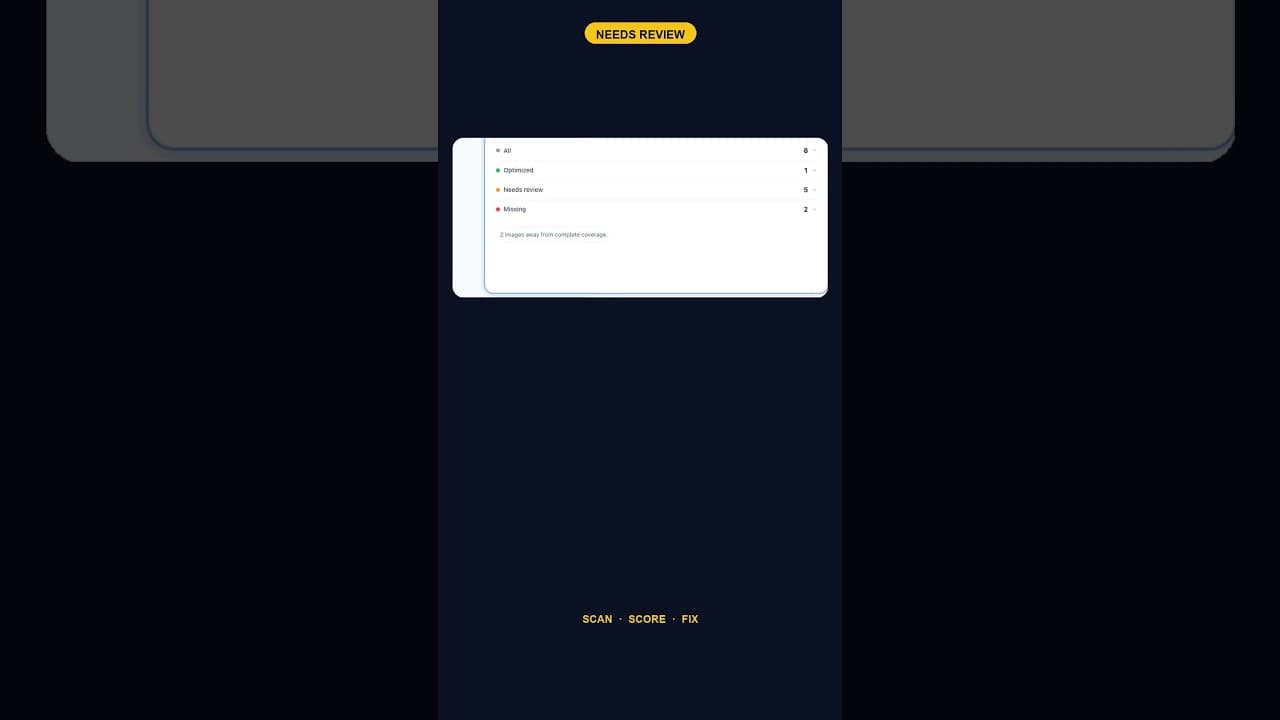
When Alt Text 'Needs Review' Outnumbers 'Missing' Entirely
A scan that finds five images flagged for alt text review and none outright missing is telling you something different than a scan full of blanks.
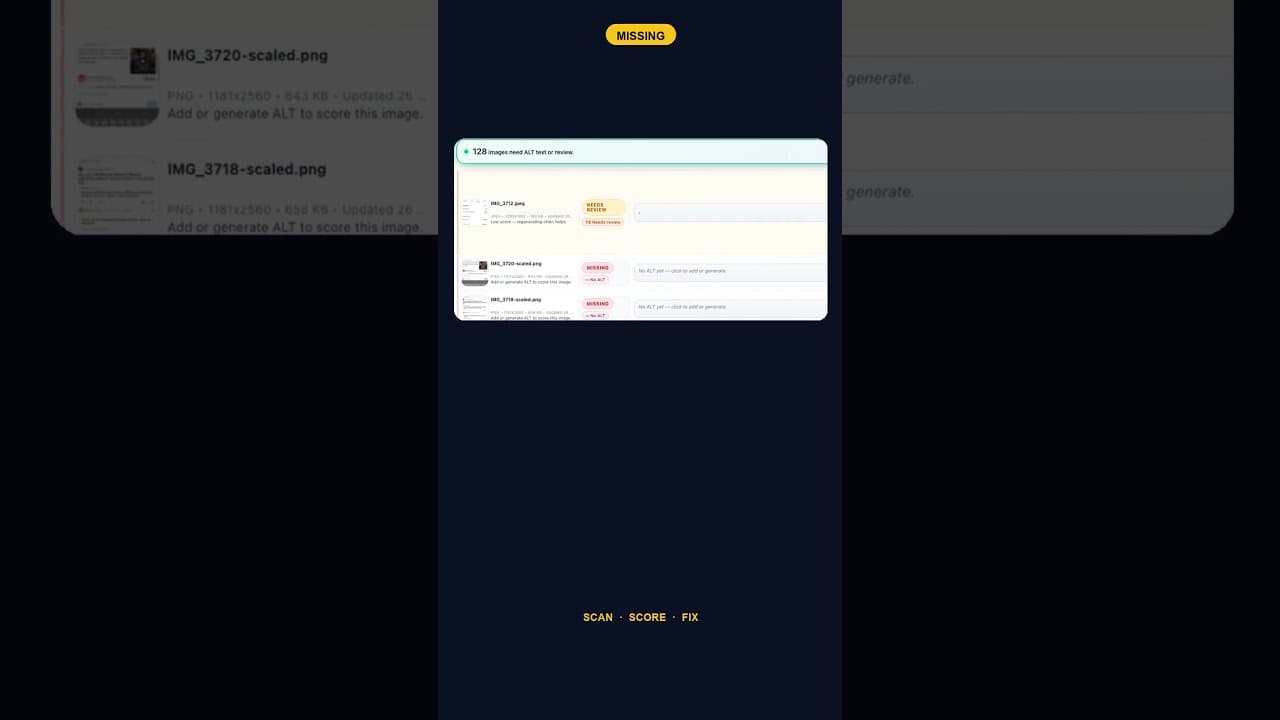
Only 2 Images Missing Alt Text? Fix Them Anyway — Here's Why
A WordPress site with just two images missing alt text is easy to deprioritise. Here's why that small a gap is still worth closing the same day you find it.
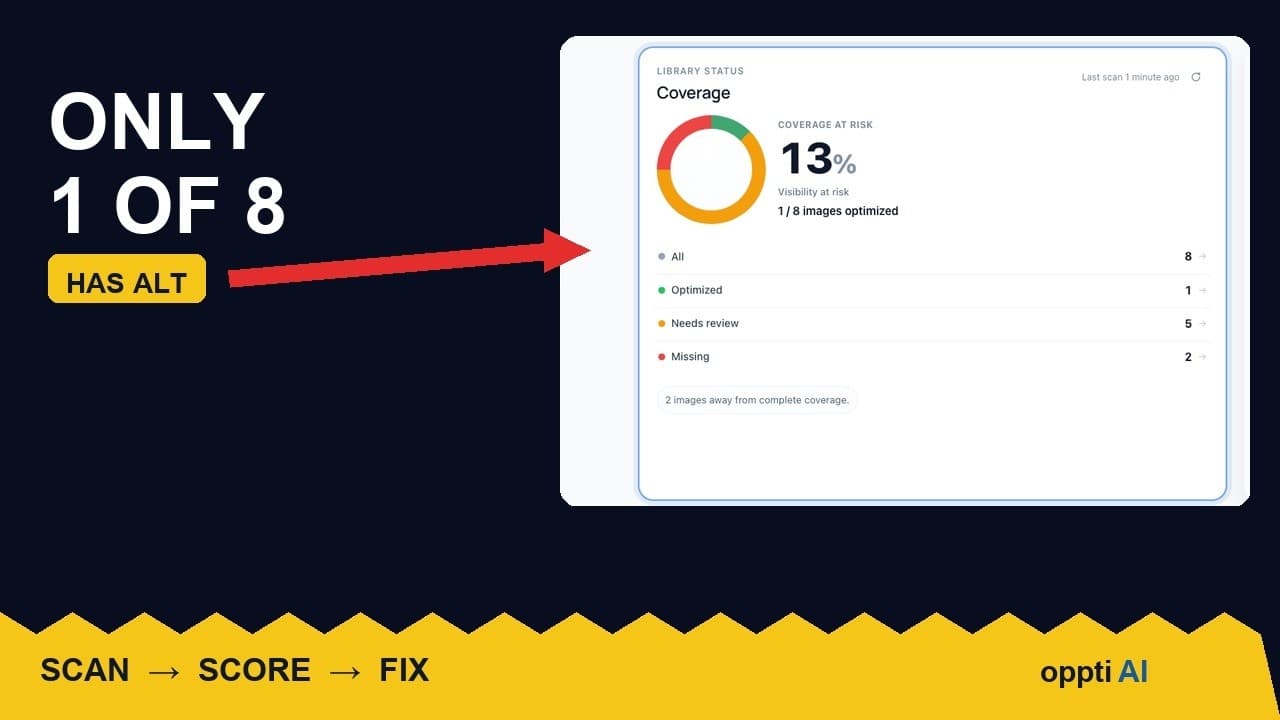
How to Run an ALT Text Coverage Audit on WordPress
An ALT text coverage audit shows exactly how many WordPress images are missing alt attributes, and which ones genuinely need fixing first.