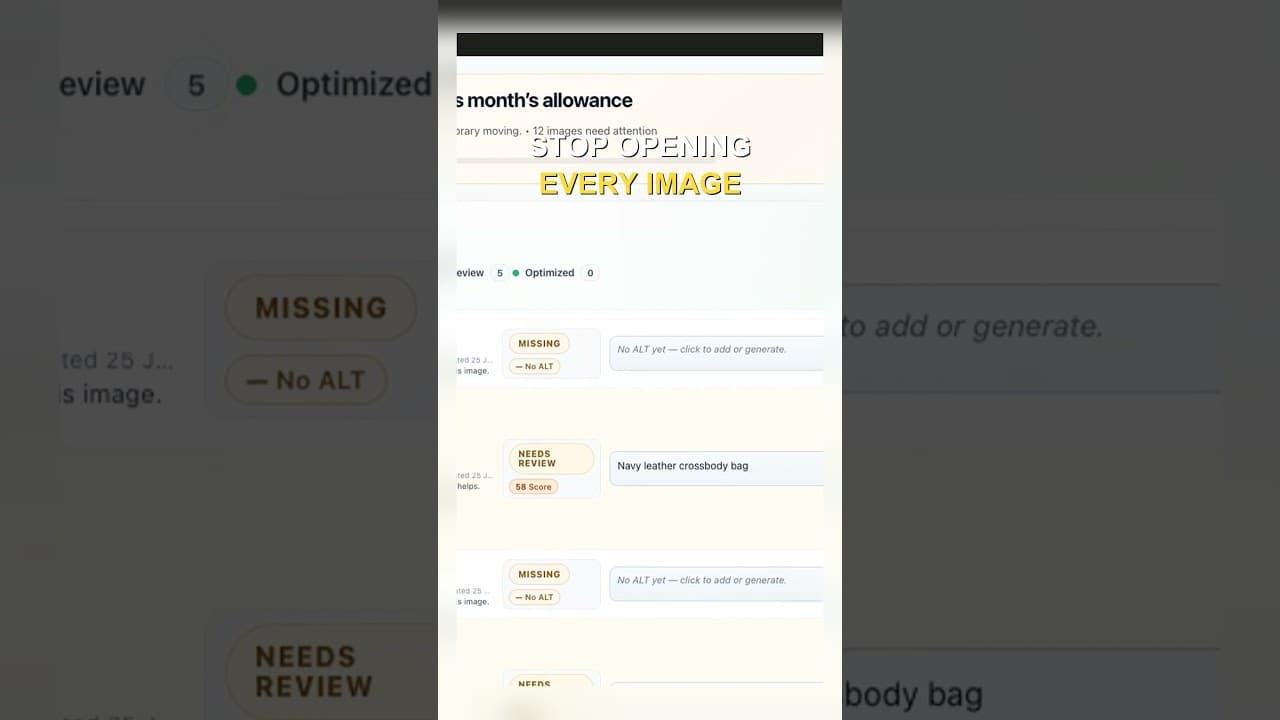
Edit Alt Text Without Opening Every Image
Opening the attachment modal for every image before you can edit alt text is the slowest part of the job. Here's how to edit from the list instead.
The default way to edit alt text in WordPress is click an image, wait for the attachment modal to open, find the alt text field, type, close the modal, click the next image. That open-and-close cycle is the slowest part of the job — not the writing, the clicking. Skip the modal and edit from a list instead, and the same task takes a fraction of the time.
Here's a short video on what that looks like in practice.
Where the time actually goes
Time a single edit in the default media library and most of it isn't spent writing text. It's the modal loading, the scroll to find the alt text field among the other metadata, the click into the field, and then the close-and-reopen for the next image. The actual typing is a few seconds. The surrounding clicks and waits are what add up across a real backlog.
Multiply that overhead by a couple hundred images and the modal cycle alone can account for a meaningful chunk of the session — time spent navigating the interface, not doing the work the interface is supposed to support.
What editing from a list removes
A list view with an inline alt text field next to each thumbnail cuts the modal out of the loop entirely. You see the image and the current alt text status in the same row, click into the field, type, and the next row is already visible — no navigating away and back.
The difference isn't the typing speed, it's the number of actions per image. Modal-based editing is open, locate field, type, close: four steps minimum. Inline editing from a list is click field, type: two. Removing two steps per image, multiplied across a few hundred images, is where the real time saving comes from.
Working a list without the modal
- Pull up the list view, not the grid — a list format with a visible alt text column makes the current status of every image scannable at a glance, which the grid view doesn't give you without opening each one.
- Sort or filter to what needs work. Combine this with a missing-or-weak filter so every row on screen is relevant, not just faster to reach.
- Edit directly in the row. Click into the alt text field for that row, type or accept a suggestion, and move to the next without a page reload or modal transition.
- Save as you go, or in a batch, depending on what your setup supports — either works, as long as you're not reopening a modal per image to do it.
- Spot-check a few afterwards by viewing the actual page they're used on, since list-view editing is fast enough that it's worth a quick sanity pass once you're done.
Why this matters more than it sounds like
Saving a few clicks per image sounds minor until it's the difference between a task that gets done and one that gets postponed. A backlog of 300 images at four clicks and a modal load each feels like an afternoon project — the kind of thing that gets pushed to "when I have time," which in practice means never. The same 300 images at two clicks each, with no modal, fits into a coffee-break session, and tasks that fit into a coffee break actually get done.
The interface friction isn't a minor annoyance. It's often the actual reason a known backlog stays unfixed for months.
Frequently asked questions
Does WordPress support inline alt text editing by default?
Not really. The core media library's list view shows filenames and a few columns, but editing alt text still routes through the attachment details modal by default. Inline, in-row editing of alt text typically requires a plugin that adds an editable column to the media list.
Is inline editing less careful than reviewing each image in the modal?
Not if you're still looking at the image and the text together, which a well-built list view shows side by side anyway. The modal doesn't make you more careful — it just adds navigation steps between images. Speed and carefulness aren't the same axis; you can review just as closely in a list row as in a modal, in less time.
Is this worth setting up for a site with only a handful of images missing alt text?
Probably not on its own — if you're fixing five images, the modal overhead barely registers. It starts to matter once the backlog is in the dozens or hundreds, or once alt text editing becomes a recurring task rather than a one-off cleanup, since that's when the per-image overhead compounds into real time.
Try OpptiAI Alt Text to edit alt text directly from a list across your WordPress media library, or run a free image SEO audit to see how many images are waiting on you.
Related Posts
Block Editor Alt Text vs Media Library: Why They Differ
WordPress stores alt text in more than one place. Here's why block editor and media library alt text can disagree, and where the real value lives.
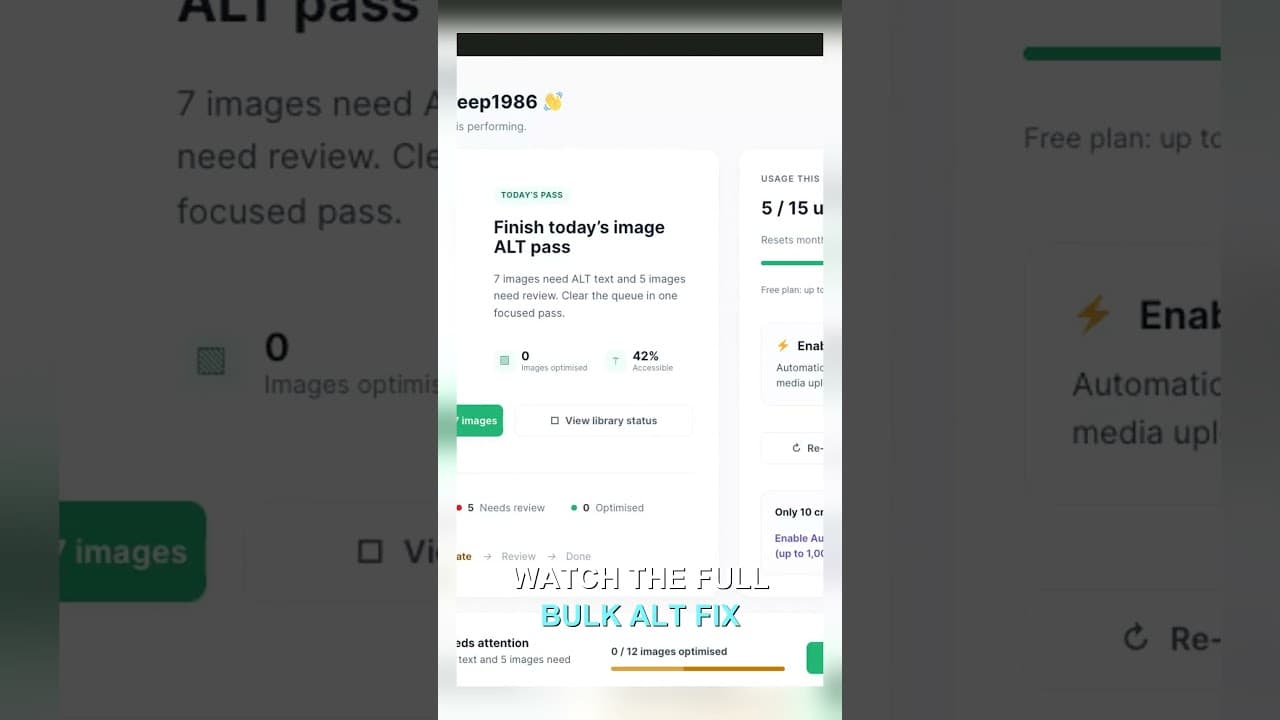
Filter Your Media Library to Missing Alt Text First
Scrolling the whole media library to find missing alt text wastes most of your session. Filter to what's actually missing, then work that list.
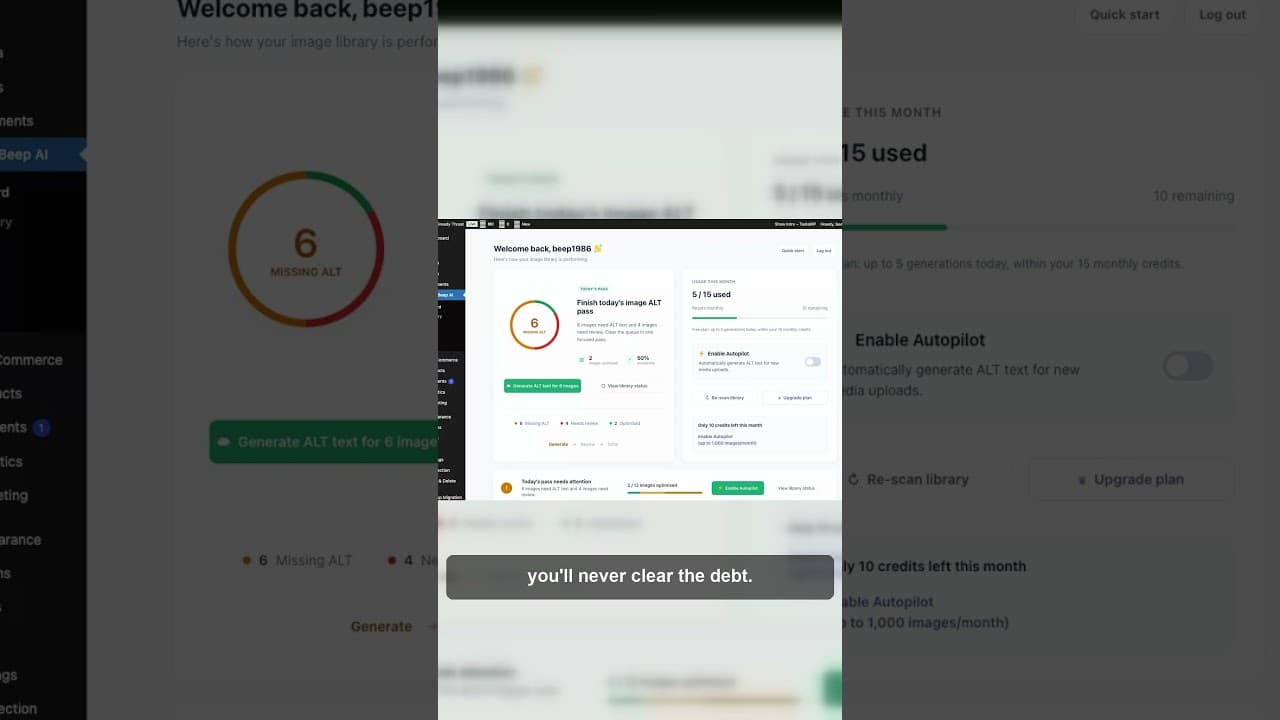
Stop Fixing Alt Text One Image at a Time
Opening every image to write alt text one by one never clears the backlog. Here's why a batch workflow finishes what one-by-one fixing doesn't.