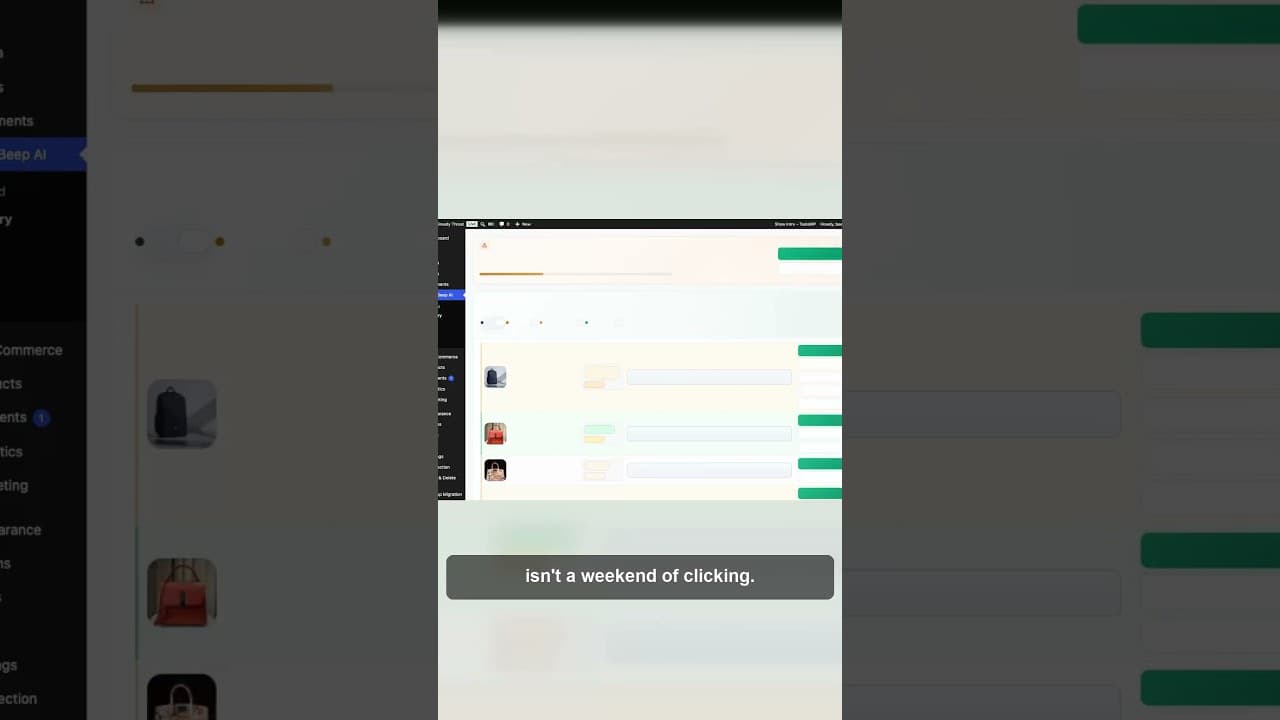
How to Clear a 300-Image Alt Text Backlog
300 missing alt tags isn't a weekend of manual clicking. Here's how to scan a WordPress site's full alt text debt and clear it down to zero in batches.
300 missing alt tags sounds like a number you can chip away at over a few evenings. It usually isn't. Sites accumulate missing alt text quietly — a product launch here, a blog migration there — until the total is large enough that "I'll get to it" stops being a realistic plan. Clearing a backlog that size needs a different approach from fixing the odd image as you notice it.
Here's a short video on taking a count from 300 missing alt tags down to zero.
Why 300 missing alt tags accumulates without anyone deciding it should
Nobody sits down and decides to skip alt text on 300 images. It happens in small, individually reasonable moments: a product import that pulls in images without descriptions, a theme change that swaps out featured images, a content migration that carries text over but drops metadata, a busy week where a dozen blog posts go up without anyone circling back to the images.
Each of those moments adds five, ten, twenty images to the pile. None of them feel urgent on their own. The total only becomes visible when someone actually counts it — and by then it's large enough to feel like a project rather than a task.
Step one: get the real number, not an estimate
You can't plan a fix for a backlog you haven't measured. Guessing "probably a hundred or so" leads to underestimating the time needed and abandoning the effort partway through when the real number turns out to be three times that.
A full site scan — checking every image across posts, pages, and product listings for a missing or empty alt attribute — gives you the actual count. This matters for two reasons: it tells you honestly how much work is ahead, and it gives you a baseline number to watch drop, which is motivating in a way that "I fixed some images today" isn't.
Step two: sort by where the images actually matter
Not all 300 images carry equal weight. Before fixing anything, it helps to separate them into rough priority groups:
Product and service images — these directly affect SEO for pages that drive revenue and are usually worth fixing first.
Blog post hero and inline images — these matter for content SEO and accessibility but are typically lower-traffic individually than product pages.
Decorative images — background textures, dividers, spacer graphics. These don't need descriptive alt text at all; an empty alt="" is correct. Sorting these out of the 300 early can shrink the real backlog meaningfully, since decorative images often get miscounted as "missing" when they're not actually a problem.
This sorting step alone can turn a 300-image backlog into a 220-image one before you've written a single description, simply by correctly excluding images that were never supposed to have alt text.
Step three: fix in batches, checking in on the count
With the list sorted, work through it in batches rather than end to end in one sitting:
- Take the highest-priority group first — usually product images.
- Generate or write descriptions for that whole group in one pass.
- Review each one against its image before saving.
- Check the updated total. Watching 300 drop to 260, then 200, then 140 makes the scale of the task feel manageable in a way the original number didn't.
- Move to the next group and repeat.
Breaking the work into checkpoints tied to a visible, shrinking number keeps the project from feeling open-ended. An open-ended task is easy to abandon; a countdown is easier to finish.
Preventing the backlog from rebuilding
Getting to zero once doesn't keep you at zero. The same causes that built up 300 missing images the first time — imports, migrations, busy publishing weeks — will do it again unless something catches new gaps as they appear.
A recurring scan, even a quick monthly one, catches new missing alt text while the count is still in the tens rather than the hundreds. Fixing 15 new images a month is a five-minute task. Fixing 300 that accumulated over two years is a project. The difference is entirely about how often you check, not how good you are at writing alt text.
Frequently asked questions
How long does it actually take to clear 300 missing alt tags?
Writing each one from scratch manually, at roughly a minute per image including opening and saving, that's around five hours of continuous work — rarely realistic in one sitting. Sorting out decorative images first (which don't need real descriptions) and working through the rest in reviewed batches typically cuts that closer to one to two hours of focused time, spread across a couple of sessions.
Do decorative images count toward a "missing alt text" total?
They shouldn't, but many audit tools count them anyway because they can't tell a decorative background graphic from a product photo. A decorative image with an empty alt="" attribute is correctly formatted, not broken — sorting these out of your backlog before fixing anything is often the fastest way to shrink an inflated count.
What's the best order to fix a large alt text backlog in?
Prioritise by impact, not by chronology. Product and service images that appear on revenue-driving pages are usually worth fixing before older blog post images, since they carry more SEO weight and are more likely to appear in image search results tied to purchase intent. Decorative images should be excluded from the "to fix" list entirely rather than worked through last.
Try OpptiAI Alt Text to scan your whole WordPress site and clear a large alt text backlog in batches, or run a free image SEO audit to see your current missing alt text count.
Related Posts
Catch New Uploads Before Alt Text Debt Comes Back
Autopilot and cleanups still miss images. Here's the routine check that catches new uploads slipping through before missing alt text piles up again.
Set Up Autopilot Alt Text for New WordPress Uploads
Manually writing alt text for every new upload doesn't survive contact with a busy site. Here's how to configure autopilot rules that generate it for you.
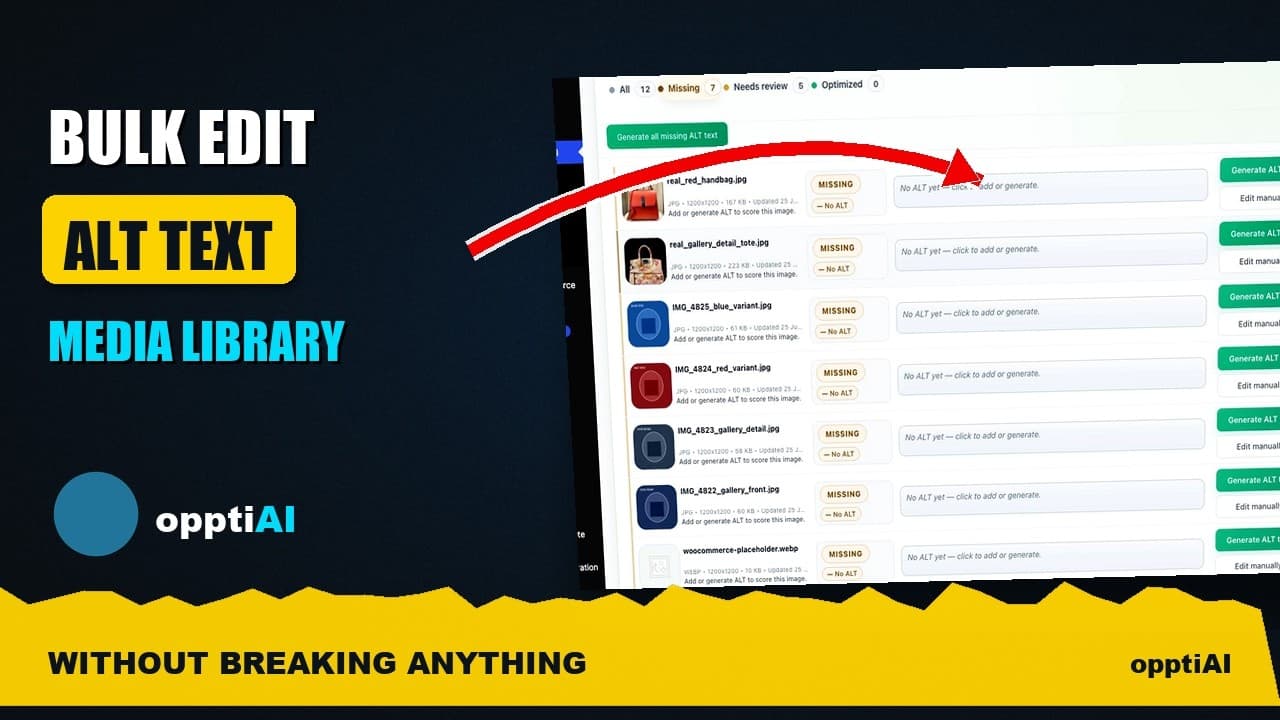
Bulk-Edit Alt Text From a Filtered List, Not the Media Library
Opening one attachment at a time to fix alt text doesn't scale. Here's how to bulk-edit from a filtered list instead, without breaking anything.