WooCommerce Variation Images Need Alt Text Too
Fixing the featured image alt text isn't enough. WooCommerce variation images are stored separately and need their own descriptions to be found.
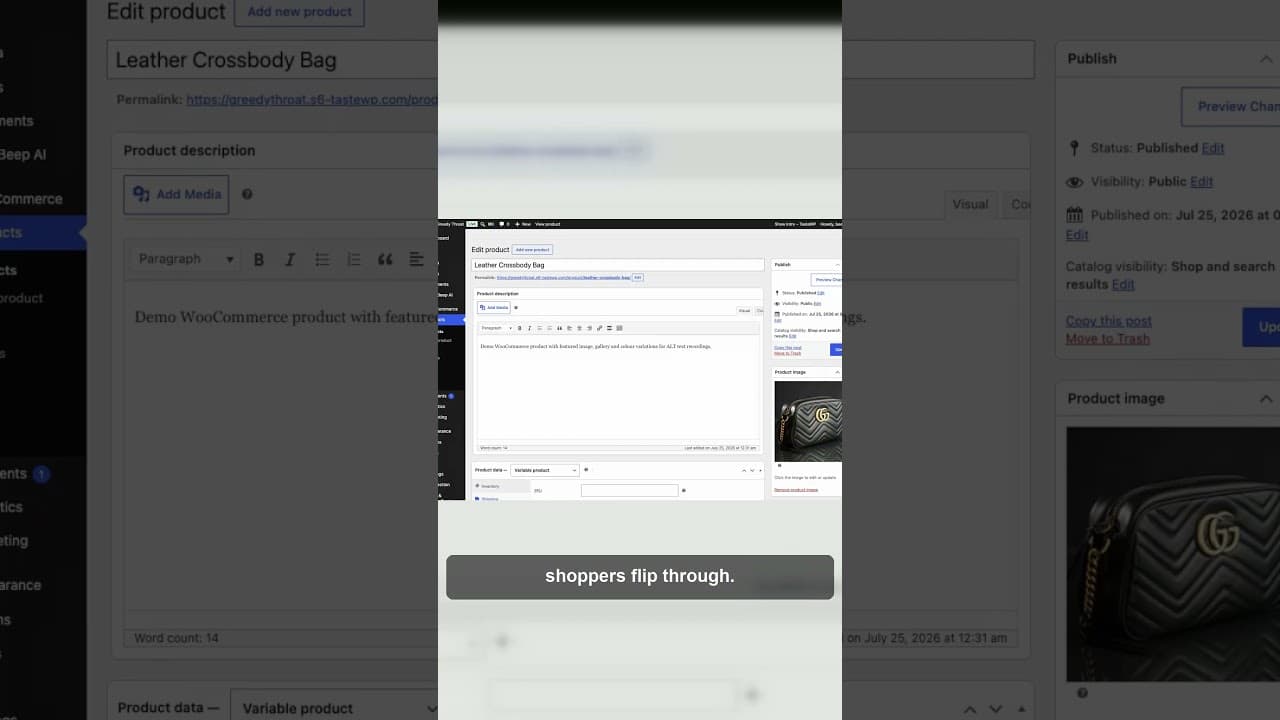
Fix the featured image, tidy up the gallery, and a WooCommerce product still isn't done. Variation images — the photo that changes when a shopper picks "forest green" instead of "charcoal" — live in a separate part of the product editor, and alt text written for the main image doesn't follow them there. It's the single most common gap left over after a store has already done the obvious alt text work.
Why variation images get missed
WooCommerce stores product images in three distinct places, and each one has its own alt text field:
- Featured image — the main photo shown on the product page before a shopper interacts with anything. Set in the product editor's main panel, so it's the one people remember to fill in.
- Gallery images — additional photos of the same product, added through a separate uploader beneath the featured image. Easy to forget a couple of these once the featured image is sorted.
- Variation images — a photo tied to a specific attribute combination, like a colour or size. These live inside the Variations tab, several clicks deeper than the main gallery, and each variation needs its own image and its own alt text.
That third category is where coverage falls apart. A store owner does a pass on featured images, maybe a pass on galleries, calls the job done, and never opens the Variations tab to check what's sitting there. The variation images aren't hidden exactly — they're just structurally separate, so a review that only looks at the "obvious" image fields walks straight past them.
The size of the problem multiplies with variations
A single non-variable product has one image field to check, maybe a handful of gallery photos. A variable product with colour and size options can have a dozen variation images, each needing distinct alt text — because "green jumper" and "charcoal jumper" are genuinely different images and deserve different descriptions, not the same line copied twelve times.
This is where generic alt text becomes a bigger problem than empty alt text. Writing "wool jumper" on every variation image technically fills the field, but it fails the actual job: a screen reader user picking between colours has no way to tell which swatch they're on, and Google can't distinguish which image belongs to which variation either. The description needs to name what's actually different about that specific image — the colour, the size, the material — not just restate the product name.
How to check what you currently have
- Open a product with variations and go to the Variations tab rather than the main product image or gallery — this is the field most audits skip.
- Click into each variation and check whether it has its own image assigned, or whether it's silently falling back to the featured image with no distinct photo at all.
- Where a variation does have its own image, check the alt text specifically — don't assume it inherited anything sensible from the parent product, because it usually didn't.
- Note any variation using generic or duplicated alt text across multiple colours or sizes; that's the fix priority, not variations with no image assigned at all (there's nothing to describe if there's no image).
- Repeat across your highest-traffic or best-selling variable products first — this is a catalogue-wide pattern, not a one-off, so the first product you check is rarely the only one affected.
- If you manage more than a handful of variable products, checking each one by hand doesn't scale — a bulk scan of your media library that reports alt text per image, not per product, will surface every variation gap in one pass.
Writing alt text that actually distinguishes variations
The test for good variation alt text is simple: could you tell two variations apart by reading the alt text alone, without seeing the image? "Product photo" fails that test regardless of how many variations you apply it to. "Forest green merino wool jumper, front view" passes it, because it would be wrong if attached to any other colour.
Keep the format consistent across variations of the same product — colour and view, or size and angle, whatever fits what's actually changing — so the descriptions read as a coherent set rather than each being written from scratch. Consistency also makes it much faster to spot the ones that are still generic, because they'll visibly not match the pattern of the rest.
Why this is worth fixing beyond accessibility
Variation images often get more individual impressions than people expect, because shoppers comparing colours or sizes cycle through several of them on a single visit, and each one is a separate entry in Google's image index. A store that only optimises featured images is leaving out most of its actual product photography from that signal — the featured image might be one photo out of twelve for a product with several colourways, and the other eleven are sitting with no useful description attached.
Frequently asked questions
Do WooCommerce variation images inherit alt text from the featured image?
No. Variation images are a separate field inside the Variations tab, and WooCommerce doesn't copy alt text from the featured image or gallery across to them automatically. If you've only edited the main product image, every variation image is very likely still untouched, even on products where the featured image looks properly optimised.
Should every product variation have its own image?
Not necessarily — if two variations are visually identical (say, two sizes of the same colour), it's reasonable for them to share an image and its alt text. The problem is specifically when variations that do look different, like separate colours, either have no distinct image or share generic alt text that doesn't say which one is which. If the image is genuinely different, the alt text should be too.
What's the fastest way to check variation image alt text across a whole catalogue?
Checking product by product and drilling into the Variations tab each time works for a handful of products but doesn't scale past that. A bulk audit tool that scans your WordPress media library directly will surface variation images alongside featured and gallery images in one report, flagging which ones are empty, filename-based, or duplicated across variations — so you can fix the worst gaps first instead of opening every product individually.
Try OpptiAI Alt Text to scan your WooCommerce catalogue — including variation images — for missing or generic alt text, or run a free image SEO audit to see where your store's gaps currently are.
Related Posts
Why WooCommerce Quick View Images Skip Alt Text
WooCommerce quick-view and lightbox images often load without the alt text on your product page, because most scanners never see them render.

WooCommerce Multi-Vendor Alt Text: The Vendor Upload Gap
Multi-vendor WooCommerce marketplaces lose alt text coverage because vendors upload outside your admin workflow. Here's how to close the gap.
Fixing WooCommerce Product Title Tags Without the Grind
A WooCommerce catalogue with hundreds of products means hundreds of title tags. Here's a workflow for fixing them without opening every product page.