Why Your WooCommerce Product Images Are Missing Alt Text
WooCommerce product images look fine to shoppers and still have empty or filename alt text. Here's where the gaps usually hide and how to find them.
A product image can look completely finished to a shopper and still be invisible to a screen reader or to Google image search. That's the trap with WooCommerce alt text: the gap doesn't show up anywhere in your storefront's visual design, so it's easy to assume it doesn't exist. It usually does, and it usually clusters in a few predictable places.
Where WooCommerce alt text goes missing
The featured image on a product usually gets the most attention, because it's the one you see first when editing the product in wp-admin. It's also, ironically, not always the one with the biggest problem — it's visible right in the product edit screen, so people notice and fix it.
The real gaps show up further down the page structure:
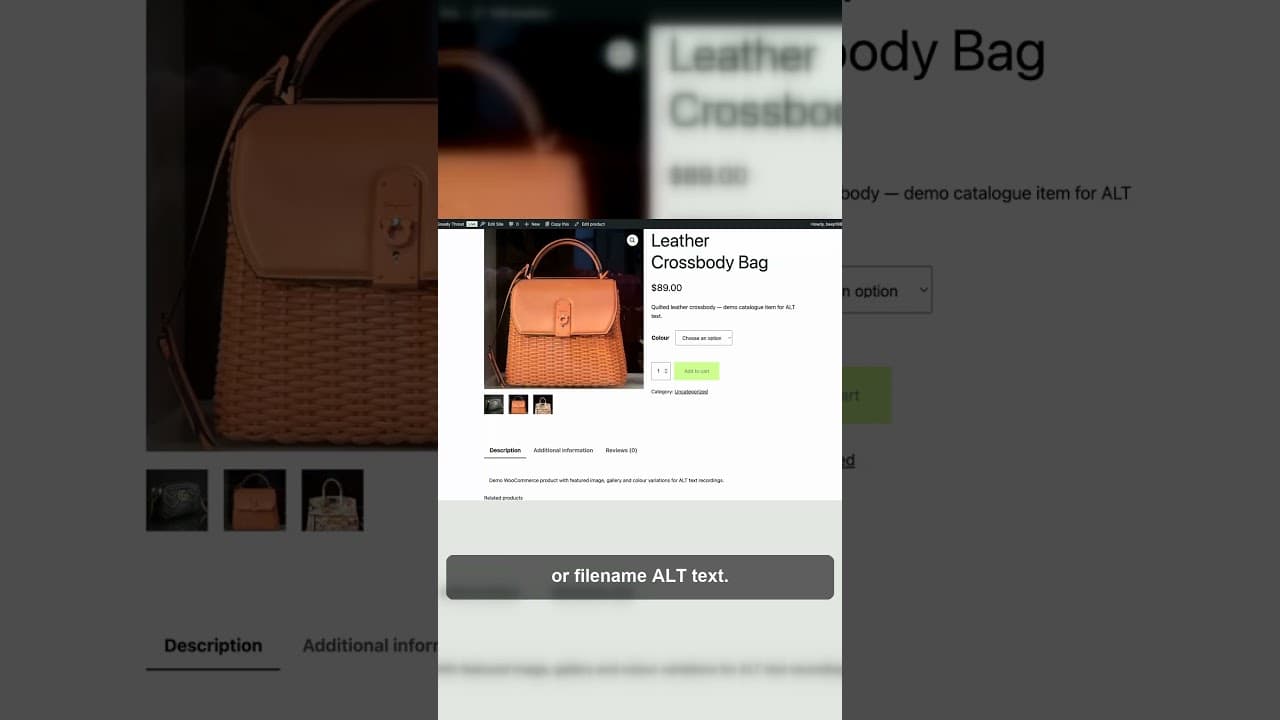
- Gallery images. A product typically has one featured image and several gallery images showing different angles. The gallery images are added through a separate uploader and it's easy to fill in alt text for the featured image, then forget the four photos underneath it.
- Variation images. If your products have variations — different colours, sizes, materials — each variation can carry its own image, uploaded through a variations panel that's a few clicks deeper in the product editor than the main gallery. These get skipped constantly.
- Category and archive thumbnails. The image representing a product on a category page or in search results sometimes comes from a different field than the main product image, particularly with certain themes, and can end up with no alt text even when the product page itself looks correctly set up.
- Bulk-imported products. Products imported via CSV, from a supplier feed, or migrated from another platform often bring image URLs across without alt text, because the source system didn't have an equivalent field or the import mapping skipped it.
What "missing" actually looks like
Missing alt text on a WooCommerce product doesn't always mean a blank field. Three patterns are common, and each needs a slightly different fix:
Genuinely empty — no alt text was ever set. This is the simplest case: write a description.
Filename as alt text — some import tools or older plugins fall back to using the image filename, so the alt attribute reads something like product-img-2847.jpg instead of a description. This looks superficially "filled in" if you're just checking whether the field has content, but it's functionally as useless as being empty.
Generic boilerplate — alt text that's identical or nearly identical across many products, like every image reading "product photo". Technically not empty, but it fails the actual purpose of alt text, which is to distinguish this specific image from every other one on your site.
Finding the gaps
- Start with your product gallery images rather than featured images — that's where the highest concentration of missing alt text usually sits, and it's the category most people check last.
- If your product count is small, open a sample of products directly and check each gallery image's alt field in the Media Library or the product editor.
- For anything beyond a handful of products, use a bulk audit tool that scans your media library and flags images with empty, filename-pattern, or duplicate alt text, rather than checking one product at a time.
- Pay specific attention to variation images — they're structurally separate from the main gallery in WooCommerce, so a gallery-only audit can miss them entirely.
- Check a few category and archive pages directly in your browser's developer tools to confirm the thumbnail images there carry real alt text, not just the main product page.
- If products were bulk-imported, treat the whole batch as suspect rather than sampling — import gaps tend to be systemic across the entire import, not scattered randomly.
Why this matters beyond accessibility
WooCommerce product images carry real SEO weight that's easy to leave on the table. Google Shopping and image search both use alt text as a signal for what a product photo shows, and a store with consistently empty or generic alt text across its catalogue is giving up a channel that costs nothing extra to use well — you're not writing new content, you're describing content you've already produced.
Frequently asked questions
Do WooCommerce variation images need their own alt text?
Yes. Variation images are stored and displayed separately from the main product gallery, so alt text set on the featured image or gallery photos doesn't carry over automatically. If your product has colour or size variations with their own photos, each one needs alt text describing that specific variation — "forest green wool jumper" rather than a generic description that could apply to any colour.
Why do imported WooCommerce products often have bad alt text?
Bulk imports via CSV or supplier feeds frequently map image URLs without an equivalent alt text field, or default to using the filename as a fallback. This produces alt text that looks technically present but doesn't describe anything — a screen reader announces a filename like IMG4471.jpg, and search engines get no useful signal about what the product photo shows. Treat every bulk import as a batch that needs a dedicated alt text pass.
How do I check alt text across hundreds of WooCommerce products without opening each one?
A bulk audit tool that scans your WordPress media library directly is the practical approach — it surfaces images with empty, filename-pattern, or duplicate alt text across your entire catalogue in one pass, rather than requiring you to open each product individually. From there you can prioritise fixes by traffic or by which products are missing the most obvious gaps, like featured images with no alt text at all.
Try OpptiAI Alt Text to audit and generate alt text across your WooCommerce catalogue, or run a free image SEO audit to see where your store's gaps are.
Related Posts
Why WooCommerce Quick View Images Skip Alt Text
WooCommerce quick-view and lightbox images often load without the alt text on your product page, because most scanners never see them render.
WooCommerce Multi-Vendor Alt Text: The Vendor Upload Gap
Multi-vendor WooCommerce marketplaces lose alt text coverage because vendors upload outside your admin workflow. Here's how to close the gap.
Fixing WooCommerce Product Title Tags Without the Grind
A WooCommerce catalogue with hundreds of products means hundreds of title tags. Here's a workflow for fixing them without opening every product page.