What to Check Before Turning On Title Tag Autopilot
Autopilot will apply title and meta description fixes without asking each time. Here's what to configure first so it doesn't apply the wrong ones.
Autopilot mode for title tags does exactly what it says: once it's on, weak or missing titles and meta descriptions get rewritten and published without you clicking approve each time. That's the point of it — you stop manually reviewing hundreds of pages one by one. But it also means any rule you didn't set correctly gets applied at scale, immediately, across every page that matches it. Reviewing your scope, exclusions, and thresholds before flipping the switch takes ten minutes and prevents the kind of mistake that's tedious to unwind later.
Why autopilot needs rules, not just a toggle
Reviewing every suggested title one at a time works fine on a site with thirty pages. It doesn't work on a site with three thousand, which is exactly the situation autopilot is built for. The trade-off is that a manual review catches a bad suggestion before it goes live — a title that's technically fine but misses the actual product angle, or a meta description that reads oddly for one specific page type. Autopilot doesn't have that checkpoint. It applies what matches the rule. So the rule has to do the job the human reviewer used to do: define which pages qualify, which don't, and what "good enough to publish automatically" actually means for this site.
The four things to configure before enabling it
Scope: which content types are included. Decide explicitly whether autopilot touches posts, pages, products, and category archives, or just a subset. A common mistake is leaving everything in scope by default and finding out later that autopilot rewrote titles on legal or policy pages that were deliberately worded for compliance reasons, not SEO.
Exclusions: which specific URLs are off-limits. Beyond content type, there are usually individual pages that need a permanent exception — a landing page with copy tied to a specific ad campaign, a homepage title that's brand-led rather than keyword-led, or a page mid-way through manual A/B testing. Build the exclusion list before enabling autopilot, not after it's already overwritten one of them.
Confidence threshold: how sure does the suggestion need to be. If the tool supports a confidence or quality score on its suggestions, set the bar higher than the default for a first run. A stricter threshold means fewer pages get auto-fixed per cycle, but it also means the ones that do get fixed are the ones with the clearest case for change — helpful for building trust in the system before loosening it.
Review cadence for what autopilot has already done. Autopilot removes the pre-publish review, not the review entirely. Set a recurring check — weekly is reasonable to start — where you look at what got changed over the past cycle. This is how you catch a rule that's technically working but producing titles you don't actually like, before it's applied to another few hundred pages.
A practical walkthrough: turning on autopilot for the first time
- Run a manual pass first, even briefly, so you can see the kind of suggestions the tool generates for your actual content before letting it publish anything unattended.
- Define scope by content type — start narrower than you think you need to, for example blog posts only, and expand once you trust the output.
- Build the exclusion list from anything with non-SEO reasons for its current title: campaign landing pages, brand pages, anything under active manual testing.
- Set the confidence threshold above default for the first two weeks. You can lower it later once you've reviewed a few cycles of output.
- Enable autopilot for the defined scope only, not sitewide, and note the date so you have a clean before/after reference.
- Review the change log after the first cycle against your original expectations — not just "did it work" but "would I have approved these if I'd reviewed them manually."
- Widen scope in stages — add another content type or lower the confidence threshold one step at a time, reviewing after each change rather than all at once.
Frequently asked questions
Can I turn autopilot off after enabling it without losing the changes it already made?
Yes. Disabling autopilot stops it from making further changes; it doesn't revert titles or meta descriptions it's already published. If a specific change needs undoing, that's a manual edit on that page, the same as fixing any other title — autopilot being off just means nothing else changes automatically going forward.
Does autopilot re-check pages it's already fixed, or only new and unedited ones?
This depends on the rule you set, which is exactly why the review cadence matters. Most setups re-check periodically to catch regressions — a title reverting after a theme update or import — rather than treating a fix as permanent. If you only want autopilot touching pages it hasn't already handled, set that explicitly rather than assuming it's the default behaviour.
What's a reasonable confidence threshold to start with if the tool gives me a numeric or percentage score?
There's no universal number since scoring methodology differs by tool, but the practical test is this: start high enough that when you spot-check the first batch of auto-applied titles, you agree with nearly all of them. If you're disagreeing with more than one in ten, the threshold is too loose for a first run — tighten it, run another cycle, and loosen gradually as your agreement rate stays high.
Autopilot only earns the trust to run unattended if the rules behind it are set deliberately, not left on default. OpptiAI Titles lets you scope autopilot by content type, exclude specific pages, and set the confidence bar before anything publishes automatically — running alongside whichever SEO plugin you're already using.
Related Posts
Why Google Rewrites Your Meta Description
Google replaces the meta description you wrote more often than not. Here's what actually triggers a rewrite and how to write descriptions it keeps.
Use Search Console CTR Data to Fix the Right Titles First
Rewriting every title tag wastes effort. Search Console's CTR data shows exactly which ones are losing you clicks, so you fix those first.
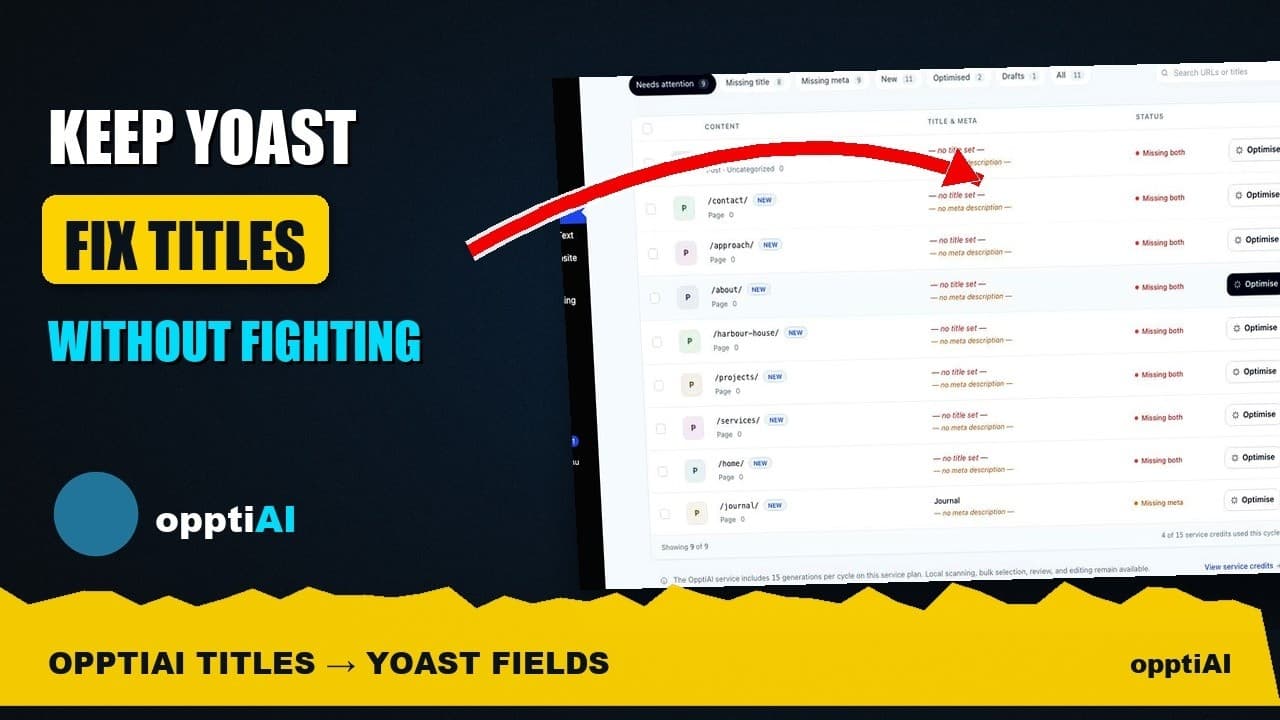
See Your WordPress Title Fixes Show Up Inside Yoast
Fixed a weak title in an audit tool but not sure Yoast picked it up? Here's exactly where to check, and what it means if the two disagree.