A Four-Step Workflow for Full-Site Alt Text Cleanup
Scan, prioritise, generate, review — skip the last step and you've just bulk-saved mistakes. Here's the order that actually clears an alt text backlog.
A full-site alt text cleanup isn't one task, it's four, and doing them in the wrong order — or skipping one — is why most cleanups either stall or ship mistakes. Scan first, prioritise what you scanned, generate descriptions for what you prioritised, then review before anything saves. Cut the review step and you haven't finished the job, you've just bulk-saved whatever the generator handed you.
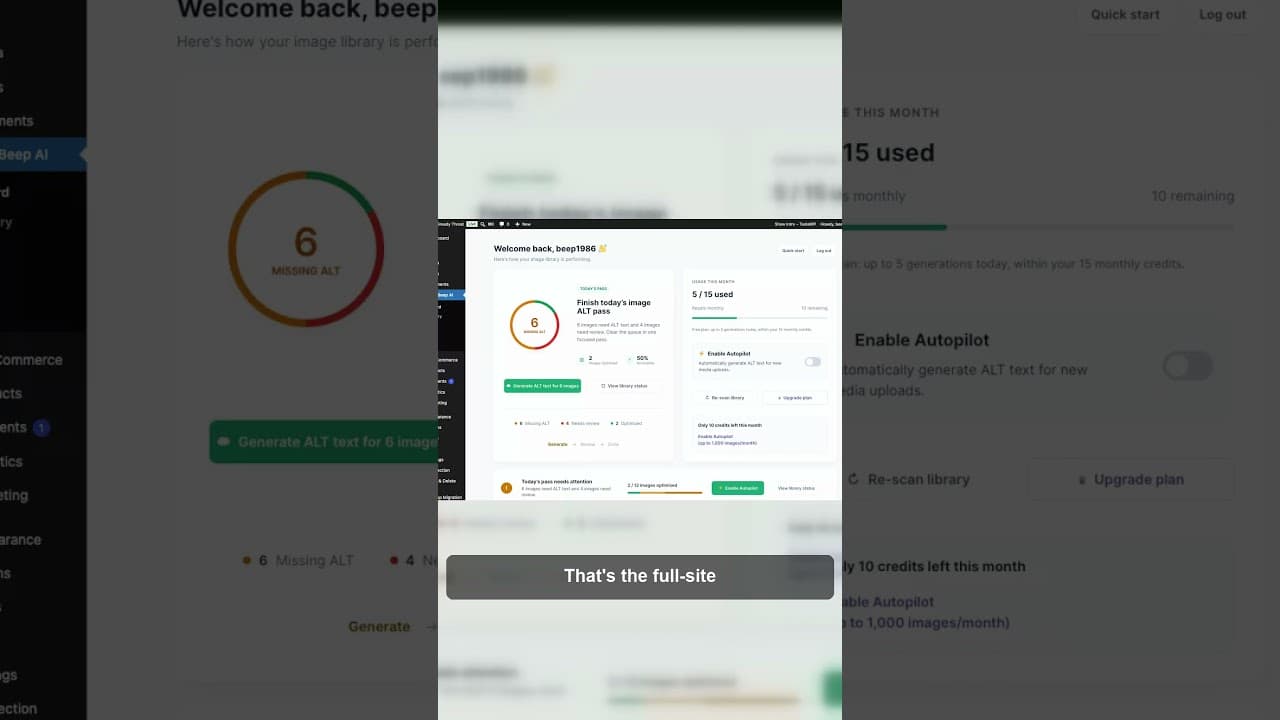
Here's a short video walking through why the order matters and where each step earns its place.
Why the order matters more than the tools
Most alt text cleanups fail for a process reason, not a tooling reason. Someone opens the media library, starts generating descriptions for whatever image happens to be on screen, and either burns hours on low-value images or trusts a batch of AI output without checking it. Both failure modes trace back to skipping a step in the sequence.
Scan, prioritise, generate, review isn't an arbitrary checklist — each step depends on the one before it and protects against a specific failure:
- Scan exists because you can't prioritise what you haven't counted. Without a full inventory, "prioritising" is really just working on whatever's visible, which is usually recent uploads, not the images that matter most.
- Prioritise exists because not every missing alt text is equally urgent. A product image on your highest-traffic page matters more than a decorative background image buried in an old post.
- Generate exists because writing hundreds of descriptions by hand is where most people give up. This is the step AI genuinely helps with — drafting a first pass fast.
- Review exists because generated text is a draft, not a finished product. Skip it and you've traded "no alt text" for "wrong alt text," which is arguably worse since it now looks done.
Step 1: Scan the whole media library
Start from your media library, not your published pages. Posts and pages only show you the images that made it into visible content — your media library holds everything, including images attached to deleted drafts, old product galleries, and page-builder elements that don't show up in a normal content read-through.
A scan should split results into at least three buckets: images with no alt text, images with weak alt text (filenames, single generic words, keyword-stuffed text), and images that are already fine. That split is what makes step two possible — you can't prioritise a pile you haven't sorted.
Step 2: Prioritise by where the image actually lives
Not every gap deserves the same attention first. Work through the scan results in roughly this order:
- High-traffic pages first. Images on your homepage, top landing pages, or best-selling products carry more SEO and accessibility weight than images on a post nobody visits.
- Meaningful images before decorative ones. An image that conveys information — a product photo, a diagram, a screenshot — needs a real description. A purely decorative image often needs an empty alt attribute, not a written one, so screen readers skip it.
- Clusters over stragglers. If missing alt text concentrates in one source — a WooCommerce import, a theme's demo content — fixing that cluster in one pass clears more of the backlog than picking off individual images at random.
- Weak alt text after missing alt text. An empty field is a clearer signal of neglect than a mediocre one; clear the total blanks first, then come back for the keyword-stuffed or filename-style entries.
Step 3: Generate descriptions in batches
Once you know what to fix and in what order, generating drafts is the fast part. AI can look at an image and produce a plausible description far quicker than typing two hundred of them by hand — that's the entire point of using it here. But "fast" is exactly why this step can't be the last one. A generator has no idea what your page is actually about, whether an image is decorative, or whether your brand has house style for how products get described. It's producing a draft, and drafts need a human pass.
Step 4: Review before anything saves
This is the step that turns a batch of guesses into finished alt text, and it's the one that gets skipped when people are in a hurry to clear a big number. For each generated description, check three things: is the image meaningful or decorative (decorative should be empty, not filled), does the description actually match what's in the frame, and is it concise rather than padded with keywords. Edit what's wrong, clear what should be empty, and only then save back to WordPress.
Skipping review doesn't save you time overall — it just moves the cost downstream. Wrong or oddly generic alt text sitting live on your site is arguably a worse state than an empty field, because an empty field is an honest signal you haven't gotten to it yet, while wrong text looks finished and often goes unnoticed for months.
Running the workflow end to end
The OpptiAI Alt Text plugin is built around these four steps in order: it scans your full media library, groups results so you can prioritise by page and status, generates draft descriptions in batches, and holds everything in a review queue before anything writes back to WordPress. Nothing saves automatically — you see each draft next to its image and decide before it goes live. If you want a quick read on where your site currently stands, the free image SEO audit checks what's rendering on your live pages as a starting scan.
Frequently asked questions
What order should I fix alt text in on a large WordPress site?
Scan your full media library first to get an accurate count and split of missing versus weak alt text. Then prioritise by where images live — high-traffic pages and meaningful (non-decorative) images first, followed by clusters from a specific source like a product import. Generate draft descriptions for the prioritised batch, then review every draft before saving. Doing these out of order — generating before prioritising, or saving before reviewing — is what causes most cleanups to either stall or ship errors.
Can I skip the review step if I'm confident in the AI-generated alt text?
No, not for a full-site cleanup. AI-generated descriptions are frequently accurate but occasionally wrong in ways that matter: misreading what an image shows, describing a decorative image as if it were meaningful, or missing context only a human editing the page would know. Reviewing a batch of drafts takes a fraction of the time it took to generate them, and it's the difference between "this alt text is correct" and "this alt text was probably fine."
How do I decide if an image needs written alt text or an empty alt attribute?
Ask whether removing the image would lose any information a reader needs. If yes — a product photo, a chart, a screenshot with text in it — it needs a real, specific description. If no — a spacer, a repeated background pattern, a purely stylistic flourish — it should get an empty alt attribute (alt="") so screen readers skip past it instead of reading out noise. This decision belongs in the prioritise and review steps, not the generate step, since a generator will usually try to describe everything whether or not a description is useful.
Related Posts
Alert Yourself the Same Day an Upload Misses Alt Text
Autopilot and cleanups still miss uploads. Same-day alerts catch missing alt text on new WordPress uploads before it piles up unnoticed.
Catch New Uploads Before Alt Text Debt Comes Back
Autopilot and cleanups still miss images. Here's the routine check that catches new uploads slipping through before missing alt text piles up again.
Set Up Autopilot Alt Text for New WordPress Uploads
Manually writing alt text for every new upload doesn't survive contact with a busy site. Here's how to configure autopilot rules that generate it for you.