Review Every WordPress Image's Alt Text in One Place
Stop opening WordPress images one by one to check alt text. See how a single Alt Library dashboard surfaces missing alt text across your library.
Prefer watching? Chapters, takeaways, and transcript live on Learn: Watch: review every WordPress alt field in one dashboard. This blog post stays the written deep-dive — we do not duplicate it on the video page.
Checking alt text in WordPress is a slow job when you do it the built-in way. You open the Media Library, click an image, read the alt field, close it, click the next one, and repeat. On a site with a few hundred images that's an afternoon gone — and you still don't have a clear picture of how many are missing, because you're holding the count in your head.
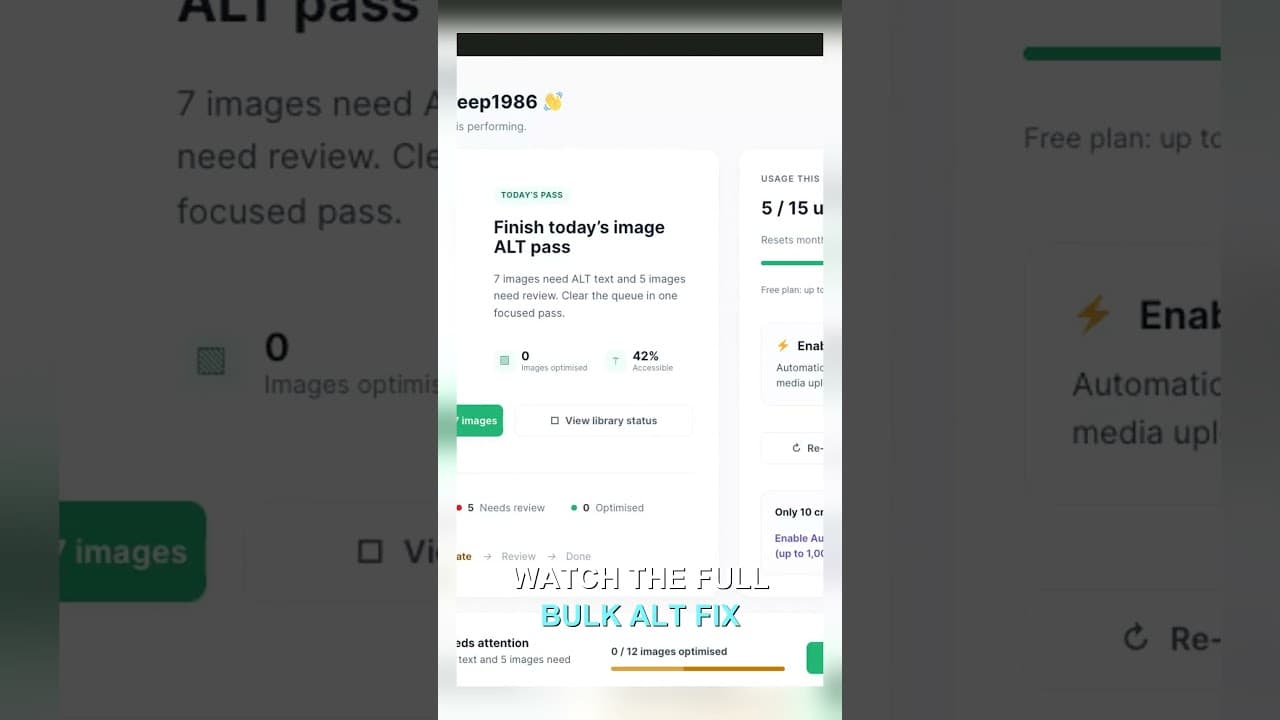
The problem isn't that you don't care about alt text. It's that WordPress gives you no single place to see it. Every image is a separate click. Here's a short look at a dashboard that puts the whole library in front of you, then how to use that view to actually clear the gaps.
Why the one-image-at-a-time approach fails
The native Media Library was built for finding and inserting images, not auditing them. That shows up in a few ways.
There's no column for alt text, so you can't scan down a list and spot the blanks. You have to open each attachment to see the field. There's no filter for "images with no alt text", so you can't isolate the ones that need work. And there's no count, so you never know if you're 10% done or 90% done. The result is that most people check a handful of images, feel like the job is endless, and give up — which is exactly how a media library ends up with hundreds of undescribed images.
A dashboard view fixes the structural problem rather than the willpower one. When every image and its alt status sits on one screen, the work stops being open-close-repeat and becomes read-and-fix.
What an Alt Library dashboard shows you
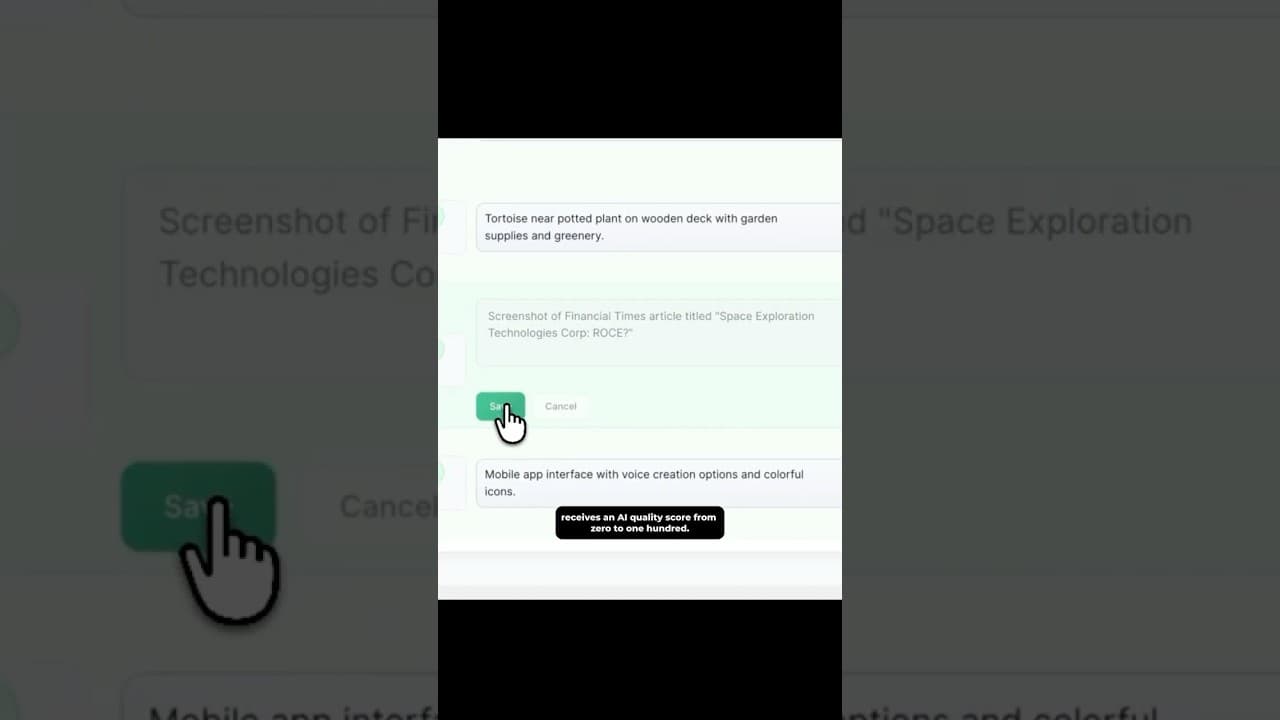
The Alt Library in the OpptiAI Alt Text plugin is a single table of every image WordPress knows about. Instead of clicking into attachments, you see the state of the whole library at a glance:
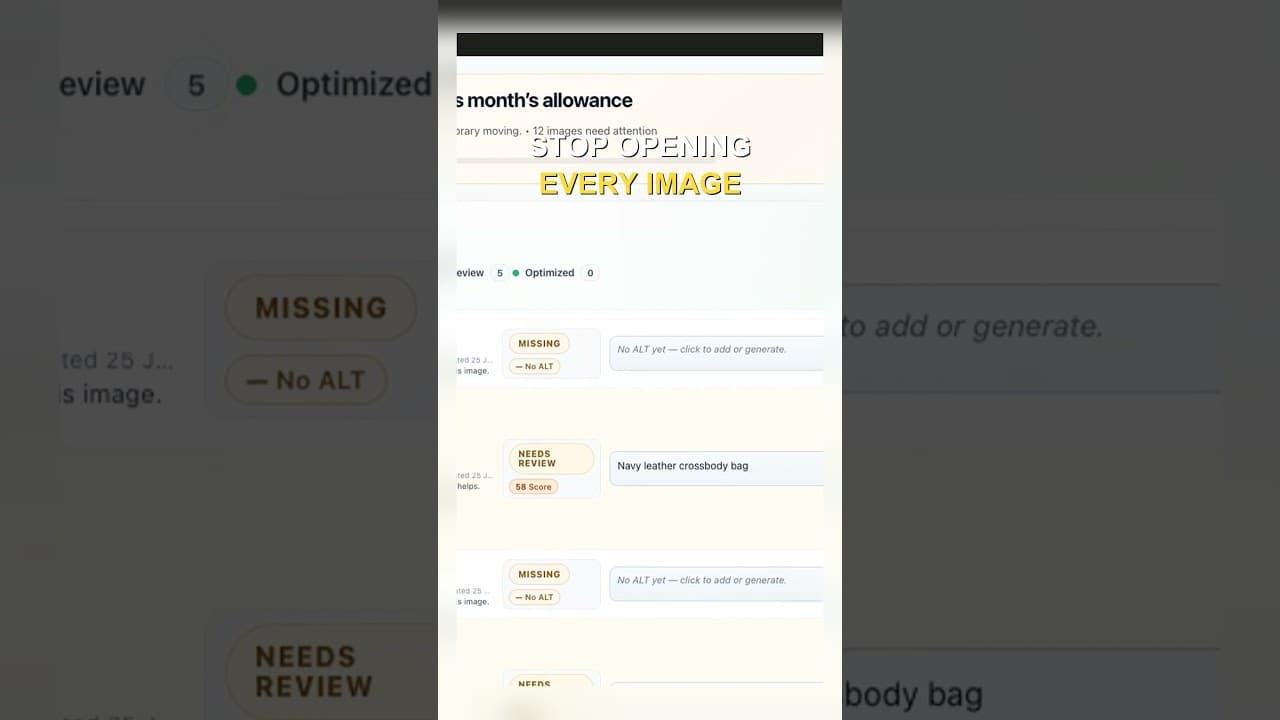
- Every image in one grid — thumbnails, filenames, and current alt text side by side, so you read across a row instead of opening a modal.
- Missing alt text flagged immediately — blank fields are marked, so the images that need attention stand out rather than hiding behind clicks.
- An AI quality score per image — a rating of how useful the existing alt text is, so "technically filled but useless" descriptions like
IMG_2048don't pass as done. - Faster editing in place — update the alt text from the same screen, without bouncing in and out of individual attachment pages.
The score matters more than it sounds. Plenty of images have something in the alt field — a filename, a single word, a leftover caption — and a simple "empty vs. filled" check calls those complete. Scoring the content is what separates real descriptions from noise that fills the box without helping search or screen readers.
How to clear your alt text backlog
- Open the Alt Library. After installing the plugin, go to the Alt Library screen to load your full media library into one table.
- Sort by status. Bring missing and low-scoring images to the top so you're working the worst offenders first, not scrolling past images that are already fine.
- Fix the high-value images first. Product photos, images inside popular posts, and anything on a page that drives traffic earn their alt text back fastest. Decorative dividers and background textures can stay empty on purpose.
- Generate descriptions where you're stuck. For images you can't quickly describe yourself, have the plugin draft alt text from the image content, then read each one before you accept it. You stay the editor; the tool just removes the blank-page problem.
- Recheck the count. Come back to the dashboard and confirm the number of flagged images has dropped. Seeing the count fall is what makes the job feel finite.
The whole point is momentum. When you can see the backlog shrinking on one screen, a task that felt bottomless turns into an hour of steady progress.
Where a dashboard helps most
Two kinds of sites feel this most sharply. WooCommerce stores accumulate product images faster than anyone documents them, and every undescribed product photo is a listing that can't show up in Google Images. Content-heavy blogs build up years of screenshots and stock photos, most uploaded in a hurry with no alt text at all.
In both cases the images already exist and already sit on live pages — they're just invisible to search and to anyone using a screen reader. A dashboard doesn't create new work; it makes visible the work that was always there, so you can finally close it out instead of discovering it one click at a time.
Frequently asked questions
How do I see all my WordPress images with missing alt text at once?
The native Media Library won't show this — there's no alt-text column or filter, so you'd have to open each image individually. A plugin with a dedicated dashboard, like the OpptiAI Alt Library, lists every image with its alt text and flags the blank ones, so you can spot and sort the gaps on a single screen instead of clicking through attachments one by one.
Is it safe to bulk-edit alt text in WordPress?
Yes, as long as you review what you're applying. Alt text lives in the image's metadata and editing it doesn't touch the image file or where it's used, so there's no risk to your layout. The thing to avoid is applying auto-generated descriptions blind. Read each one before accepting it, especially on product images where accuracy matters for both search and shoppers.
Do I really need alt text on every image?
No — decorative images should have empty alt text on purpose, so screen readers skip them. Alt text matters on images that carry meaning: product photos, diagrams, screenshots, and any picture a reader would miss if it didn't load. Focus your effort there. A good dashboard helps precisely because it lets you tell the meaningful images apart from the decorative clutter quickly.
Stop clicking through images one at a time
If you've been meaning to fix your alt text but keep bouncing off the one-image-at-a-time grind, the problem is the workflow, not you.
See your whole library in one view with the OpptiAI Alt Text plugin, or start with a free image SEO audit to find out how many images are missing alt text before you install anything.
Related Posts
Block Editor Alt Text vs Media Library: Why They Differ
WordPress stores alt text in more than one place. Here's why block editor and media library alt text can disagree, and where the real value lives.
Filter Your Media Library to Missing Alt Text First
Scrolling the whole media library to find missing alt text wastes most of your session. Filter to what's actually missing, then work that list.
Edit Alt Text Without Opening Every Image
Opening the attachment modal for every image before you can edit alt text is the slowest part of the job. Here's how to edit from the list instead.