How to Fix Missing Alt Text in WordPress
Most WordPress sites have hundreds of images with no alt text. Here's how to find them and fix them — manually, via bulk export, or with a plugin.
Meta: Most WordPress sites have hundreds of images with no alt text. Here's how to find them and fix them — manually, via bulk export, or with a plugin. (154 chars)
Quick summary
- How to audit your WordPress site for images with missing alt text — no extra tools required
- Three approaches to fixing it, ranked by effort and scale, with honest trade-offs for each
- How to bulk-fix a backlog of hundreds of images without writing alt text for each one manually
- Most useful for: WordPress site owners who've had "fix alt text" on their to-do list for months, and SEO professionals auditing client sites
If you've been running a WordPress site for more than a year, a significant portion of your images probably have no alt text. They display correctly in the browser. They look fine. But from Google Image Search's perspective, they're anonymous — just files with generic names like IMG_4521.jpg, showing up as nothing in any search for what they actually contain.
This isn't usually a deliberate decision. You uploaded product photos, blog images, portfolio shots, and nobody paused to fill in the alt text field for each one. It builds up quietly. An SEO audit runs, flags 300 images with missing alt text in WordPress, and suddenly it's on the list — where it stays, because manually writing 300 descriptions is nobody's idea of a productive afternoon.
This guide covers all three: finding what's missing, what it's costing you, and choosing the right fix method for your site's scale.
Why missing alt text in WordPress matters
Alt text has two distinct purposes, and missing it has different consequences for each.
Google Image Search uses alt text as a primary signal for understanding what an image contains. Without it, Google has to infer context from surrounding text, the file name, and the page title. For product images, infographics, and illustrative photography, that inference often gets it wrong — or leaves the image out of image search results entirely. Missing alt text means you're invisible to people searching for exactly what your images show.
WCAG accessibility compliance requires that images have text alternatives that convey the same information to screen reader users. An image with no alt text may be announced as a filename (IMG_4521, image) or skipped, depending on its markup and the screen reader. Neither outcome helps when the image conveys meaningful content. For the full breakdown—including informative, decorative, and functional images—see WCAG Alt Text Requirements for WordPress Sites.
How to find images with missing alt text in WordPress
Before fixing anything, you need to know the scope of the problem.
The built-in approach — Media Library list view
- In your WordPress dashboard, go to Media → Library
- Switch to List view (the grid/list toggle at the top right)
- In List view, WordPress shows the Alt Text column for each image
- Scroll through, or use the filter dropdown to narrow by image file type
This gives you a visual check but not a total count. For a number, the simplest approach is to check your SEO plugin's dashboard — Yoast SEO and Rank Math both surface image alt text issues in their interface. If you don't have one installed, a database query via Tools → Site Health → Info → Database or phpMyAdmin will give you an exact count:
SELECT COUNT(*) FROM wp_postmeta
WHERE meta_key = '_wp_attachment_image_alt'
AND meta_value = ''
For WooCommerce stores: product images are stored differently from standard media library images. The Media Library list view will show them, but auditing and fixing across featured images, gallery images, and variation images as a group requires a different approach — covered in detail here.
Three ways to fix missing alt text in WordPress
Once you know how many images are affected, there are three main approaches. Here they are ranked from lowest to highest scale.
Method 1 — Fix alt text manually in the Media Library
Best for: sites with fewer than 50 images to update, or where you need a unique, custom description for each image.
In Media → Library, click any image to open its attachment detail page. The Alt Text field is on the right side. Type your description, click Update, done.
Good alt text for a real product image:
- Before:
product-image-1.jpg(no alt text) - After:
Blue ceramic French press coffee maker, 600ml, with bamboo handle
Alt text patterns to avoid:
image— meaningless to both screen readers and search enginesblue french press coffee maker blue french press coffee— keyword repetition that actively harms rather than helpsIMG_4521— just the filename, which is what you had before
Manual editing is fine for a small number of images. The problem is scale: writing a useful alt text description takes 30–60 seconds per image. 50 images takes 30–50 minutes. 300 images is most of a working day. At 1,000 images — a modest WooCommerce store — it becomes a multi-day project that almost nobody completes.
Method 2 — Export, edit in a spreadsheet, reimport
Best for: developers and technically confident users with 50–500 images who want direct control over every alt text string.
Several plugins export your media library to CSV, including the current alt text field. You edit the spreadsheet — writing or correcting alt text in the relevant column — and reimport the updated values. Plugins that support this workflow include WP All Export/Import and Export Media Library.
The limitation: you still have to write every description yourself. The export/import handles the mechanical part of applying the changes; the writing work is unchanged. For a library with hundreds of images, this is marginally more efficient than the manual approach, not fundamentally different. Where it helps is for systematic changes across many images at once, or if you prefer working in a spreadsheet over clicking through the WordPress UI.
Method 3 — Bulk generate alt text with a plugin
Best for: sites with 50+ images where writing alt text for the full backlog manually is not realistic.
Several WordPress plugins generate alt text descriptions directly from your image content, which you then review before saving. This shifts the work from writing to checking — much faster for large libraries.
How the workflow typically works:
- Install the plugin and connect it to your media library
- Select the images you want to process (all of them, or filtered to those without alt text)
- The plugin analyses each image and generates a text description
- Review the suggestions — edit inaccurate ones, skip any you'd prefer to write manually
- Save the approved alt text to your WordPress database
A few options worth comparing:
AltText.ai is the most established plugin in this space. 20,000+ active installs, 35 reviews, supports 130+ languages, and integrates with Yoast and Rank Math. Requires creating an account on alttext.ai and adding an API key to your WordPress settings. Free tier is 25 credits (one-time, not recurring). Paid plans start at $5/month.
OpptiAI Alt Text is the plugin I built — disclosing that upfront. No external account or API key required: install, activate, generate. Review queue built into the core workflow, so nothing saves to your database without your approval. Free tier is 25 images per month, recurring. Fewer installs and reviews than AltText.ai; newer and with a shorter public track record.
AI Alt Text Generator by Migen requires your own OpenAI or Anthropic API key. The plugin is free; you pay API costs directly at roughly $0.001/image. Most economical per-image option, but requires creating and managing a separate API account. Last updated July 2025 at time of writing (8+ months).
The main trade-off: AltText.ai has the most installs and the most integrations; OpptiAI has the least setup friction; Migen has the lowest ongoing cost but the highest setup overhead.
Practical walkthrough: clearing a 400-image backlog
Here's what the process looks like for a WordPress blog with around 400 images and most of them missing alt text.
1. Check the scope. Open Media → Library → List view. Note how many images are showing blank alt text. Run the database query above if you want an exact number.
2. Install your chosen plugin. If you're using OpptiAI, there's no API key step — you're done with setup. For AltText.ai, create an account at alttext.ai, copy the API key from your account dashboard, and paste it into the plugin settings.
3. Run a small sample first. Select 20–30 images from your library — a representative mix of your content types — and run the generation on those. Check the output before committing to the full batch. This catches any systematic issues with your content type before they run across the whole library.
4. Review the output. For each generated description, check: Is this accurate? ("A small boat" for a gondola misses the context.) Is this too generic? ("A person in an office" for a named team headshot doesn't help anyone.) Is this a decorative image that should have alt="" rather than a description?
5. Save what you're happy with. Edit or skip anything that needs work. Once you click save, the approved alt text writes to your WordPress database.
For a 400-image library, a thorough review session typically runs 30–45 minutes — versus two full working days of manual writing. The work shifts from "writing alt text" to "checking that descriptions are accurate," which is considerably faster.
Frequently Asked Questions
How do I find images with missing alt text in WordPress without a plugin?
Use the Media Library list view (Media → Library → List view). The Alt Text column shows which images have descriptions and which are blank. For an exact count, run the wp_postmeta database query described above — or check your SEO plugin's dashboard if you have Yoast or Rank Math installed.
Does fixing missing alt text improve existing Google rankings?
It depends on what you're fixing. Adding alt text doesn't change rankings on pages that are already performing well for text-based search queries. The more measurable effect is on Google Image Search — images that previously had no alt text become discoverable by people searching for what those images show. For image-heavy sites (portfolios, food and recipe blogs, WooCommerce stores with product photography), this can be a meaningful traffic source. Improvement shows gradually as Google recrawls and reindexes your updated pages.
How long does it take to fix alt text for 500 WordPress images?
Manually: writing a good description for each image takes roughly 30–60 seconds. 500 images = 4–8 hours of solid writing. With a bulk generation plugin: you're reviewing AI-generated suggestions rather than writing from scratch, which typically runs 3–6 seconds per image for a quick check, longer for images that need edits. 500 images = 25–50 minutes of review. The time difference is why the manual approach for large backlogs is impractical — it's not technically difficult, it just takes a genuinely long time.
Fix the backlog, then keep it clear
If you have a backlog of images with missing alt text, the methods above cover how to clear it. Once the backlog is fixed, the other half is making sure new images get alt text as you upload them.
Some bulk generation plugins support auto-generation on upload, so new images get a description as they're uploaded — worth setting up once the backlog is cleared.
If missing alt text is on your site's to-do list, OpptiAI Alt Text handles bulk generation for WordPress media libraries and WooCommerce product catalogs — review every suggestion before it saves, no API keys required. Free plan includes 25 images a month.
Related Posts
Block Editor Alt Text vs Media Library: Why They Differ
WordPress stores alt text in more than one place. Here's why block editor and media library alt text can disagree, and where the real value lives.
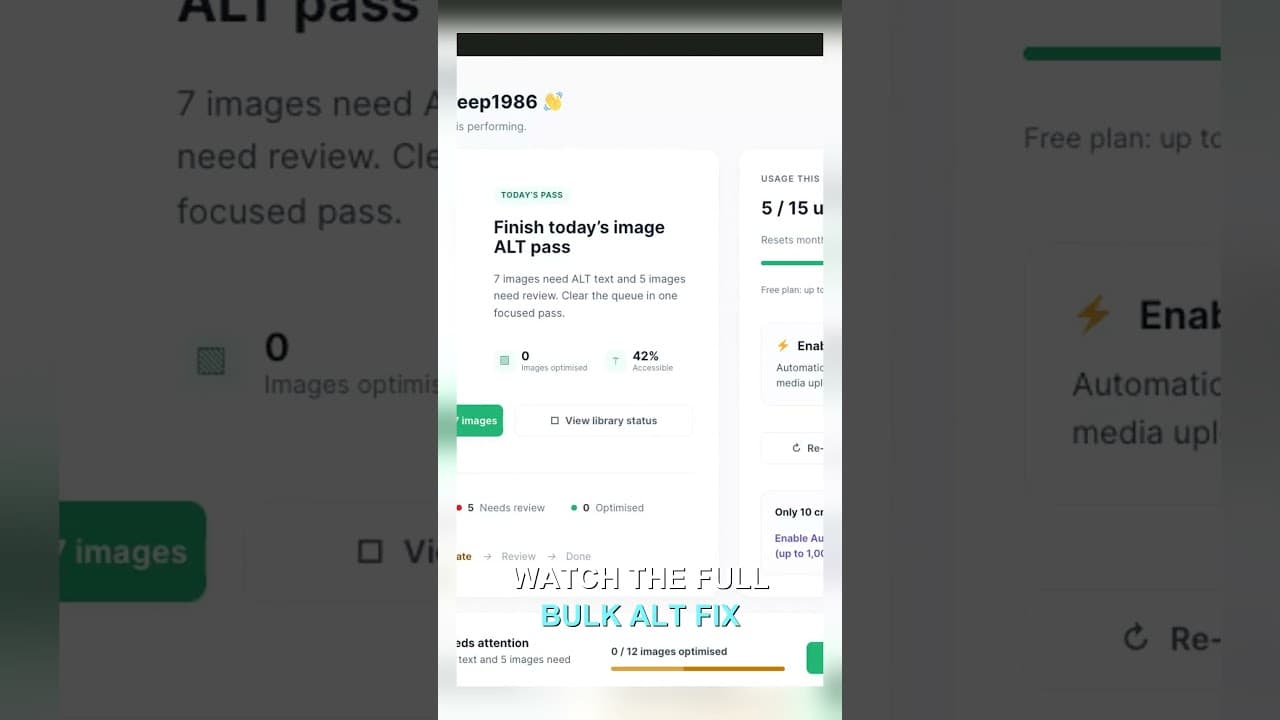
Filter Your Media Library to Missing Alt Text First
Scrolling the whole media library to find missing alt text wastes most of your session. Filter to what's actually missing, then work that list.
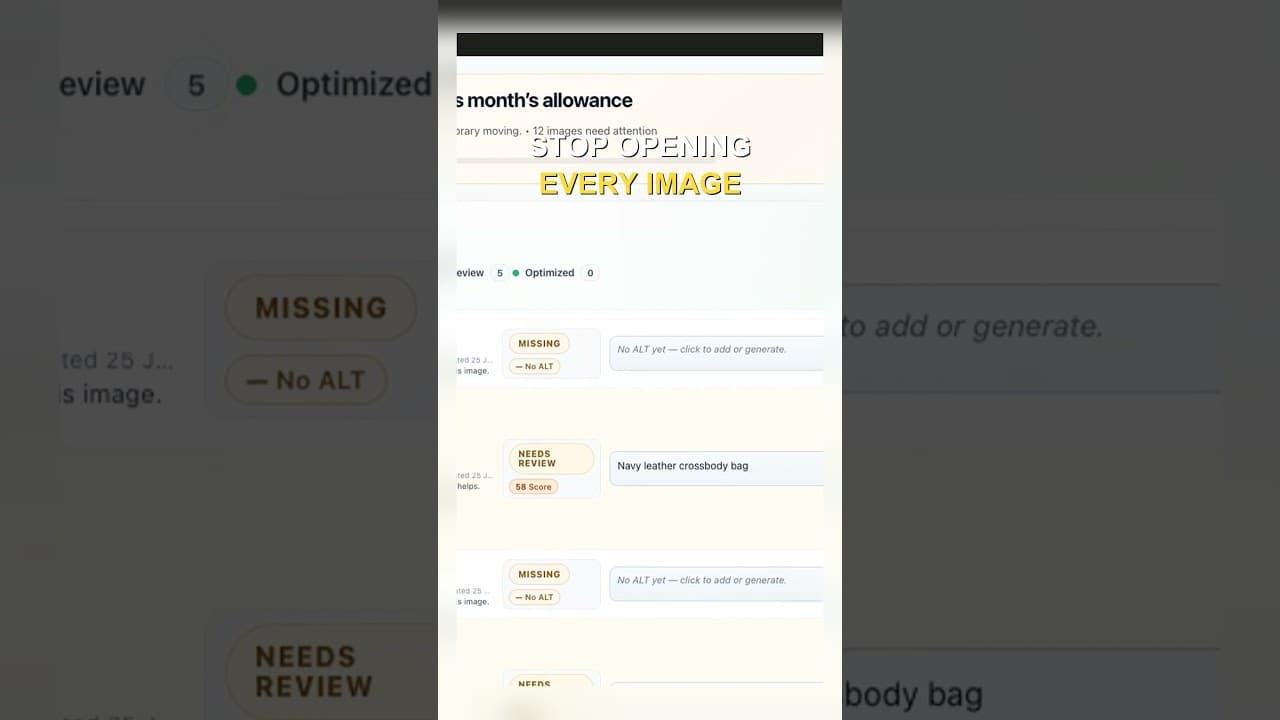
Edit Alt Text Without Opening Every Image
Opening the attachment modal for every image before you can edit alt text is the slowest part of the job. Here's how to edit from the list instead.