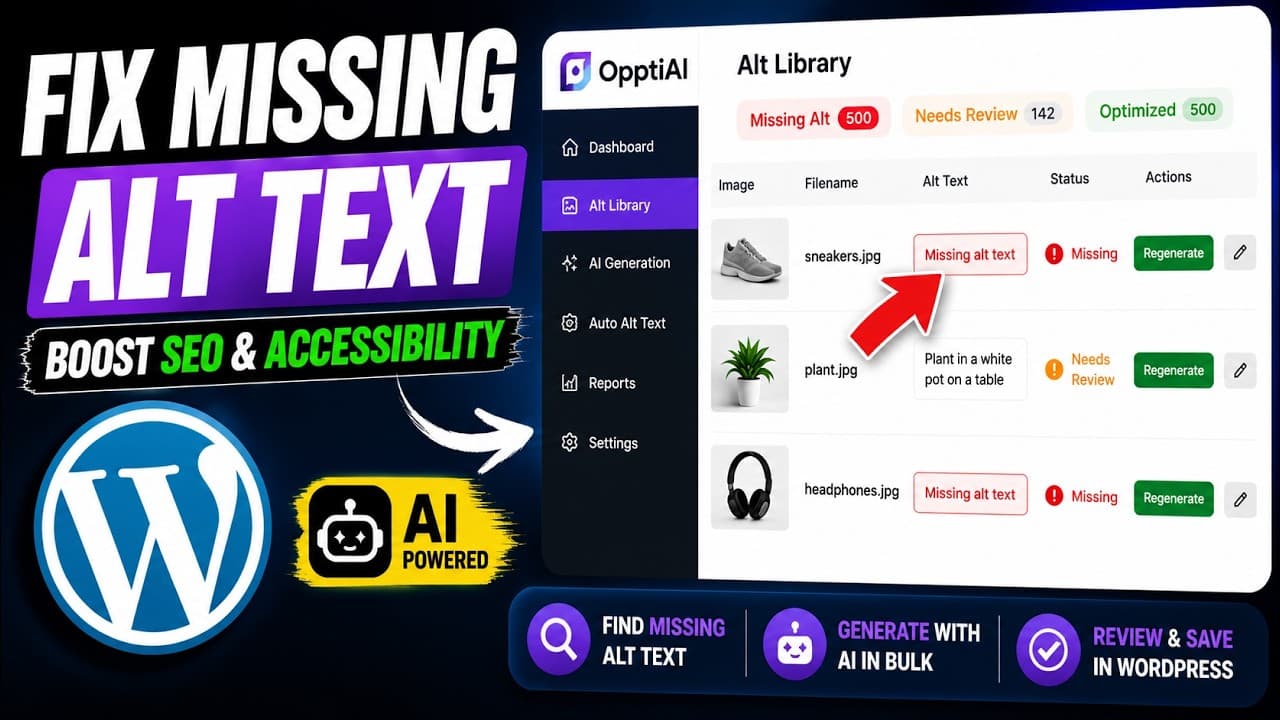
How to Fix Missing Alt Text in WordPress with AI
A practical way to find and fix missing alt text across WordPress, improve image SEO and accessibility, without editing every image by hand.
Prefer watching? Chapters, takeaways, and transcript live on Learn: Watch: fix missing WordPress alt text with AI in minutes. This blog post stays the written deep-dive — we do not duplicate it on the video page.
Missing alt text is the kind of problem you never decide to have. You add an image while writing, the alt field stays blank, and you move on. Do that across a few years of posts and product pages and you end up with a site full of images that search engines and screen readers can't read. The good news: fixing it no longer means opening every image one at a time.
I made a short video walking through how to find the gap and close it across a whole WordPress site rather than page by page. If you'd rather watch than read, it's below.
What alt text does and why the gap costs you
Alt text is the written description attached to an image. It has two jobs. The first is accessibility: a screen reader reads it aloud, so someone who can't see the image still gets the information. The second is comprehension for machines. Google's crawler doesn't look at a photo the way you do — it reads the file name, the surrounding words, the caption, and the alt attribute to work out what the image shows.
Leave the alt field empty on a content image and you strip out one of the clearest signals Google has. On a product page that's the difference between ranking in Google Images for "oak dining table" and never appearing. Image search is a real traffic channel for stores, recipe sites, and anything visual, and it runs almost entirely on how well your images are described.
There's a newer angle too. AI assistants that summarise the web also read alt text to work out what a page holds. Images your site can't describe are a little more invisible in the places people increasingly start their search.
Why it piles up on WordPress specifically
WordPress never forces the issue. It will publish an image with a blank alt field and never warn you — no red flag in the editor, no reminder in the dashboard. So the backlog grows quietly in predictable places. Old posts from before you cared about image SEO sit there with empty fields. Migrations and bulk imports drop alt text entirely. WooCommerce stores accumulate product galleries, variation images, and category thumbnails that never had descriptions written.
And a fair amount of what looks like alt text is really a leaked filename — IMG_4821 or product-final-2. That's arguably worse than blank, because it reads as done when it isn't. The result is a site that feels finished while leaking image visibility on nearly every page.
Fixing it with AI, step by step
The reason this problem lingers for years is scale. Describing a dozen images by hand is fine. Describing two thousand is not going to happen on a Tuesday afternoon. This is where letting a tool draft the descriptions — with you approving them — changes the maths. Here's the workflow I'd use:
- Get a real number first. Don't guess. Run a scan of your public pages so you know whether you're looking at 40 missing descriptions or 4,000. A free image SEO audit crawls your public pages and reports missing alt text, generic descriptions, and filename-style alt.
- Scan the full media library. Public-page scans miss older uploads that aren't currently on a live page. To fix the problem at the source, scan the library itself so nothing is hiding.
- Generate descriptions in bulk. Let the tool read each image and draft SEO-friendly, human-readable alt text. This is the step that turns a month of manual work into an afternoon of review.
- Review before you apply. Skim the drafts, correct anything off, and keep decorative images set to empty alt (
alt="") on purpose. You're approving descriptions, not blindly trusting them. - Apply in bulk and keep it clean. Push the approved descriptions across the library, then let new uploads get described as they come in so the gap never reopens.
The OpptiAI Alt Text plugin is built around exactly this loop: it scores every image so you can see the scale, drafts descriptions for standard media and WooCommerce products, and applies them in bulk once you've reviewed them.
What good alt text actually looks like
Automation helps most when you know what you're aiming for, so a quick standard to review against. Describe what's in the image and why it matters on that page, in plain language. "Navy linen shirt on a wooden hanger" beats "shirt" and beats IMG_2093 by a mile. Keep it to a sentence — screen reader users don't want a paragraph. Don't stuff keywords; a description crammed with search terms reads badly to a human and doesn't help rankings. And skip "image of" or "photo of" openers, since assistive tech already announces that it's an image.
Hold your generated descriptions to that bar during review and you get the accessibility and SEO benefit at once, without the site reading like it was written for a crawler.
Frequently asked questions
Can AI write alt text that's actually good for SEO?
It can get you most of the way, quickly. A tool that reads the image can produce a clear, relevant description far faster than writing each one by hand, which is the whole reason large backlogs finally get cleared. The key is reviewing the output rather than applying it blind — you're checking that each description matches the image and reads naturally. Treat the AI as a fast first draft and yourself as the editor, and you get accuracy at a scale manual editing can't reach.
How do I fix alt text on hundreds of WordPress images at once?
Use a bulk workflow instead of the media library one image at a time. Scan the whole library so you know the true count, generate descriptions in bulk, review them, then apply them together. Doing this through a plugin that covers both standard media and WooCommerce product images means you clear the back catalogue in one pass rather than rediscovering blank fields for months. Fix your highest-traffic pages first so the SEO benefit lands sooner.
Should every image on my site have alt text?
Not literally every one. Content images — photos, screenshots, product shots, charts — need real descriptions because they carry information. Purely decorative images like dividers, background flourishes, and repeated UI icons should have empty alt text (alt="") on purpose, so screen readers skip them instead of reading noise. The mistake to avoid is leaving meaningful images blank while over-describing decoration. When reviewing generated alt text, keep that split in mind.
Start with the count, then fix in bulk
You can't fix what you haven't measured, so get a real number before deciding whether this is a manual job or a bulk one. Run your free image SEO audit to see how many images are missing or weak on alt text, and if the backlog is large, scan and fix your whole library with the OpptiAI Alt Text plugin.
Related Posts
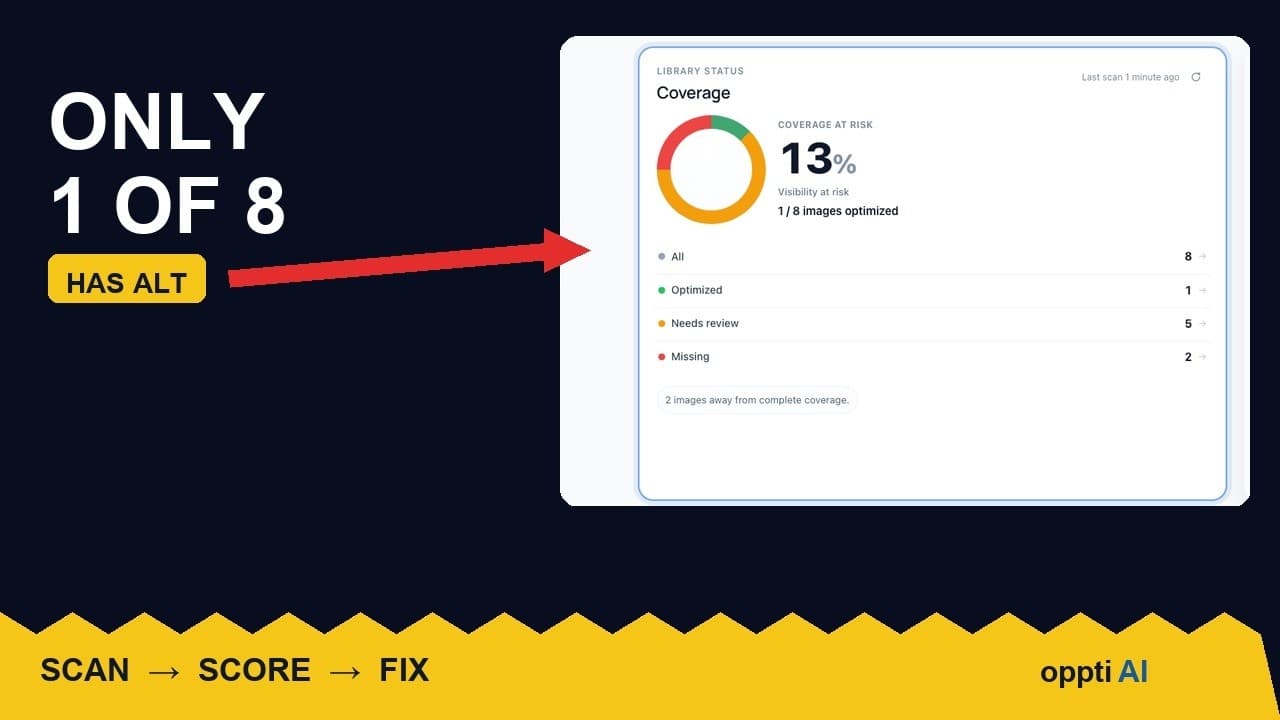
How to Run an ALT Text Coverage Audit on WordPress
An ALT text coverage audit shows exactly how many WordPress images are missing alt attributes, and which ones genuinely need fixing first.
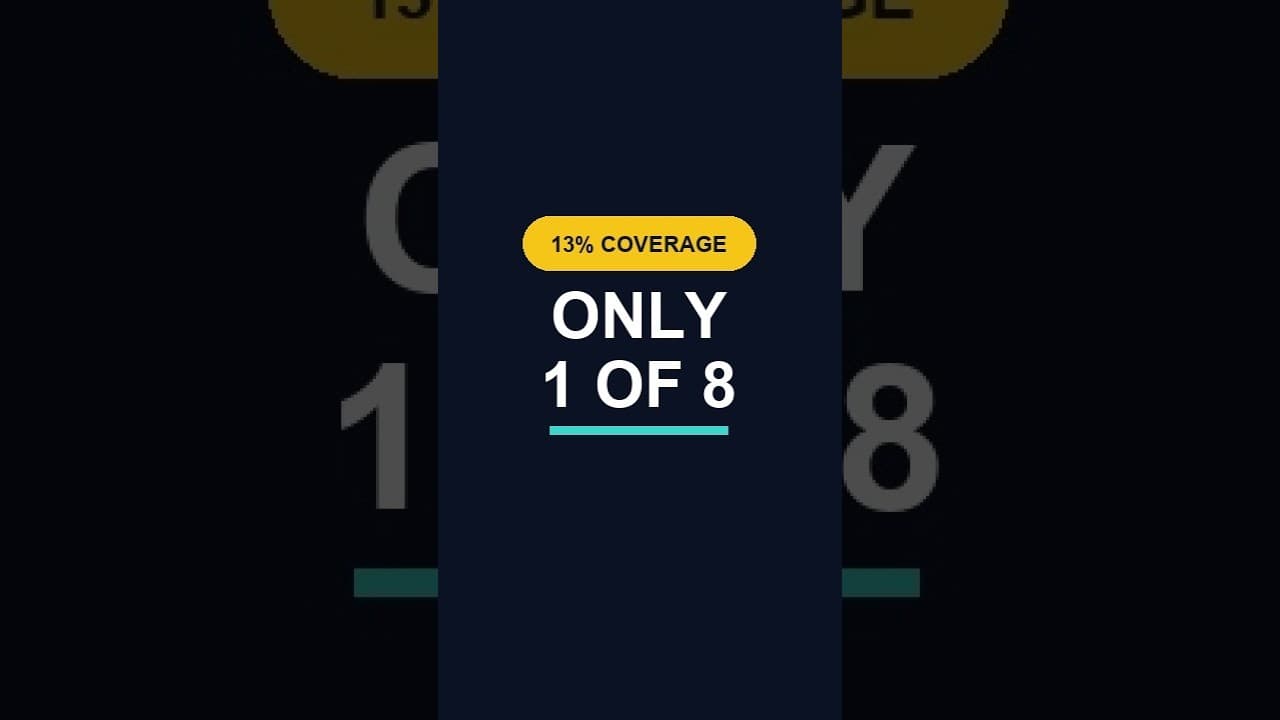
What a Low ALT Text Coverage Score Really Means
A low alt text coverage score on WordPress looks alarming at first glance. Here's how to read the number properly before you panic or ignore it.
Why WordPress Featured Image Alt Text Comes First
A featured image's alt text shows up in far more places than a normal content image. Here's why it deserves the first fix, not the last.