Bulk-Fix Missing Alt Text on WooCommerce Products
If your WooCommerce product images don't have alt text, Google Image search has no idea what they show. That means no traffic from people searching for exactly what you sell — and for a store with hundreds of products, the gap compounds fast.
If your WooCommerce product images don't have alt text, Google Image search has no idea what they show. That means no traffic from people searching for exactly what you sell — and for a store with hundreds of products, the gap compounds fast.
This guide covers WooCommerce product image alt text specifically: why it's a bigger problem than most store owners realise, how to find out how bad yours is, and how to fix it without spending a week doing it manually.
Why WooCommerce Product Image Alt Text Is Its Own Problem
Most guidance on WordPress image alt text treats all images the same. For a blog or portfolio site, that's fine. For a WooCommerce store, it misses something important: product images have multiple SEO jobs to do simultaneously.
Google Images and product discoverability
When someone searches Google Images for "slim leather bifold wallet" — or any product you sell — Google needs enough information to decide whether your product image is relevant to show. Alt text is the primary text signal it uses to understand what an image contains. Without it, Google is making an educated guess based on the surrounding text and the file name. For product images, that guess is usually wrong or too generic.
The result: your products exist in your catalog, your pages are indexed, but the images themselves are invisible in Google Image Search. That's a meaningful source of product discovery that you're not getting.
Google Shopping
For stores using Google Merchant Center, alt text on product images contributes to how Google categorises your products in Shopping results. Missing alt text creates a pattern of thin image data that can affect feed quality scores. It's not the dominant signal, but it's an easy one to fix.
Featured images, gallery images, and variations: three separate problems
Here's where WooCommerce diverges from a standard WordPress site. A single product typically has:
- One featured product image — the primary image on the product page and in archive/category listings
- Multiple gallery images — the additional views (side, back, detail shots) shown in the product image gallery
- Variation images — if you're using variable products, each colour or variant can have its own image
Most alt text fixes target the featured image only. Gallery images are frequently left with no alt text at all. And variation images — which are stored separately in the media library — are often missed entirely.
For a store with 200 products, each with a featured image and two gallery images, that's 600 images. Fix the featured images only and you've still left 400 unaddressed.
The Scale Problem: Your Backlog Is Probably Bigger Than You Think
A store with 500 products, each with three images (one featured, two gallery), has 1,500 product images. If you've been running the store for two years and uploading without alt text, that's 1,500 images contributing nothing to image search, accessibility, or feed quality.
That's not unusual. It's the default state of most WooCommerce stores. Product images get uploaded in bulk when the store launches, and alt text is the thing that always gets added "later." Then later never comes, the catalog grows, and the gap between what's there and what should be there gets wider.
Manual alt text at 1,500 images, assuming 30 seconds per image, is 12.5 hours of work. That's before you account for the fact that product images benefit from specific, descriptive alt text rather than one-line descriptions — which makes the per-image time longer.
How to Audit Your WooCommerce Store for Missing Alt Text
Before fixing anything, it helps to know exactly what you're dealing with.
The manual method: WordPress Media Library filter
WordPress has a built-in filter for this that most people don't know about:
- Go to Media → Library in your WordPress dashboard
- Switch to List view (the icon with horizontal lines, top right)
- In List view, the Alt Text column is visible for each image
- Sort by Alt Text to group empty values together — all the blank ones are your problem
For a store with hundreds of images, you'll need to scroll through pages, but this gives you an accurate picture of the scope without installing anything.
What to watch for: Images with no alt text appear with an empty Alt Text column. Images with alt text set to the filename (e.g. IMG_4521.jpg) are almost as bad — these were usually populated by a bulk import that grabbed the filename rather than writing a real description.
To focus specifically on product images: open any product in Products → All Products and check the featured image and gallery image fields on the right. If the Alt Text field is blank in the media editor, it's missing.
For a faster scan across a large catalog, SEO plugins like Rank Math and Yoast SEO include image audits in their site analysis tools. They'll surface pages with missing alt text and show you which products to prioritise — though neither will fix it for you.
Fixing WooCommerce Product Image Alt Text in Bulk
The manual option (and when it makes sense)
For a small catalog — say, under 50 products — manual alt text is realistic. Open each product, click the featured image, write a description in the Alt Text field, repeat for each gallery image. Time-consuming but accurate.
For a catalog of 100+ products, manual isn't a real option. You'll either burn hours you don't have, or you'll write rushed, generic alt text that doesn't do much for SEO. At that scale, you need a bulk workflow.
What a bulk workflow actually looks like
A proper bulk alt text workflow for WooCommerce needs to do a few things that general WordPress alt text tools often miss:
- Find all product images — featured images, gallery images, and variation images, not just whatever's in the media library
- Generate descriptions that reflect what the product actually is — not generic labels like "product image" or "front view"
- Let you review before saving — because a generated description that's slightly off is worse than no description at all in terms of trust with your customers
- Write to the right field — WooCommerce and WordPress store alt text differently for product images vs media library images; a tool that writes to the wrong field achieves nothing
Worked example: generic vs. context-aware alt text
Here's a real illustration of the difference. Take a product image for a slim brown leather bifold wallet, photographed front-on against a white background.
What a filename-based or generic tool generates:
brown-leather-wallet.jpg
That's technically not nothing, but it's not useful. It tells Google the material and product category but nothing that differentiates this product from 10,000 other brown leather wallets in search results.
What context-aware generation produces:
Slim brown leather bifold wallet, front view, showing exterior and card slot detail
That alt text is specific enough to surface in searches for "slim bifold wallet," "brown bifold leather wallet," and queries that include specific attributes. It also accurately describes what a screen reader user would need to know about the image. It's doing two jobs — SEO and accessibility — with one description.
The difference comes from generating descriptions from the image itself, not from the filename or title field.
Using BeepBeep AI for the bulk WooCommerce workflow
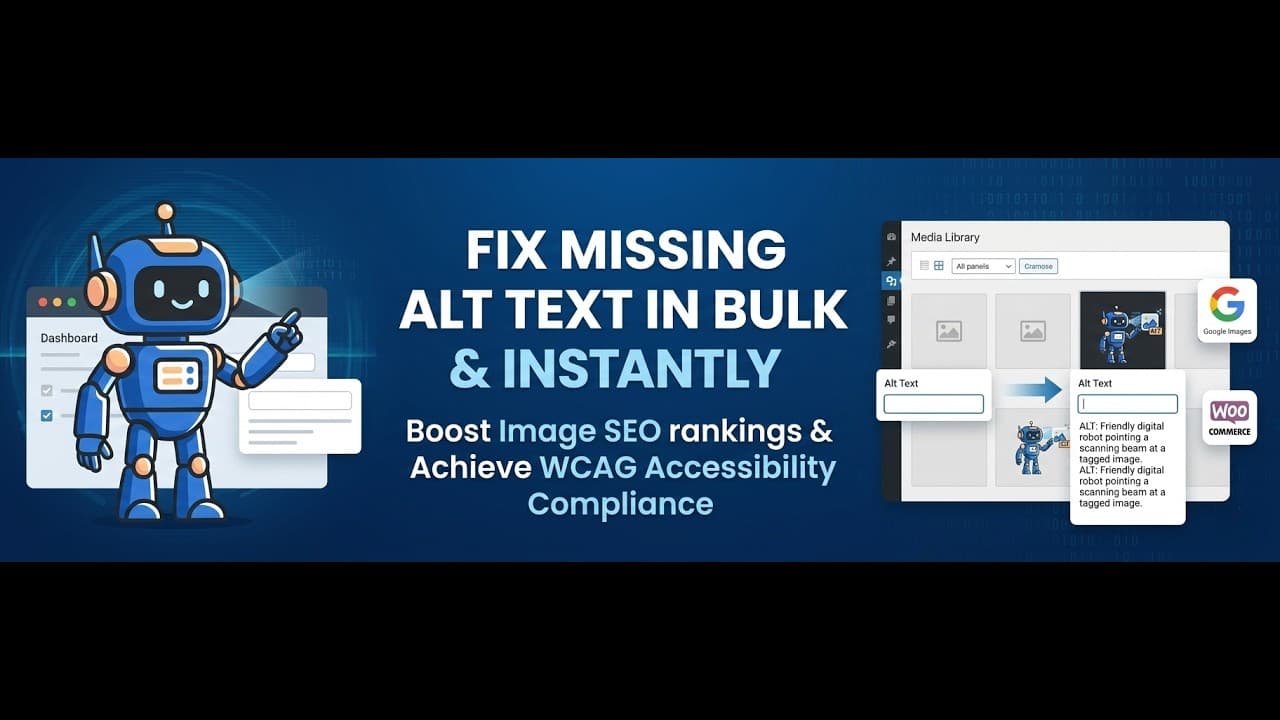
BeepBeep AI is a WordPress plugin built specifically for this problem. (I built it — worth declaring upfront.) It handles WooCommerce product images including featured images, gallery images, and standard media library images in a single bulk workflow.
The process: select which products or images to process, generate descriptions from the image content, review them in a queue before anything saves to your database, approve what looks accurate, edit anything that needs adjusting. Nothing is written without your sign-off.
For a 500-product catalog, you can process the whole backlog in a single session rather than across a week of manual editing. The free plan includes 50 alt texts per month — enough to run a genuine test on your top-selling products and evaluate the output quality before committing to the full catalog.
Frequently Asked Questions
Does WooCommerce automatically generate alt text for product images?
No. WooCommerce does not automatically generate or populate alt text on product images. When you upload an image through the product editor or media library, the Alt Text field is left blank unless you fill it in manually. Some themes populate it with the image title or filename, which is better than nothing but not descriptive enough to help with SEO or accessibility.
The only way to get accurate, descriptive alt text on WooCommerce product images is to write it yourself or use a plugin that generates it from the image content.
How do I add alt text to WooCommerce product gallery images?
Gallery images are edited separately from the featured product image. In your WooCommerce product editor, scroll down to the Product gallery section. Click any gallery image to open the media editor, and you'll see the Alt Text field on the right. Add your description and click Update.
For bulk alt text on gallery images across multiple products, the manual process doesn't scale — the media library view doesn't easily surface which images are gallery images for which products. A bulk workflow that handles WooCommerce gallery images specifically is the practical approach for catalogs of 50+ products.
What WooCommerce image SEO improvements have the most impact?
Alt text is the highest-impact change for most WooCommerce stores because it's almost universally missing. But for a complete WooCommerce image SEO workflow, the full list is:
- Alt text on all product images (featured, gallery, variation) — highest impact, most commonly missing
- Descriptive file names before upload (e.g.
slim-brown-bifold-wallet.jpgnotIMG_4521.jpg) - Product image dimensions that match WooCommerce's recommended sizes — prevents distortion and avoids Google flagging low-quality images
- WebP format for faster loading — page speed affects rankings and is a Google Core Web Vitals signal
- Structured data — WooCommerce adds Product schema automatically, but verifying it in Google Search Console ensures your images are eligible for rich results
Of these, alt text is the only one that's both high-impact and can be fixed retroactively across your entire existing catalog in a single workflow.
Fix Your WooCommerce Product Image Alt Text
If missing alt text is on your store's to-do list, BeepBeep AI handles bulk generation for WooCommerce product catalogs — featured images, gallery images, and your media library — with a review step before anything saves to your database. No API keys needed.
The free plan includes 50 alt texts per month — enough to test on your top-selling products and see whether the output quality works for your catalog before going further.
Install BeepBeep AI on WordPress.org →
Related reading:
- How to Fix Missing Alt Text in WordPress — the general WordPress workflow for sites with a backlog of untagged images
- Add Alt Text to WordPress Without an API Key — why setup complexity is a real barrier and what to look for in a plugin
- Alt text before and after example — side-by-side quality and SEO score comparison
OpttiAI Team
SEO and accessibility experts building AI-powered WordPress plugins.