WCAG Alt Text Requirements for WordPress Sites
WCAG 2.1 AA has specific requirements for image alt text — and most WordPress sites fail them. Here's what compliant alt text looks like in practice.
Meta: WCAG 2.1 AA has specific requirements for image alt text — and most WordPress sites fail them. Here's what compliant alt text looks like in practice. (150 chars)
Quick summary
- What WCAG 2.1 AA actually requires for images — and why "has alt text" and "meets WCAG" aren't the same thing
- The three image categories WCAG distinguishes, and why treating them all the same is one of the most common compliance errors
- The three mistakes that fail audits most often, with examples of what good and bad alt text looks like
- Most useful for: accessibility officers, compliance leads, and WordPress site owners working toward WCAG 2.1 AA
If your organisation has a formal accessibility obligation — whether that's the UK Public Sector Bodies Accessibility Regulations (PSBAR), the European Accessibility Act, or any other framework that references WCAG 2.1 AA — image alt text is one of the most audited and most frequently failed elements on your WordPress site. It's visible, measurable, and fixable, which makes it a common starting point for compliance work.
The catch: "has alt text" and "meets WCAG" aren't the same thing. An image can have an alt text field populated and still fail the standard in practice.
This guide covers what WCAG 2.1 AA actually requires for images, the specific errors that fail audits, and how to approach compliance at scale on a WordPress site.
What WCAG 2.1 AA actually requires for images
The relevant success criterion is 1.1.1 Non-text Content, which requires that every non-text element has a text alternative that serves the same purpose as the original for users who cannot see it.
But "every image" is more nuanced than it first appears. WCAG distinguishes between three categories of images — and the requirement is meaningfully different for each.
Informative images
Informative images convey information the user needs in order to understand the content. A product photograph, a chart showing quarterly data, a diagram explaining a process — these are informative. They require descriptive alt text that communicates what they show.
Good alt text:
alt="Bar chart showing monthly plugin installs January to March 2026, peaking at 847 in February"
Fails WCAG:
alt="chart" — this is present but not informative
alt="image" — meaningless to a screen reader user
No alt text at all — announces the filename to screen reader users (IMG_4521, image)
Decorative images
Decorative images are purely visual — they add to the presentation but don't convey information necessary for understanding the content. Background patterns, decorative dividers, generic stock photos used as section headers — these are decorative.
WCAG's requirement for decorative images is alt="" (an empty alt attribute, not a description). This instructs screen readers to skip the image entirely, which is the correct behaviour — a decorative image described aloud is an interruption, not a help.
Good:
alt="" — screen reader ignores the image
Fails WCAG:
alt="decorative background image" — this gets read aloud by screen readers, which is worse than silence
No alt attribute at all — screen readers fall back to the filename
The decorative image distinction is one of the most commonly misunderstood aspects of the WCAG requirements. Many accessibility audits find sites where developers have added alt="decorative" to decorative images, thinking this satisfies the standard. It doesn't — it explicitly tells screen readers to announce "decorative, image" to every user who encounters it.
Functional images
Functional images perform an action — a search icon, a close button, a social media icon used as a link. These require alt text that describes the function or destination, not the visual appearance.
Good (search icon submitting a form):
alt="Search" — describes what clicking does
Fails WCAG:
alt="magnifying glass" — describes the icon's appearance, not its function
The three mistakes that fail WCAG audits most often
1. Missing alt text
The most common failure: images uploaded to WordPress with no alt attribute populated. Screen readers handle this differently depending on context. In most cases, they announce the filename (IMG_4521, image) or skip the image, neither of which communicates the image's content to the user.
How widespread is this? On sites that have been running for several years without deliberate attention to accessibility, missing alt text on 60–80% of legacy images is common. The images display correctly in browsers; the accessibility failure is invisible unless you run an audit.
2. Generic or placeholder alt text
Technically present, practically useless: alt="image", alt="photo", alt="IMG_4521", alt="product". A screen reader announcing "product, image" gives a visually impaired user no information about what the product actually is.
This pattern often appears when developers or site owners fill in the alt text field to clear a Yoast or Rank Math warning, without considering whether the description is actually informative. Satisfying an SEO plugin's completeness check is not the same as meeting WCAG.
3. Keyword-stuffed alt text
SEO guidance has historically encouraged using keywords in alt text, which produces descriptions like:
alt="blue running shoes buy running shoes online best running shoes 2026"
This fails WCAG because it doesn't describe the image — it's a keyword string. The WCAG requirement is a text alternative that serves the same purpose as the image for a user who can't see it. A string of keywords serves no purpose for a screen reader user.
WCAG alt text vs SEO alt text: where they align
WCAG and SEO alt text requirements overlap more than they conflict:
| WCAG requirement | SEO best practice | |
|---|---|---|
| Informative images | Descriptive alt text | Descriptive alt text with relevant keywords |
| Decorative images | alt="" (empty) |
Typically alt="" or omitted |
| Functional images (linked) | Describes function/destination | Describes function; anchor text preferred |
| Keyword stuffing | Fails the standard | Actively harmful |
| Missing alt text | Fails the standard | Significant opportunity cost |
How to audit a WordPress site for WCAG alt text compliance
Step 1: Find images with missing or inadequate alt text
Free tools that work directly against a live URL:
WAVE (wave.webaim.org) — enter your URL and WAVE highlights accessibility issues directly on the page. It flags missing alt text, empty alt text, and suspicious alt text (filenames, generic labels) with distinct visual markers. A good starting point for a page-level check.
axe DevTools (Chrome/Firefox extension) — more granular WCAG failure reporting with references to specific success criteria.
Google Lighthouse in Chrome DevTools (Accessibility tab) — provides an accessibility score and lists specific failures with element references. Can be run directly in the browser without external tools.
For a full site audit, a crawler like Screaming Frog exports every image across your domain with its current alt text value.
Step 2: Categorise what needs fixing
Once you have the list, you're sorting failures into categories:
- Images with no alt text at all → need assessment: informative (add description) or decorative (
alt="") - Images with generic alt text (
image, filename,photo) → need rewriting with accurate descriptions - Images with keyword-stuffed alt text → need rewriting to be accurate first, relevant second
- Images with
alt="decorative"or similar → need to change toalt=""(empty, not descriptive) - Functional images with descriptive rather than functional alt text → need rewriting to describe the action
Fixing alt text at scale: the compliance workflow
For large WordPress sites or WooCommerce catalogs, the volume of writing is the main practical obstacle. Bulk generation tools handle the first-draft work at scale; the workflow that makes this defensible for compliance purposes is:
- Run the audit to identify which images are missing alt text or have inadequate descriptions
- Categorise each failure type — especially separating decorative images (which need
alt="", not a description) from informative ones - Use a bulk generation plugin to produce first-draft descriptions for the informative images
- Review every suggestion before it saves — this step is essential for compliance. An inaccurate auto-generated description fails WCAG just as much as no description at all.
- Edit or override descriptions that are too generic for your specific content (domain-specific imagery, technical equipment, products requiring context to identify correctly)
- Document the process — for compliance audit purposes, a documented human-review step before publishing is more defensible than a fully automated workflow
For this workflow, the review-before-save step matters more than processing speed. OpptiAI Alt Text builds the review queue into the core workflow — nothing writes to your database until you've approved it. I built it, disclosing that. For WCAG compliance purposes where you need to demonstrate a human review step, this is a meaningful design difference from tools that auto-save generated alt text.
For a broader walkthrough of the bulk fix process, see How to Fix Missing Alt Text in WordPress. For WooCommerce product catalogs specifically — where featured images, gallery images, and variation images all carry separate alt text requirements — see Bulk-Fix Missing Alt Text on WooCommerce Products.
Frequently Asked Questions
Does WordPress automatically add alt text for WCAG compliance?
No. WordPress does not generate alt text automatically. When you upload an image, the alt text field is blank unless you populate it. Some SEO plugins (Yoast, Rank Math) will flag images on posts and pages that are missing alt text, but they don't generate descriptions — that's a separate function. For sites with existing image libraries, all missing alt text needs to be added manually or via a generation tool.
What are the legal requirements for alt text in the UK and EU?
In the UK, the Public Sector Bodies Accessibility Regulations (PSBAR) require public sector websites and apps to meet WCAG 2.1 AA, which includes the image alt text requirements in this guide. The regulations came into force in 2018–2020 (depending on the site's age) and are monitored by the Cabinet Office.
In the EU, the European Accessibility Act (EAA) extends accessibility requirements to private sector organisations including e-commerce, banking, and transport services. The compliance deadline for most product and service categories was June 2025. This means a growing number of commercial WordPress sites now have a legal obligation to meet accessible image requirements, not just public sector ones.
Always consult a legal adviser for the specific obligations applicable to your organisation's sector and jurisdiction.
Is AI-generated alt text good enough for WCAG compliance?
With appropriate review, yes — for most images. WCAG 1.1.1 requires alt text that "serves the same purpose as the image," which means the description needs to be accurate and useful to a screen reader user. AI generation handles standard images well: products, people, scenes, charts, diagrams. The quality is generally accurate enough for a first draft that a human can review and approve.
Where it's less reliable: domain-specific content requiring specialist knowledge to describe accurately (medical imaging, industrial equipment, complex technical diagrams), images where meaning depends heavily on surrounding page context, and images containing text (screenshots, forms, infographics with text labels) where the text content needs to be captured in the alt text.
A human review step before saving is the appropriate safeguard for compliance use cases — not because AI generation is unreliable across the board, but because a wrong description fails WCAG just as much as no description. AI handles the volume; human review provides the sign-off.
Start with the audit
Before fixing anything, run your WordPress site through WAVE or Lighthouse and get a list of failing images. Categorise the failures — missing alt text, generic alt text, decorative images needing alt="" — and work through them by category.
For most sites, missing alt text on legacy images is the largest category, and bulk generation is the most practical fix at scale.
If missing alt text is on your compliance checklist, OpptiAI Alt Text handles bulk generation with a review queue before anything saves to your database — no API keys required. Free plan includes 25 images a month.
Related Posts
How to Add Alt Text to SVG Images in WordPress
SVG images don't pick up alt text the way JPEGs and PNGs do. Here's why WordPress treats them differently, and how to make SVGs accessible.
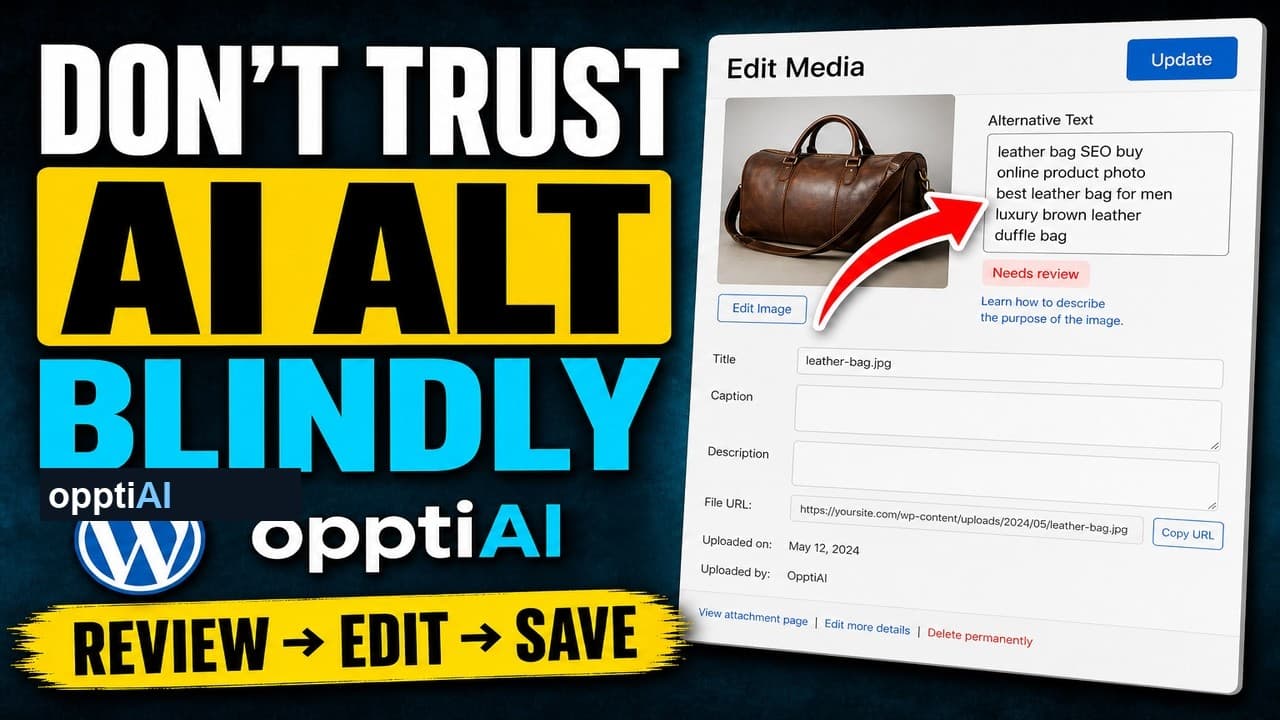
The Four-Point Checklist for Reviewing AI Alt Text
AI alt text fails in a small number of predictable ways. Run this four-point checklist before saving to catch weak, wrong, and keyword-stuffed suggestions.
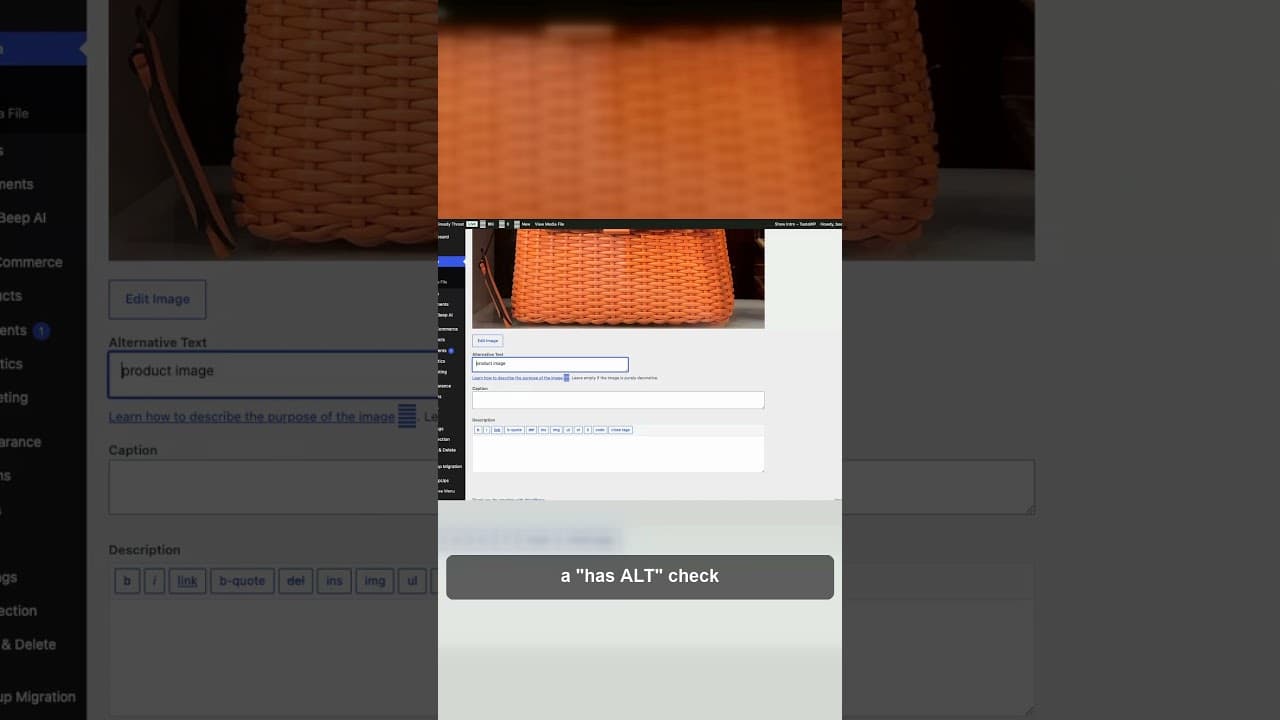
Why Keyword-Stuffed Alt Text Still Fails
A filled alt attribute isn't finished alt text. Keyword-stuffed alt text passes a 'has alt' check and still fails SEO and accessibility.