Auto-Generate Alt Text on WordPress Image Upload: How to Set It Up
Set up automatic alt text generation every time you upload an image to WordPress. No manual tagging, no forgotten images. Here's exactly how it works.
Meta: Set up automatic alt text generation every time you upload an image to WordPress. No manual tagging, no forgotten images. Here's exactly how it works.
Quick summary
- How to configure WordPress to automatically generate alt text every time you upload an image — so you never accumulate a backlog again
- Includes a step-by-step setup walkthrough and developer notes for customising the behaviour
- Most useful for solo site owners uploading regularly and developers setting up client sites
You fixed your alt text backlog. Every image in your media library has a proper description. Then you uploaded ten new images last week and none of them have alt text.
This is the alt text maintenance problem. Fixing the backlog is a one-time effort. Keeping up with new uploads is an ongoing one — and it's the part that consistently falls through the cracks. You upload an image, write the post, publish it, move on. Adding alt text to that image is a step you meant to do but didn't.
Auto-generation on upload solves this by removing the step entirely. When you upload an image — whether through the media library, the block editor, or a WooCommerce product page — alt text is generated automatically before you even start using the image. No manual intervention, no forgetting, no backlog creeping back.
How Auto-Generate on Upload Works
The concept is straightforward: a WordPress plugin hooks into the media upload process and triggers alt text generation the moment an image is added to the media library. The image is sent to an AI vision model, which analyses what the image shows and returns a descriptive text string. That string is written to the image's alt text field in WordPress.
What matters is the implementation details — because a poorly implemented version of this can slow down uploads, fail silently, or write alt text you can't review before it goes live.
What to look for in an auto-generation setup
Asynchronous processing. The alt text generation should happen in the background, not as a blocking step in the upload process. If the AI takes three seconds to respond and you're uploading ten images, you don't want to wait thirty seconds for the uploads to complete. Good implementations use WordPress's background processing (wp_cron or similar) so the upload completes immediately and the alt text appears shortly after.
Review before save — or at least edit after. Some implementations write the generated alt text directly to the database with no review step. That works fine for most images, but occasionally the AI produces something that needs editing — a product described too generically, a person's image described in a way you'd rephrase, or a chart where the description misses the key data point. The best setup generates the alt text and either queues it for review or writes it but makes editing easy.
Graceful failure. If the AI service is temporarily unavailable during an upload, the upload should still complete normally. The image just won't have auto-generated alt text — you can generate it later. A plugin that blocks uploads when its backend is down is a plugin you'll deactivate within a week.
Credit awareness. If the service uses a credit-based model, the auto-generation should respect your credit balance. Burning through your monthly credits on background auto-generation when you'd rather allocate them to a bulk batch is frustrating. Good implementations let you control whether auto-generation is on or off independently from bulk generation.
Setting It Up: Step-by-Step Walkthrough
Here's what the setup process looks like for a typical WordPress site. The specifics vary by plugin, but the workflow is similar across most auto-generation tools.
Step 1: Install and activate the plugin. From your WordPress dashboard, go to Plugins → Add New, search for your alt text plugin, install it, and activate. For OpptiAI Alt Text, this takes about 30 seconds — there's no API key to configure or external account to create.
Step 2: Open the plugin settings. Navigate to the plugin's settings page. Look for an option labelled something like "Auto-generate on upload," "Generate on media upload," or "Automatic alt text." This is typically a simple toggle.
Step 3: Enable auto-generation. Turn on the auto-generation toggle. Some plugins let you configure additional options here:
- Which image types to process — you might want to skip screenshots or icons that don't need descriptive alt text
- Language — if your site is in a language other than English, confirm the plugin supports it
- Post type restrictions — useful if you want auto-generation for blog posts but prefer to write alt text manually for product images (or vice versa)
Step 4: Upload a test image. Go to Media → Add New and upload an image. Wait a few seconds, then open the image in the media library. You should see alt text populated in the "Alternative Text" field. If the plugin uses background processing, you might need to refresh the page after 10–15 seconds.
Step 5: Review the output. Check that the generated alt text is accurate and useful. Upload a few different image types — a photo, an infographic, a product shot — to see how the AI handles variety. This is your quality calibration step.
Step 6: Decide on your review workflow. Based on what you see, decide whether you're comfortable with "generate and save automatically" or whether you'd prefer "generate and queue for review." For most blogs and content sites, automatic saving is fine — the AI gets it right the vast majority of the time, and you can always edit individual images later. For e-commerce catalogs or sites with compliance requirements, a review queue gives you more control.
Developer Notes: Hooks and Customisation
If you're a developer setting up auto-generation on client sites, here are the technical details worth knowing.
The upload hook. Most alt text plugins hook into add_attachment or wp_generate_attachment_metadata to trigger generation. The timing matters — add_attachment fires immediately when the attachment record is created, while wp_generate_attachment_metadata fires after WordPress has processed thumbnails and image sizes. Plugins that use the latter have access to the full image metadata, which can improve alt text quality.
Overriding auto-generation for specific post types. If your client has a custom post type where alt text should be manually written (e.g., a portfolio or case study), check whether the plugin provides a filter to disable auto-generation per post type. This prevents the AI from overwriting carefully crafted descriptions.
Existing alt text protection. A well-built plugin should never overwrite existing alt text during auto-generation. If an image already has alt text when it's uploaded (some workflows pre-populate this), the auto-generation should skip it. Verify this behaviour before deploying to a production site.
Debug logging. When something doesn't work as expected, check the plugin's debug log. Most modern alt text plugins log generation attempts, failures, and API response times. For OpptiAI Alt Text, the log is filterable by Error and Warning levels — useful for diagnosing issues on client sites without wading through informational entries.
WooCommerce-specific behaviour. Auto-generation on upload interacts differently with WooCommerce product images. Featured images uploaded through the product editor should trigger auto-generation. Gallery images added through the product gallery widget may or may not trigger the same hook, depending on the plugin. Test both paths on a staging site before going live with a client's store.
What About the Backlog?
Auto-generation on upload only handles new images going forward. If your media library already has hundreds of images without alt text, you'll need a separate bulk generation pass to cover the backlog.
The practical workflow is:
- First: Run bulk generation on your existing media library to clear the backlog
- Then: Enable auto-generation on upload so new images are covered automatically
- Ongoing: Periodically check the media library for any images that slipped through — imported images, images added via plugins, or images where auto-generation failed
This two-step approach means you fix the problem once and then prevent it from recurring. The bulk pass handles the past; auto-generation handles the future.
Frequently Asked Questions
Does auto-generating alt text on upload slow down image uploads?
It shouldn't, if the plugin is built correctly. Well-implemented auto-generation uses asynchronous background processing — the upload completes immediately, and the alt text is generated in a separate process a few seconds later. If you notice uploads taking significantly longer after enabling auto-generation, the plugin may be using synchronous processing, which means it's waiting for the AI response before completing the upload. Check the plugin's documentation or test with a few uploads to confirm. OpptiAI Alt Text uses background processing, so uploads complete at their normal speed.
Can I review auto-generated alt text before it saves?
This depends on the plugin. Some write alt text directly to the media library field with no intermediate step — you can edit it afterward but it's already saved. Others offer a review queue where generated alt text waits for your approval before being written to the database. For most sites, automatic saving with optional editing afterward is sufficient — the AI output is accurate for the large majority of images. For sites with strict compliance requirements (WCAG audits, regulated industries), a review queue provides an extra layer of control.
What happens if the alt text generation fails during upload?
The image uploads normally. You get the image in your media library — it just doesn't have auto-generated alt text. You can generate it later through a bulk action or manually. A good plugin should log the failure so you can diagnose whether it was a temporary network issue, an API timeout, or a credit limit. The worst-case scenario is an image without alt text, which is exactly the same state it would be in without the plugin installed — no data is lost and no uploads are blocked.
Make New Uploads Take Care of Themselves
Auto-generation on upload is the difference between "I fixed my alt text once" and "my alt text stays fixed." It's a small configuration change that eliminates an ongoing maintenance task — and ensures that every image you publish has a description from the moment it enters your media library.
OpptiAI Alt Text includes auto-generation on upload with no API keys or external accounts to configure. Install it, toggle the setting, and every image you upload from that point forward gets alt text automatically — with a review option before anything saves to your database.
Install OpptiAI Alt Text free on WordPress.org →
Disclosure: OpptiAI Alt Text is built by Ben Oats, the author of this post.
Related Posts
Block Editor Alt Text vs Media Library: Why They Differ
WordPress stores alt text in more than one place. Here's why block editor and media library alt text can disagree, and where the real value lives.
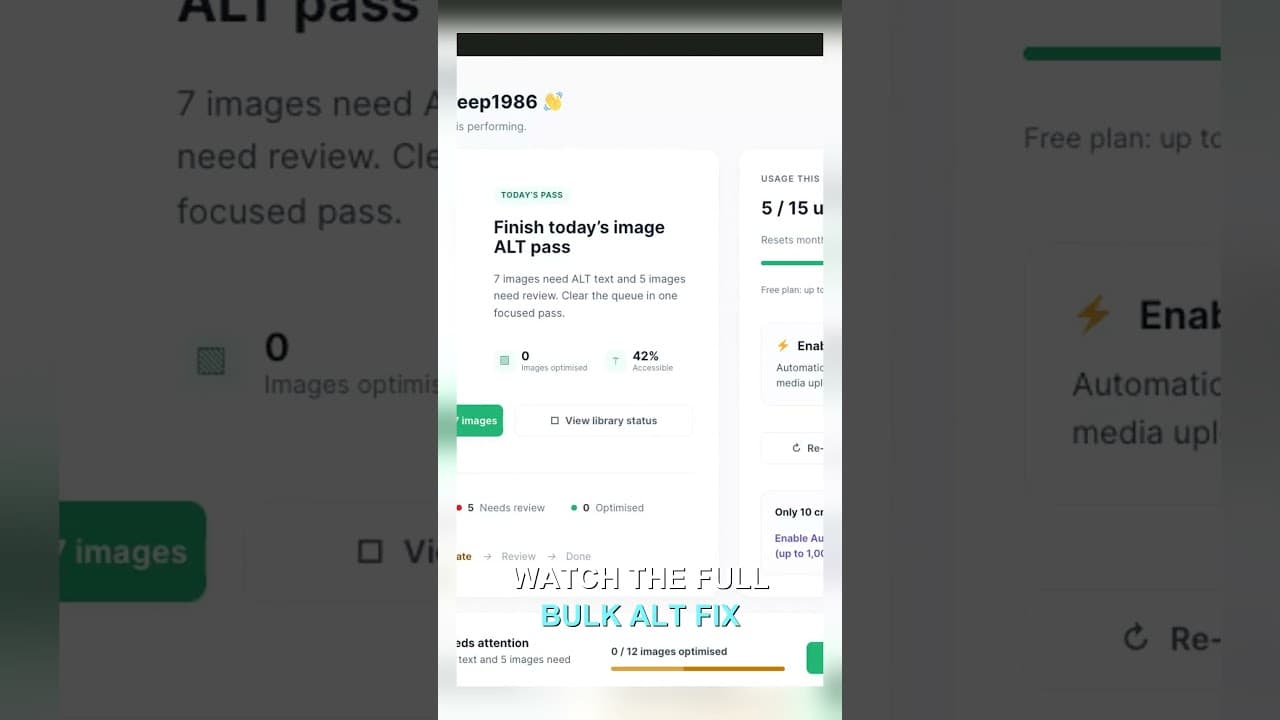
Filter Your Media Library to Missing Alt Text First
Scrolling the whole media library to find missing alt text wastes most of your session. Filter to what's actually missing, then work that list.
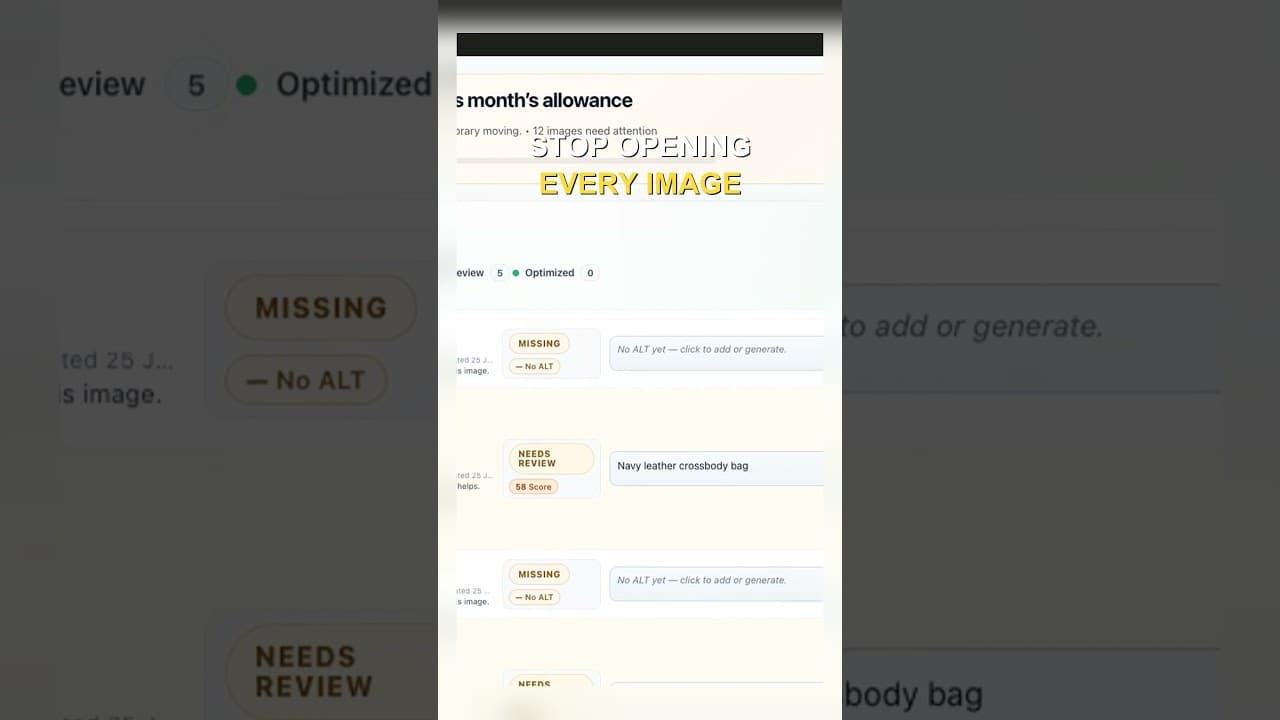
Edit Alt Text Without Opening Every Image
Opening the attachment modal for every image before you can edit alt text is the slowest part of the job. Here's how to edit from the list instead.